

Edit approval workflow
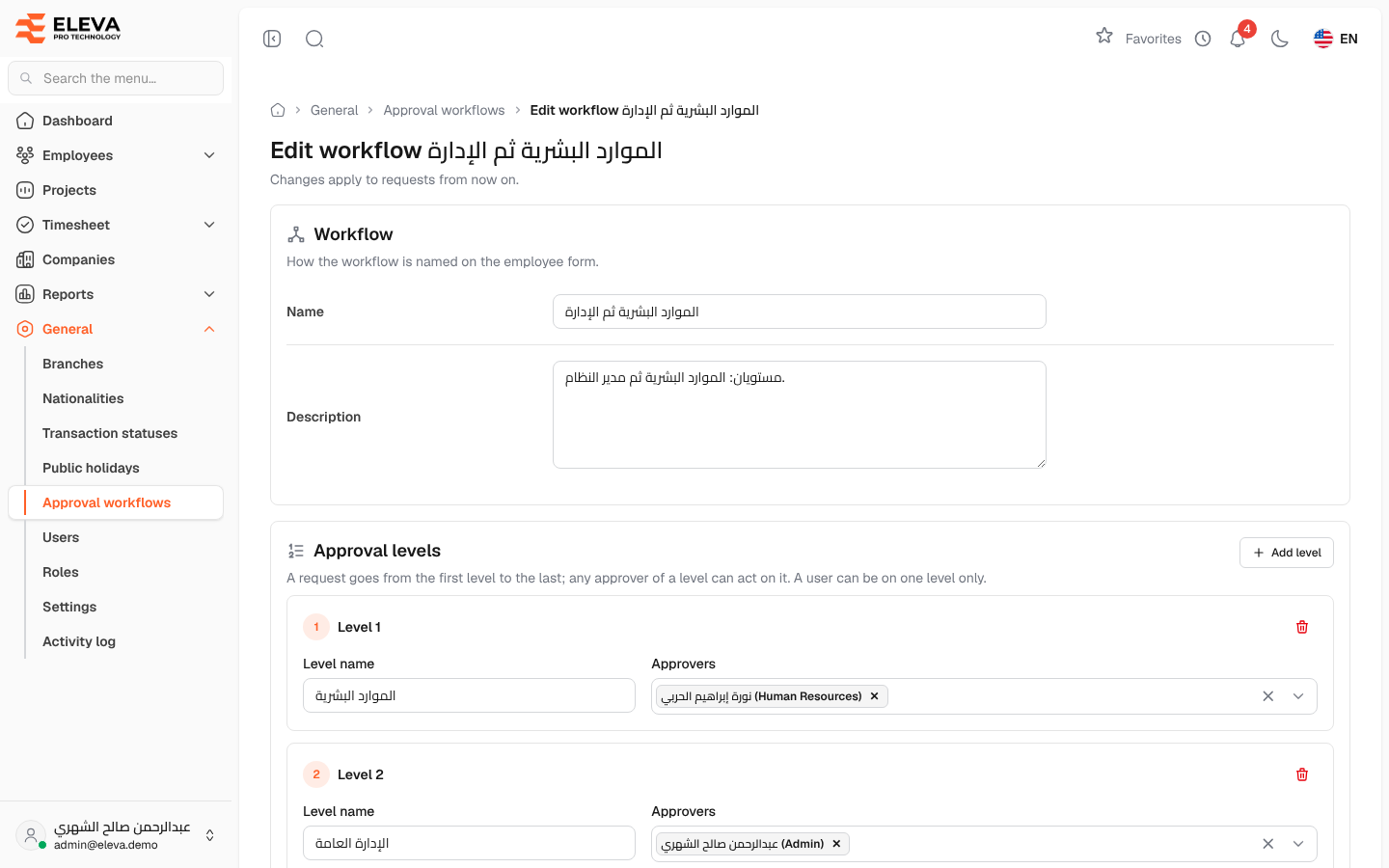
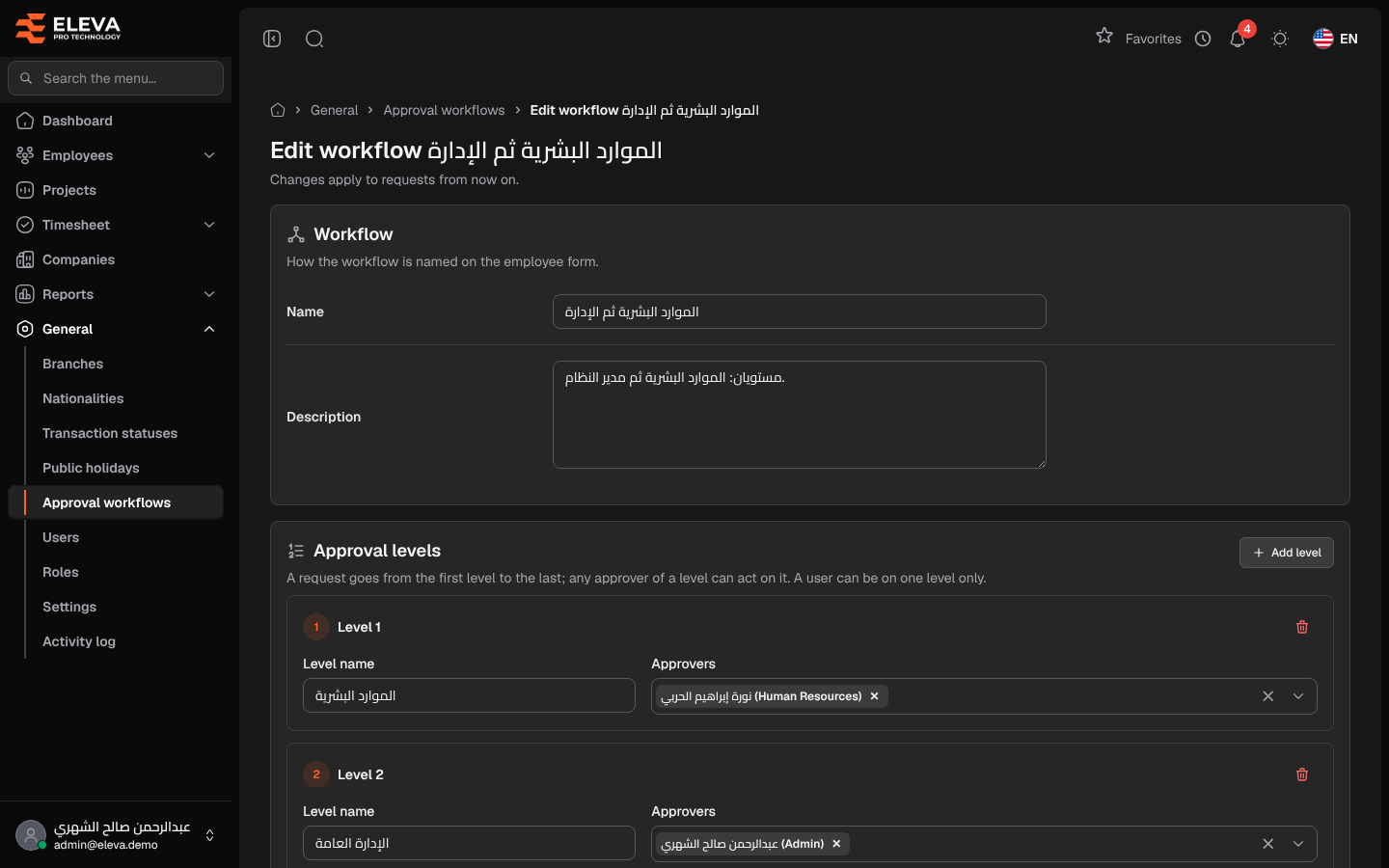
The workflow form sets the workflow’s name and its approval levels. A leave request goes from the first level to the last; at each level, any one of its approvers can approve or reject it.
From the side menu, open General › Approval workflows, then click a workflow. To create one, click New workflow; the form is the same.
Fields
Section titled “Fields”- Name — required. This is how the workflow is named on the employee form.
- Description — optional.
- For each level (Level 1, Level 2…):
- Level name — required, for example Direct manager or HR.
- Approvers — one or more users (required). Each user is shown with their account type.
How to change the levels
Section titled “How to change the levels”- Click Add level to add a level at the end.
- Fill in the Level name and choose the Approvers.
- To remove a level, click its trash icon. A workflow must keep at least one level.
- Click Save changes (Save workflow for a new one). To leave without saving, click Cancel.
- A user can be on one level only. Users already chosen on another level are greyed out in the list.
- Levels are approved in order: a request reaches level 2 only after level 1 approves it.
- Approvers can be administrators, supervisors, Finance and Human Resources users, and anyone whose role allows approving leave.
- A level that has approval history, or that a pending request is waiting at, cannot be removed; a message above the levels explains why.
Required permission
Section titled “Required permission”Approval workflows › Edit (or Approval workflows › Create to add a workflow).