

Application details
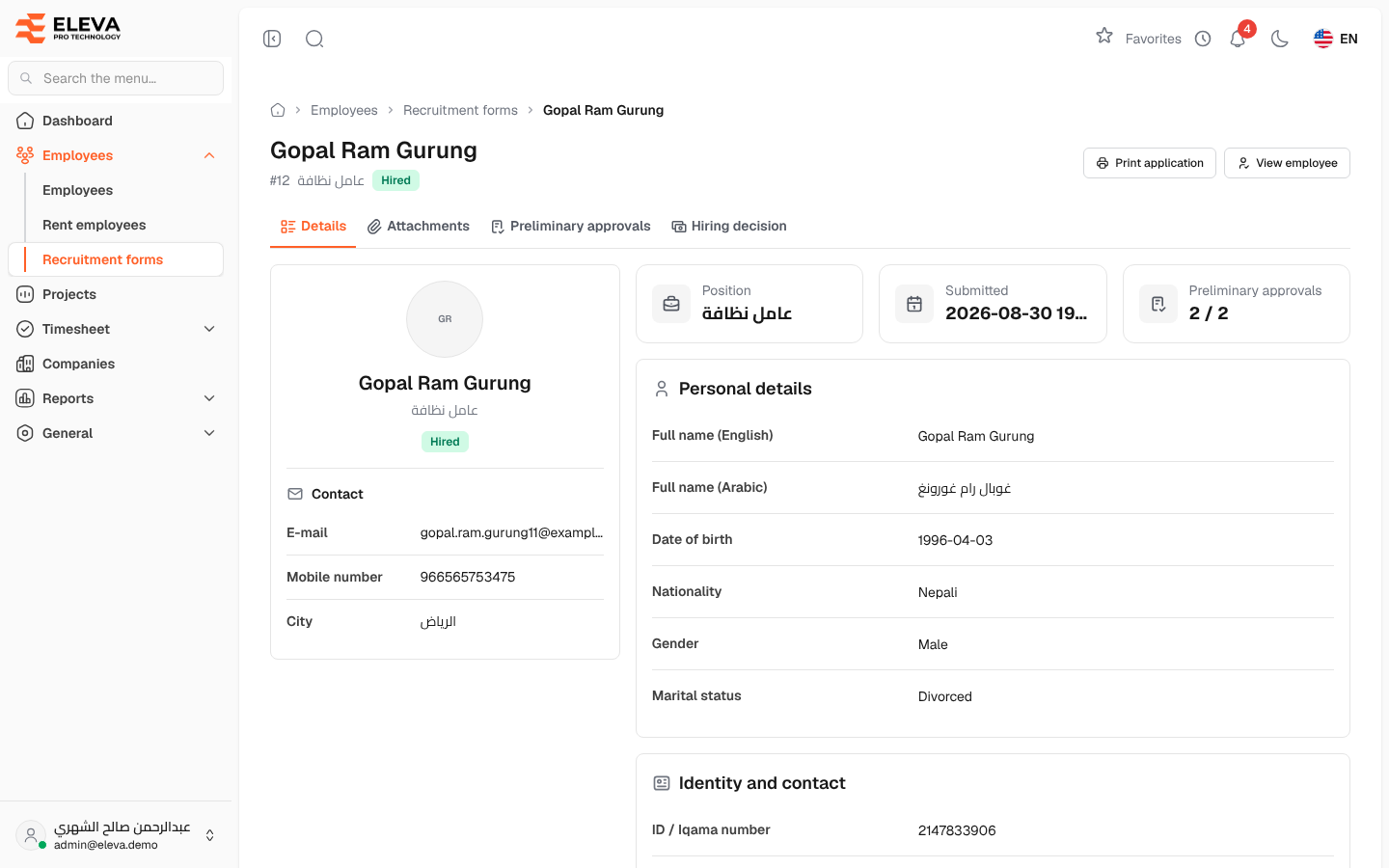
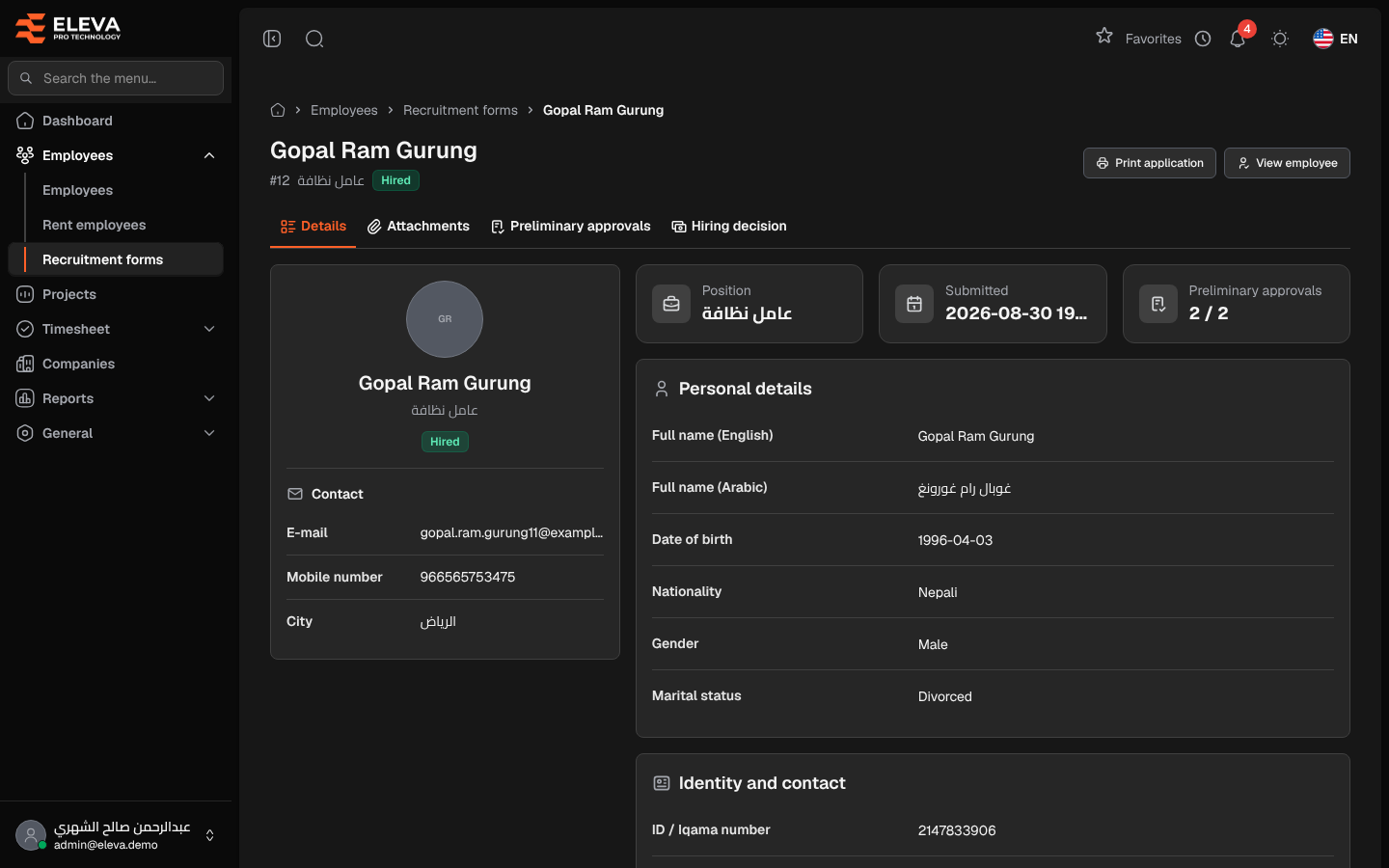
The application page shows everything a candidate sent, and is where the application moves on: approvals, the hiring decision and, at the end, the conversion to an employee. The Details tab opens first.
From the side menu, open Employees › Recruitment forms and click an application.
What’s on this screen
Section titled “What’s on this screen”- Header — the candidate’s name, the application number, the position and the status.
- Tabs — Details, Attachments, Preliminary approvals and, once the preliminary approvals are completed, Hiring decision.
- Print application — opens a printable copy.
- Edit details — corrects the candidate’s data while the application is Pending.
- Reject application — rejects an open application.
- Convert to employee — opens the new employee form filled with the candidate’s details. It stays disabled until the hiring decision is approved.
- View employee — opens the employee record once the candidate has been hired.
The Details tab
Section titled “The Details tab”- A summary card with the candidate’s E-mail, Mobile number and City.
- Position, Submitted and Preliminary approvals (for example 2 / 4, or Not started).
- Personal details — names in English and Arabic, date of birth, nationality, gender and marital status.
- Identity and contact — ID / Iqama number, ID expiry date and passport number.
- Driving license — shown only when the candidate has one.
- Address and language, Academic qualifications and Emergency contacts.
The Attachments tab lists the files the candidate uploaded; click Open to view one. A file marked Not available is missing on the server; ask the candidate to send it again.
How to reject an application
Section titled “How to reject an application”- Click Reject application.
- Confirm in the Reject the application window.
Required permission
Section titled “Required permission”Recruitment forms › View. Edit details and Reject application need Recruitment forms › Edit, printing needs Recruitment forms › Print, and Convert to employee needs Employees › Create.