

Public links
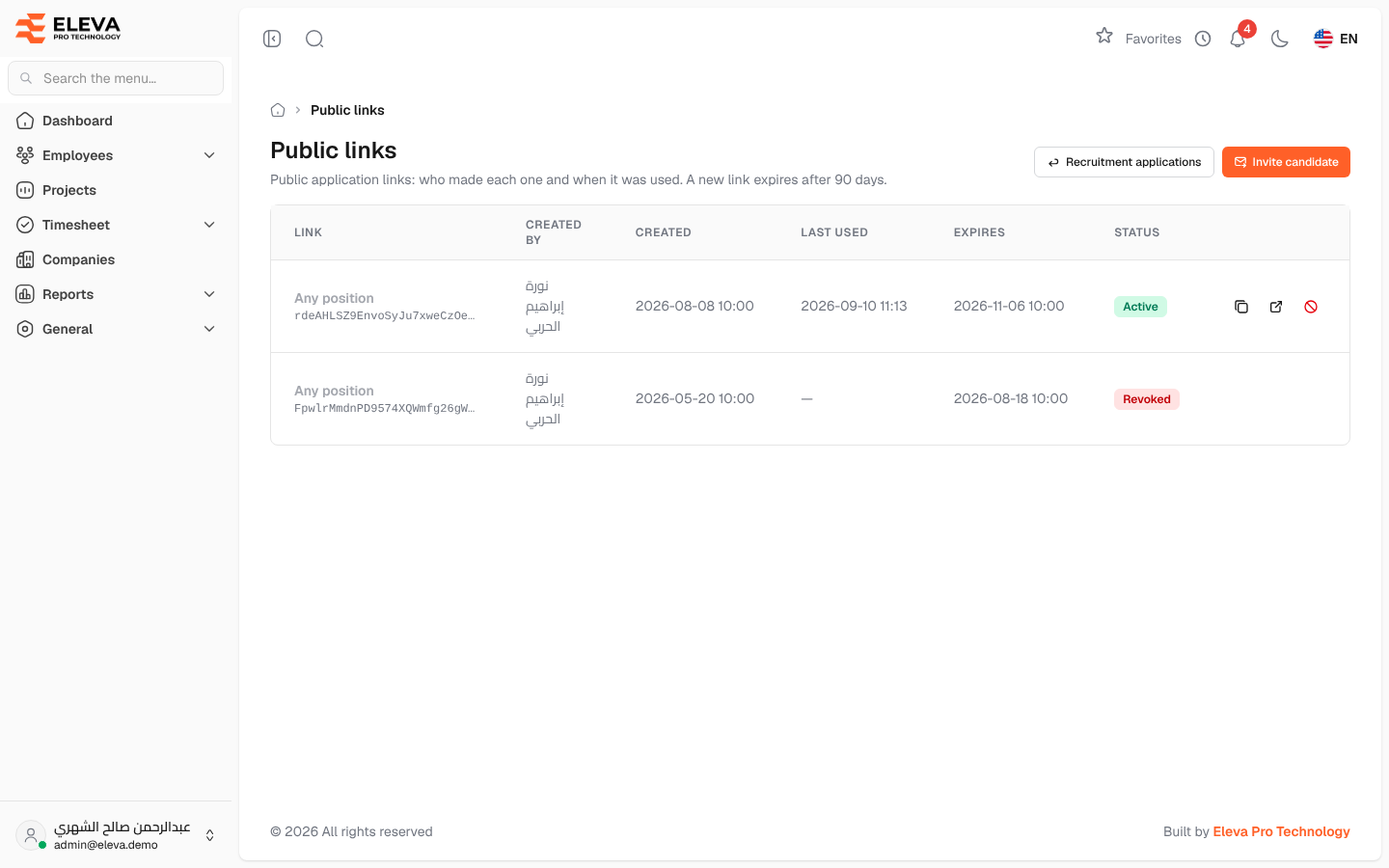
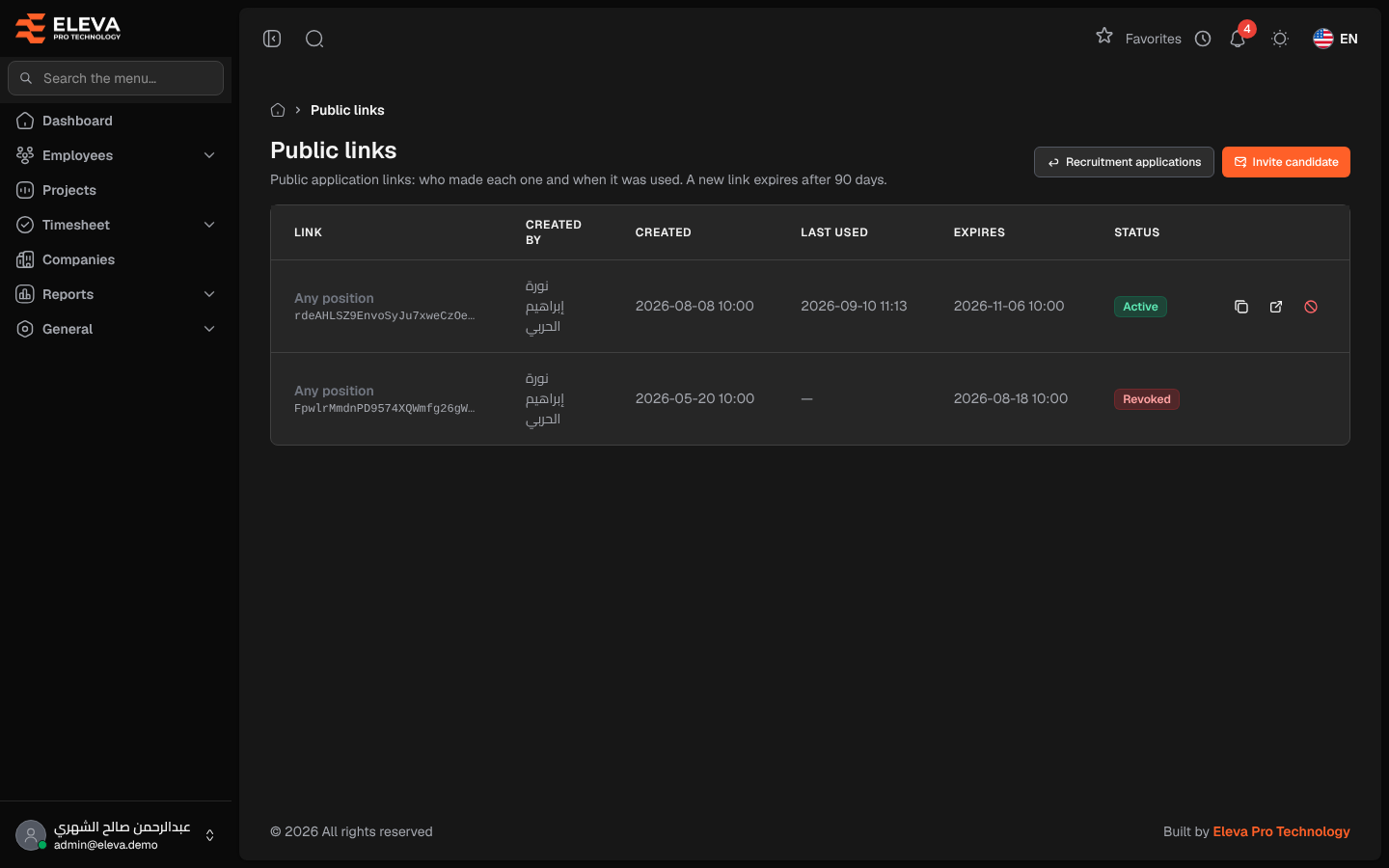
This screen lists the public application links: who created each one, when, until when it is valid, and its status. Use it to copy a link again or to stop a link that should no longer be used. Private invitations sent to one e-mail address are not listed here.
From the side menu, open Employees › Recruitment forms, then click Public links.
What’s on this screen
Section titled “What’s on this screen”- Recruitment applications — goes back to the applications list.
- Invite candidate — creates a new public link or sends a private invitation.
- A table of the links, newest first.
Columns
Section titled “Columns”- Link — the position the link is for (or Any position) and the link’s code.
- Created by and Created.
- Last used — when a candidate last sent an application through the link. The link stays active after it is used.
- Expires — the expiry date, or Never.
- Status — Active, Expired or Revoked.
- Actions — for an active link: Copy link, Open link and Revoke link.
How to share a link again
Section titled “How to share a link again”- Find an Active link.
- Click the copy icon. A message confirms that the link was copied.
How to revoke a link
Section titled “How to revoke a link”- Click Revoke link (the stop icon) on the row.
- Confirm in the Revoke the public link window.
Required permission
Section titled “Required permission”Recruitment forms › Invite or Recruitment forms › View to open the screen. Creating and revoking links need Recruitment forms › Invite.