

Public holidays
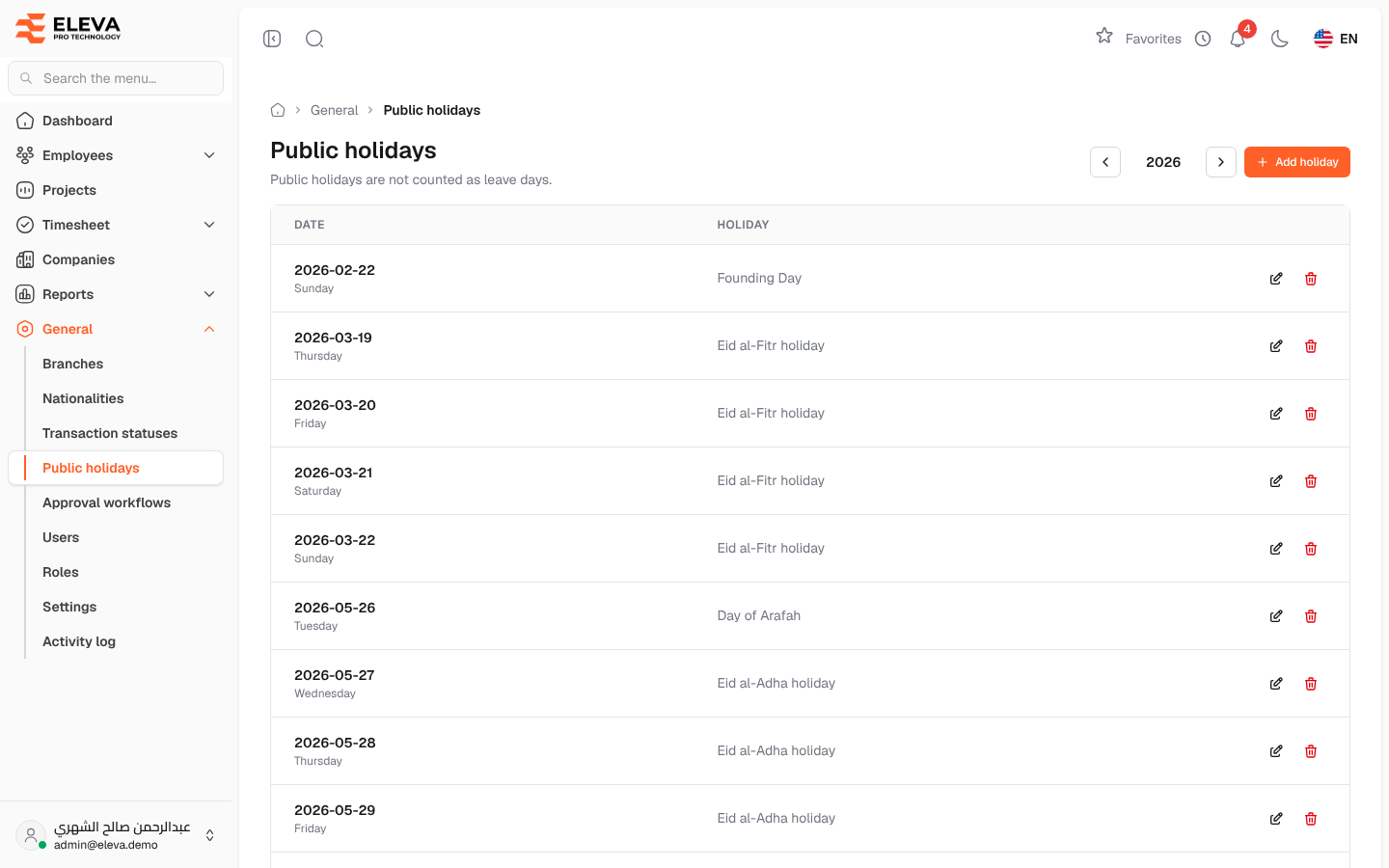
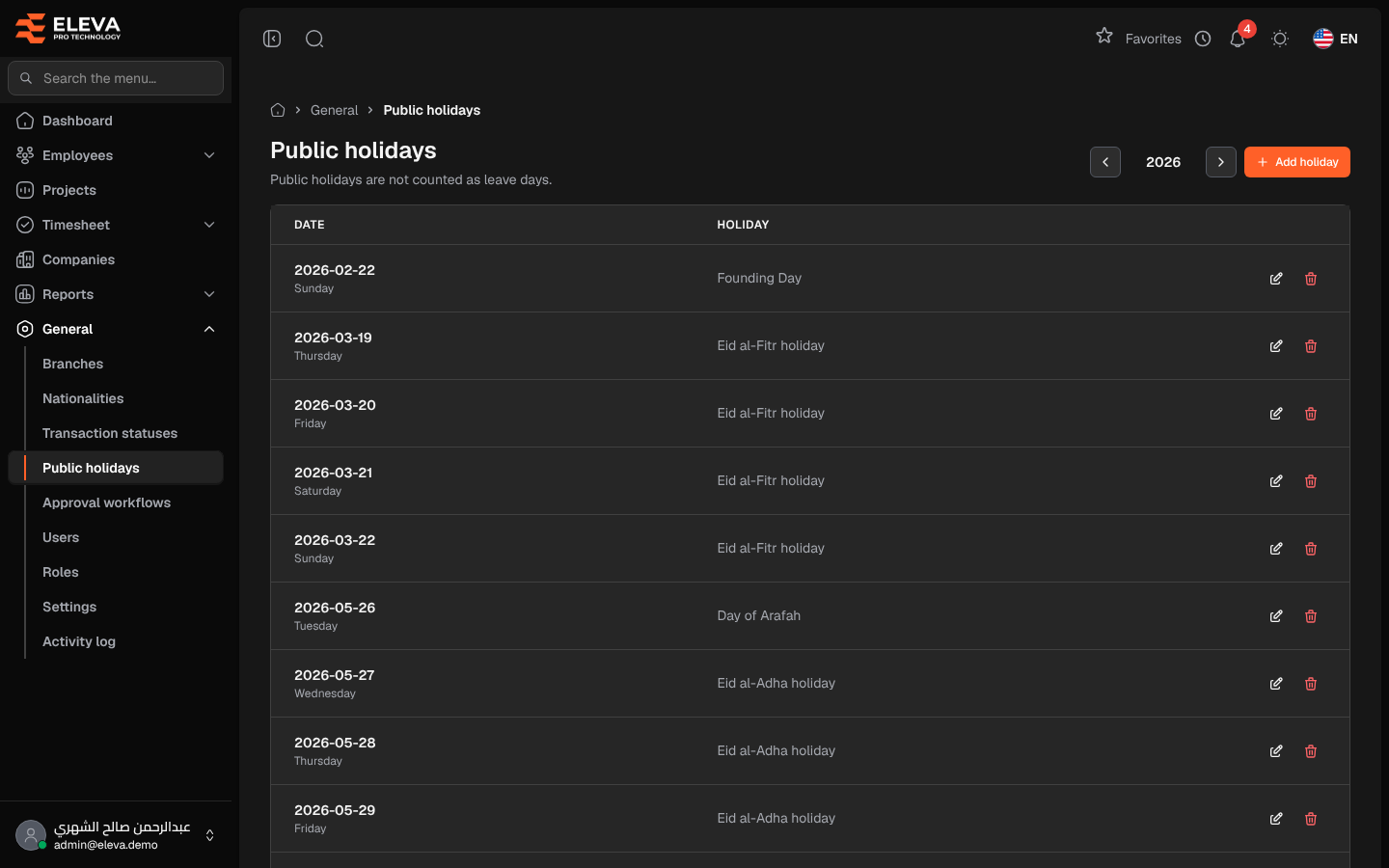
Public holidays are official days off, such as national and religious holidays. When a leave request covers a public holiday, that day is not counted as a leave day. The list shows one year at a time.
From the side menu, open General › Public holidays.
What’s on this screen
Section titled “What’s on this screen”- Year — the arrows next to the year move to the previous or next year.
- Add holiday — add a public holiday.
- A table of the year’s holidays; click a row to edit it.
Columns
Section titled “Columns”- Date — the holiday’s date and the day of the week.
- Holiday — the holiday’s name in the interface language.
- Actions — Edit (pencil icon) and Delete (trash icon).
Fields
Section titled “Fields”- Date — required. Only one holiday can be entered per date.
- Arabic name — required.
- English name (optional) — when empty, the Arabic name is also shown in English.
How to add a public holiday
Section titled “How to add a public holiday”- Click Add holiday.
- Pick the Date and enter the Arabic name, and the English name if you want.
- Click Save holiday. If the date is in another year, the list moves to that year.
For a holiday of several days, add one entry for each day.
How to edit or delete a holiday
Section titled “How to edit or delete a holiday”- Click the holiday’s row, or the pencil icon, change the details and click Save changes.
- To delete, click the trash icon and confirm in the Delete public holiday window.
Required permission
Section titled “Required permission”Public Holidays › View. Adding, editing and deleting need Public Holidays › Create, Public Holidays › Edit and Public Holidays › Delete.