

My profile
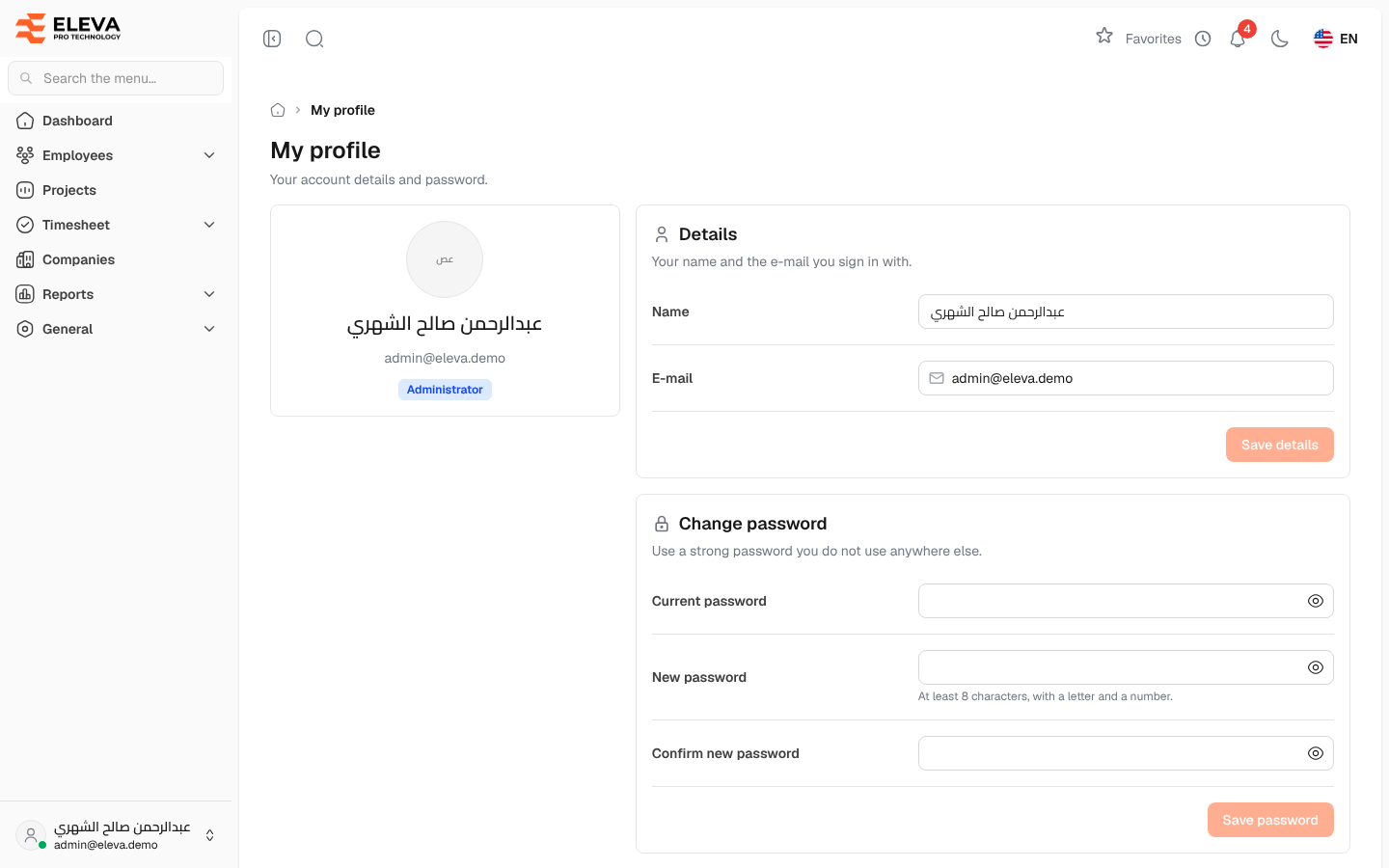
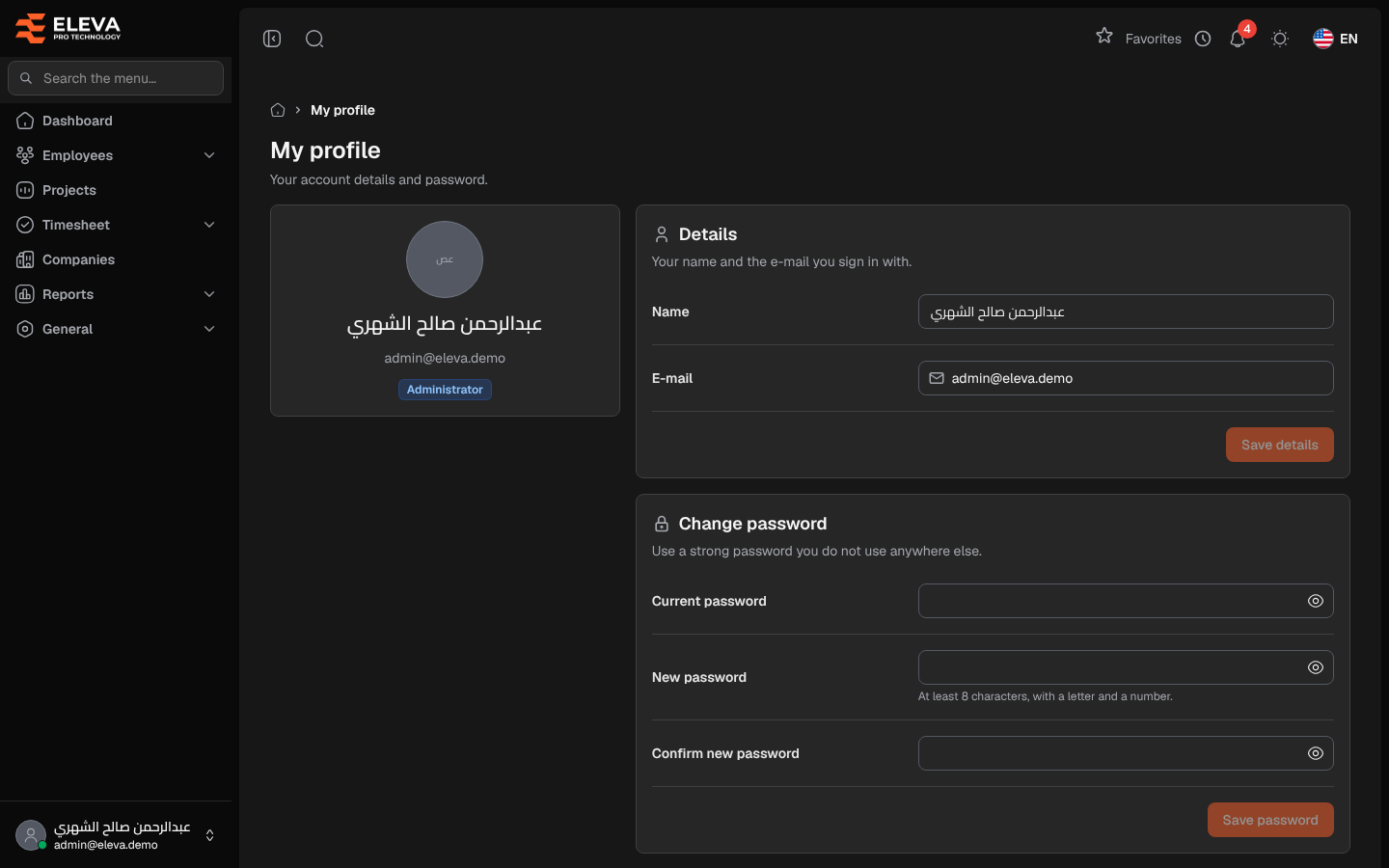
My profile is where staff members manage their own account: the name shown in the system, the e-mail they sign in with, and their password. To open it, click your name at the bottom of the side menu and choose My profile.
What’s on this screen
Section titled “What’s on this screen”- A card with your initials, name, e-mail and role.
- Details: your Name and E-mail, with the Save details button.
- Change password: Current password, New password and Confirm new password, with the Save password button.
How to change your name or e-mail
Section titled “How to change your name or e-mail”- In Details, edit Name and/or E-mail.
- Click Save details. The button becomes available once you change something.
Both fields are required, and the e-mail must not already be used by another account (including archived ones).
If the fields are greyed out, your role allows you to view your details but not change them. Ask the system administrator.
How to change your password
Section titled “How to change your password”- In Change password, type your Current password.
- Type the New password and repeat it in Confirm new password. The line under New password shows what a password needs (set by an administrator in Settings › Security). If they do not match, the page shows The passwords do not match.
- Click Save password.
By default a password needs at least 8 characters with letters and numbers; the administrator sets these rules in Settings › Security. If the current password is wrong, the change is refused and the new password fields are cleared.
Required permissions
Section titled “Required permissions”- Profile Management › View to open the page and change your password.
- Profile Management › Edit to change your name and e-mail.