

Add rent employee
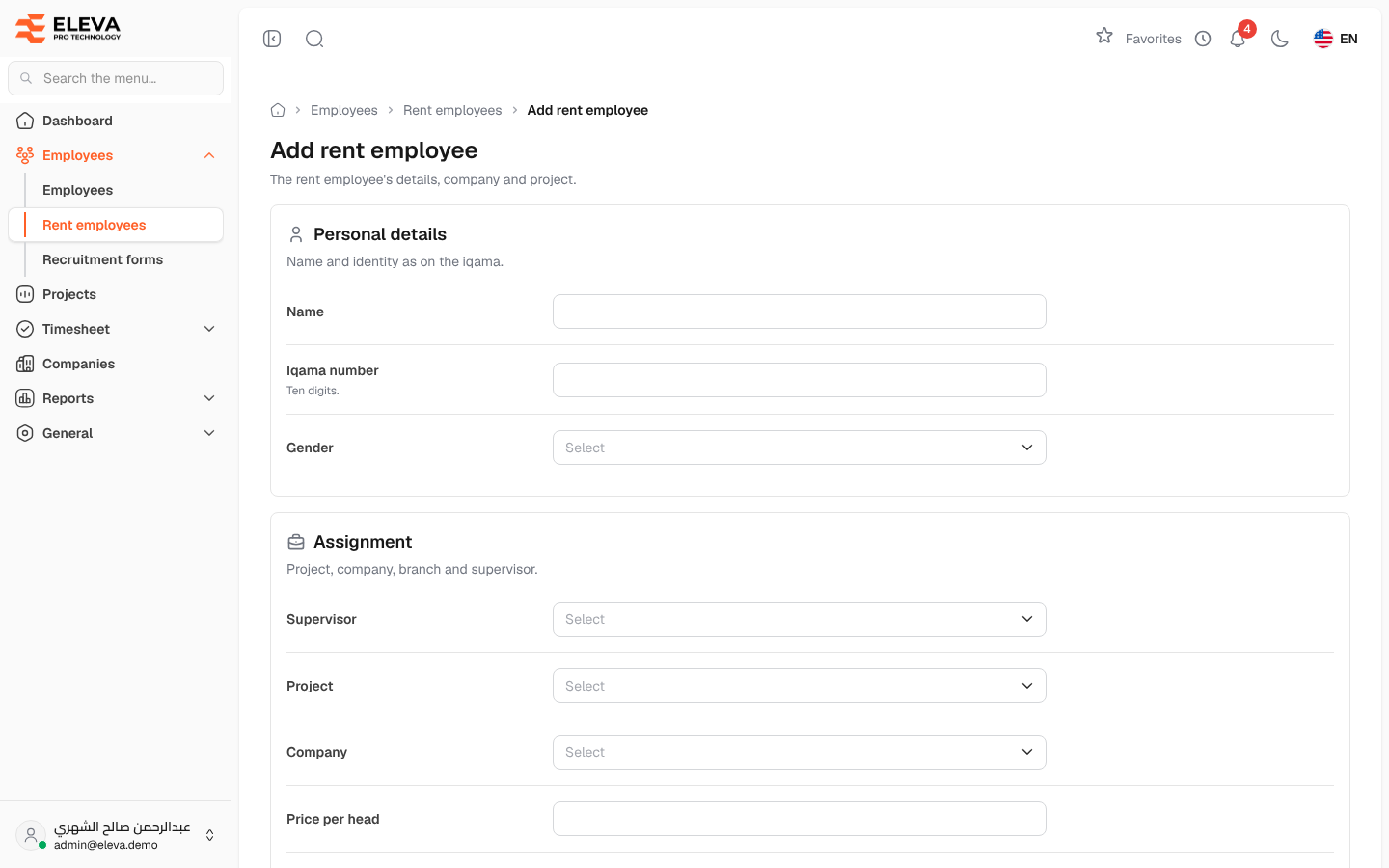
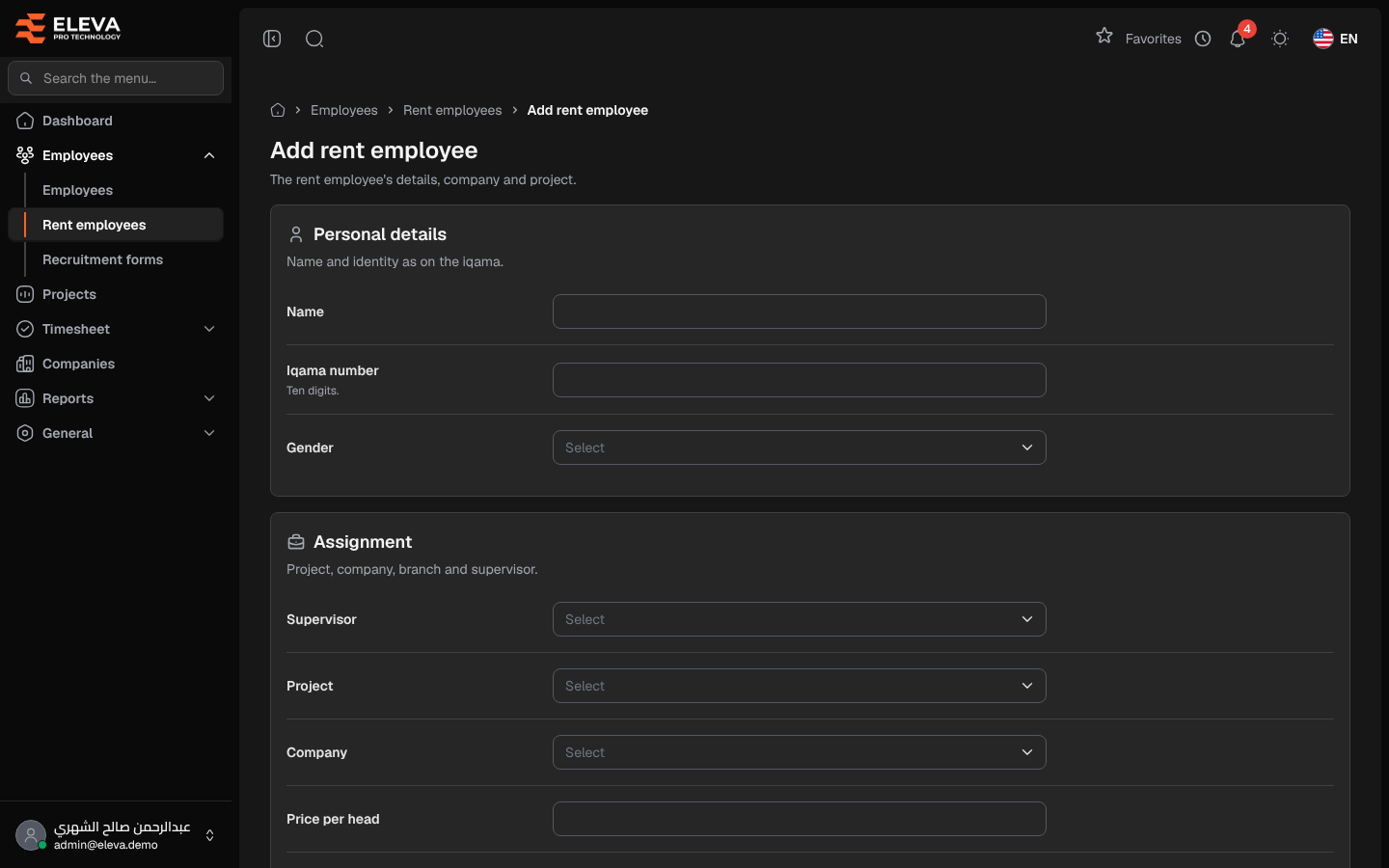
Add a rent employee when a rental company supplies a worker for one of your projects. The form records the employee’s details, their rental company and the price per head used for billing; the system then starts their project, supervisor and activation history.
From the side menu, open Employees › Rent employees and click Add rent employee.
Fields
Section titled “Fields”Personal details
- Name (required).
- Iqama number (required): exactly ten digits, not used by any other employee.
- Gender (required): Male or Female.
Assignment
- Supervisor (required): the supervisor responsible for the employee. The field is hidden for supervisors: they become the supervisor automatically.
- Project (required). Supervisors can choose only the projects they supervise.
- Company (required): the rental company that supplies the employee. The company itself cannot be chosen here.
- Price per head (required): the amount billed for this employee. When you choose the company and the gender, it is filled in from the company’s price for that gender; you can change it.
- Branch (required).
Status and dates
- Status: Active (default) or Inactive.
- Join date: leave it empty for today. It cannot be in the future.
How to add a rent employee
Section titled “How to add a rent employee”- From the side menu, open Employees › Rent employees.
- Click Add rent employee.
- Fill in the fields.
- Click Save rent employee, or Cancel to leave without saving.
- The list opens with a confirmation. If a field needs attention, the message appears under it.
Editing a rent employee
Section titled “Editing a rent employee”Click Edit on the record or in the list. The form is the same, with Project change date and Company change date when you change the project or the company: the new history row starts on that date (today by default). Click Save changes.
Required permission
Section titled “Required permission”Rent employees › Create to add; Rent employees › Edit to edit.