

Vehicle page
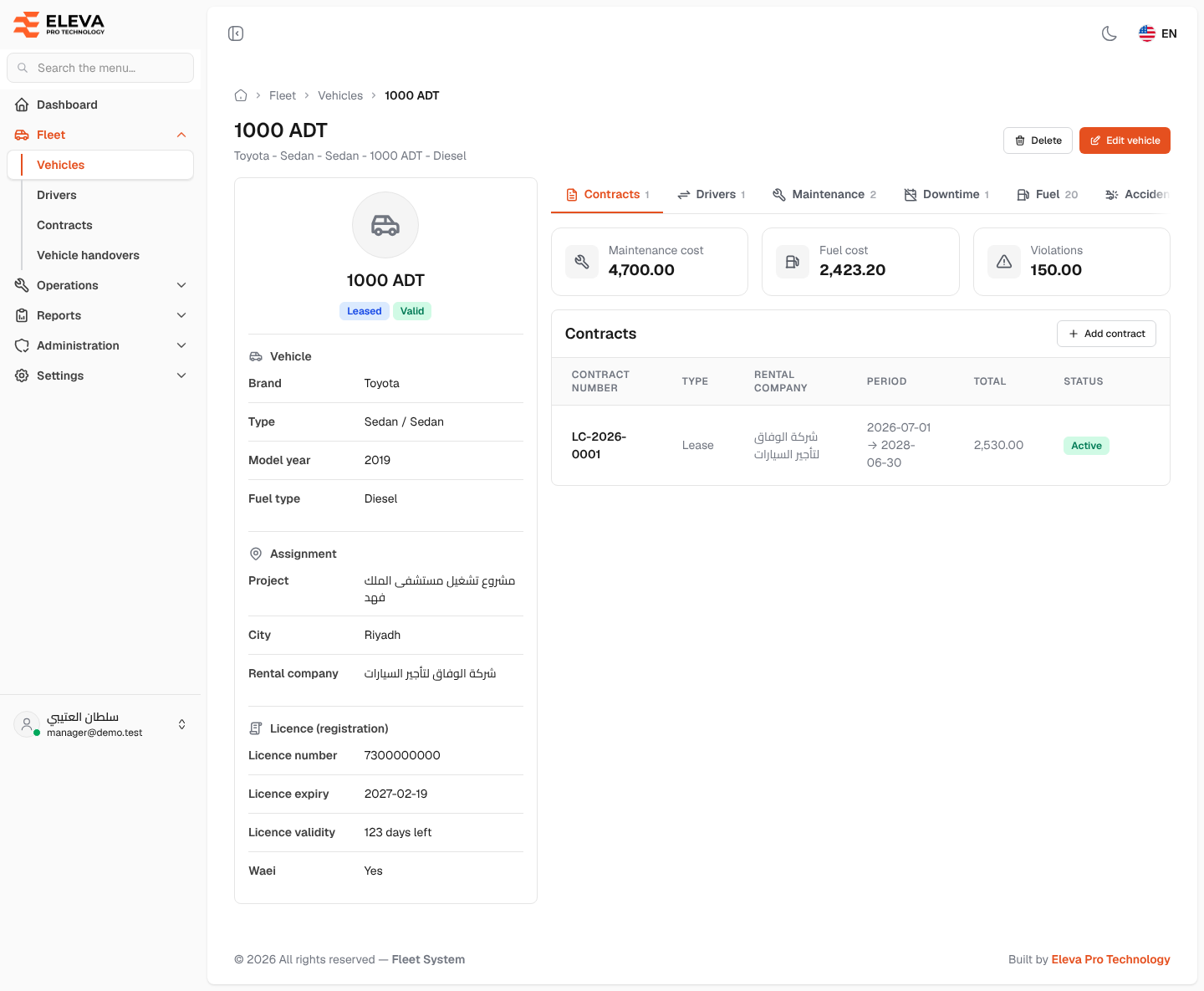
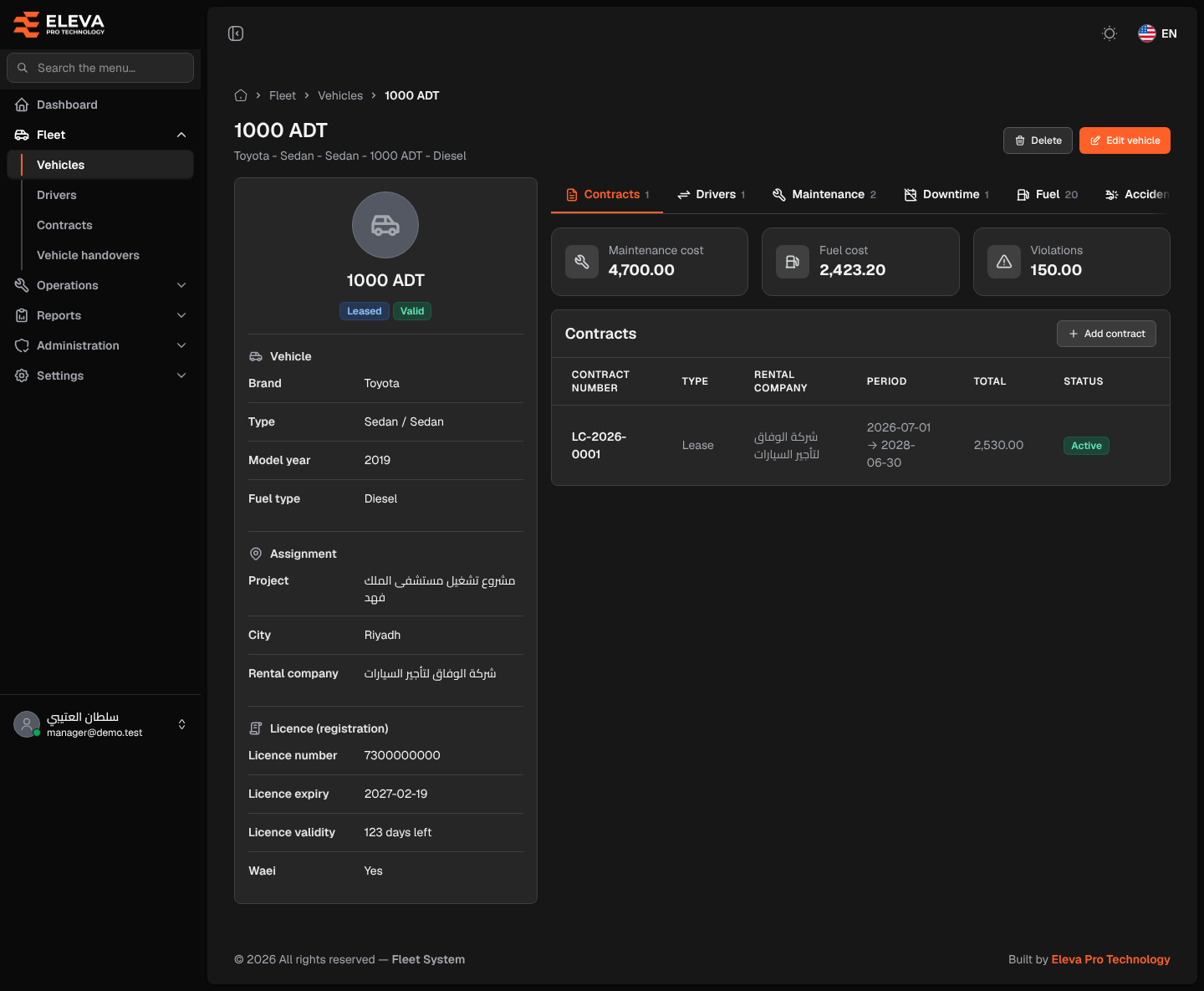
A vehicle’s page brings its details and its whole history together: its contracts, the drivers who held it, and its maintenance, downtime, fuel, accidents and violations. Open it by clicking the vehicle’s row in the Vehicles list.
What’s on this screen
Section titled “What’s on this screen”- Title — the plate, with the vehicle’s description below it.
- Delete and Edit vehicle buttons.
- Profile card: the plate with an ownership tag (Owned, Leased or Replacement) and a licence tag (Valid, Expiring soon or Expired), then three sections:
- Vehicle — Brand, Type (type / subtype), Model year and Fuel type.
- Assignment — Project, City, and Rental company for a vehicle that isn’t owned.
- Licence (registration) — Licence number, Licence expiry, Licence validity (days left, or how long ago it expired) and Waei.
- Tabs Contracts, Drivers, Maintenance, Downtime, Fuel, Accidents and Violations, each with its record count.
- Amount tiles: Maintenance cost, Fuel cost and Violations — the totals for this vehicle.
- The selected tab’s table, showing the latest 10 records (“Latest 10 of …” appears when there are more).
How to review the vehicle’s history
Section titled “How to review the vehicle’s history”- Click a tab, such as Maintenance or Fuel.
- Click any row to open that record on its own screen.
- On the Contracts tab, click the download icon to download a contract’s file, when there is one.
How to add a contract for the vehicle
Section titled “How to add a contract for the vehicle”- Open the Contracts tab.
- Click Add contract. The contract form opens with this vehicle already selected.
How to edit or delete the vehicle
Section titled “How to edit or delete the vehicle”- Click Edit vehicle to change its details. Editing never changes its contracts; those are managed on the Contracts screen.
- Click Delete, then confirm.