

Add accident
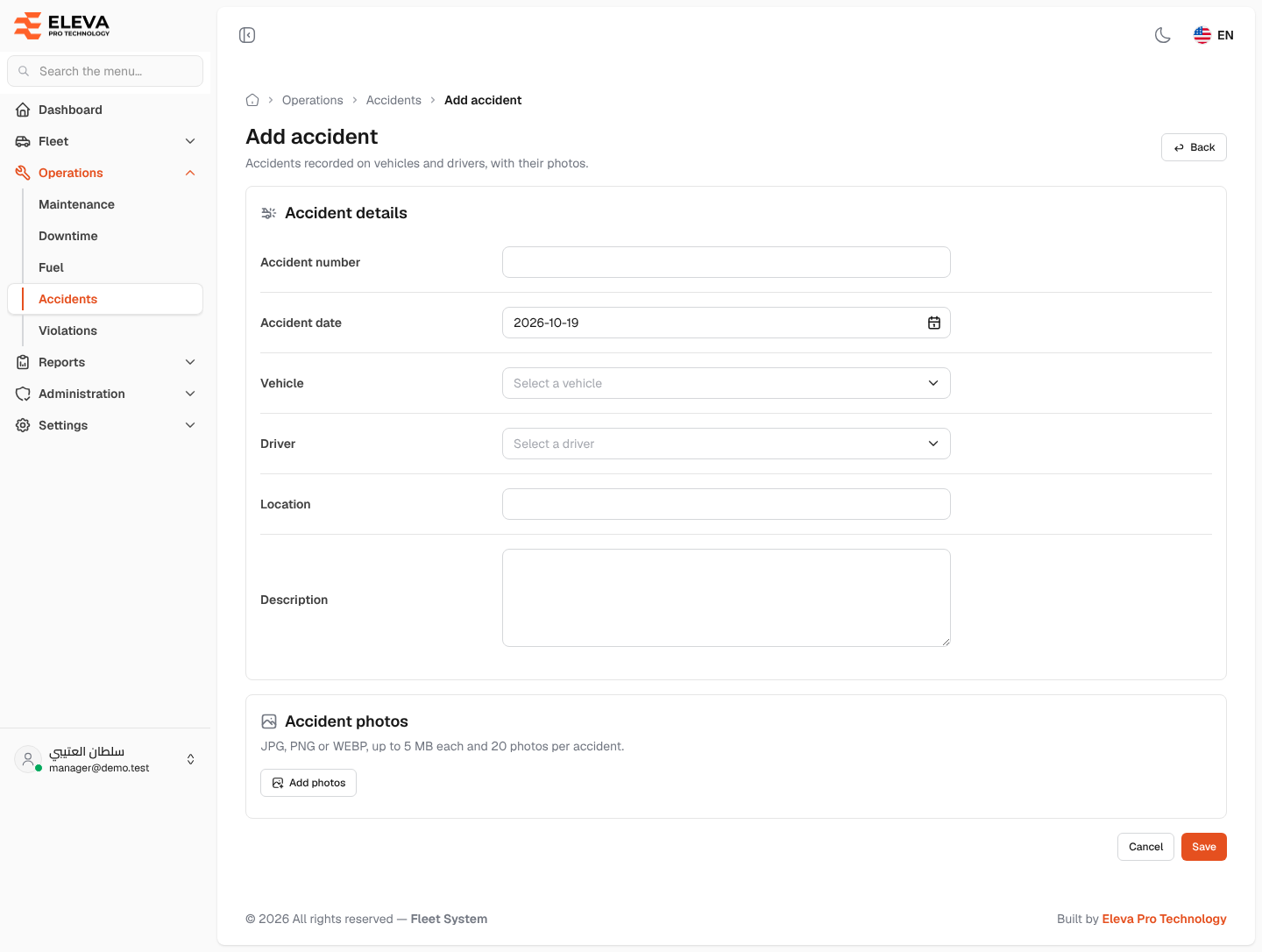
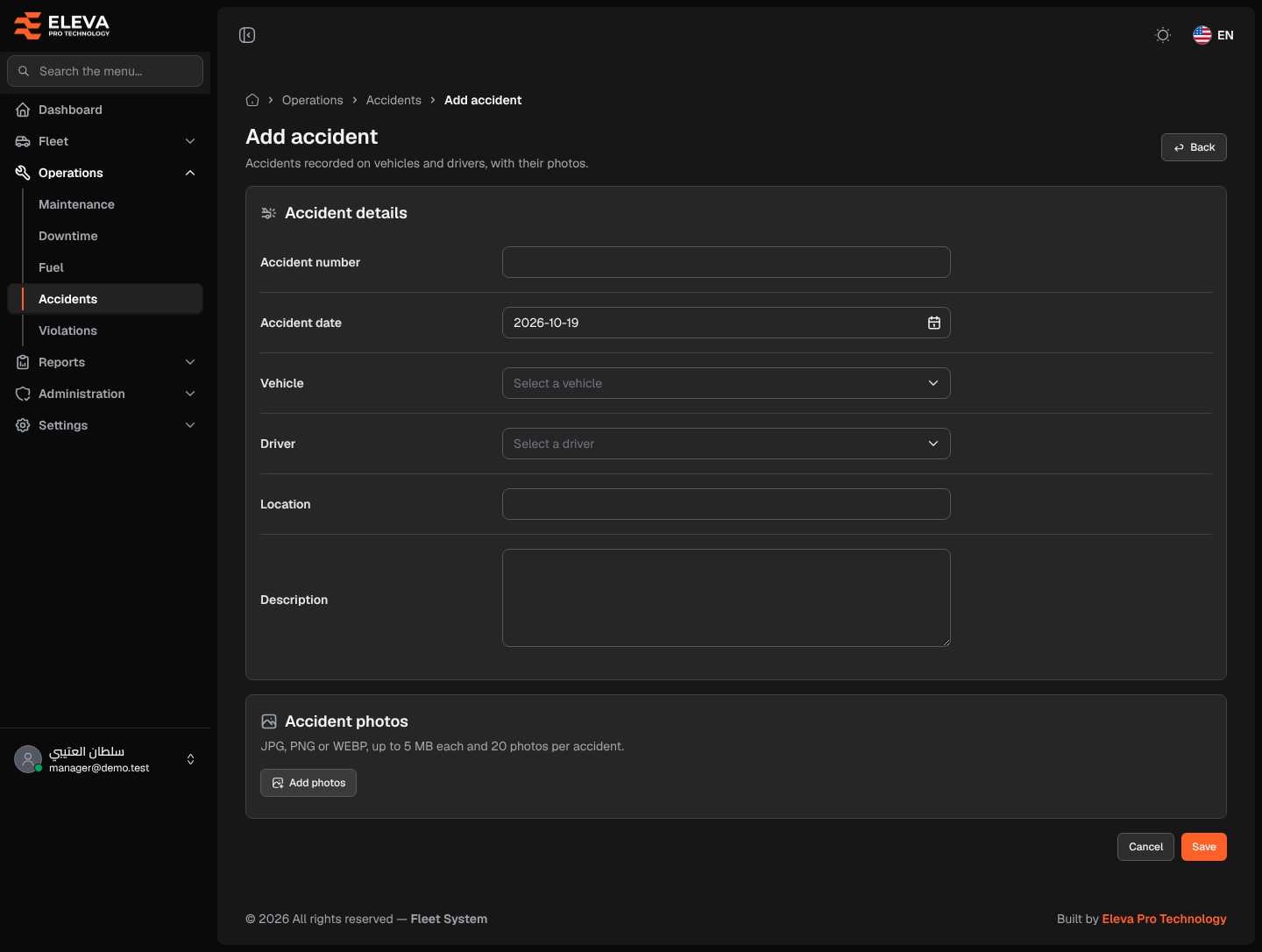
Record an accident as soon as it is reported: its number, when and where it happened, the vehicle and the driver, with photos of the damage.
How to add an accident
Section titled “How to add an accident”- From the side menu, open Operations and click Accidents.
- Click Add accident.
- Fill in the fields described below.
- Under Accident photos, click Add photos and choose one or more images.
- Click Save, or Cancel (or Back) to discard. After saving, the accident details open.
Fields
Section titled “Fields”Accident details
- Accident number (required) — for example the police or insurance report number. It must be unique: two accidents can’t share a number.
- Accident date (required) — today by default. It can’t be in the future.
- Vehicle (required) — the vehicle involved.
- Driver (required) — the driver at the time of the accident.
- Location (required) — where it happened, up to 255 characters.
- Description — what happened, up to 255 characters.
Accident photos
- JPG, PNG or WEBP, up to 5 MB each and 20 photos per accident.
- Photos are stored privately, outside the public folder. Only users with the View or Edit permission of Accidents can open them; a shared photo link does not work for anyone else.
How to add or remove photos later
Section titled “How to add or remove photos later”- Open the accident and click Edit.
- Under each stored photo, click Remove photo to mark it for deletion. Click Keep photo to change your mind.
- Click Add photos to attach new ones.
- Click Save. Marked photos are deleted and new ones added.