

Vehicle downtimes
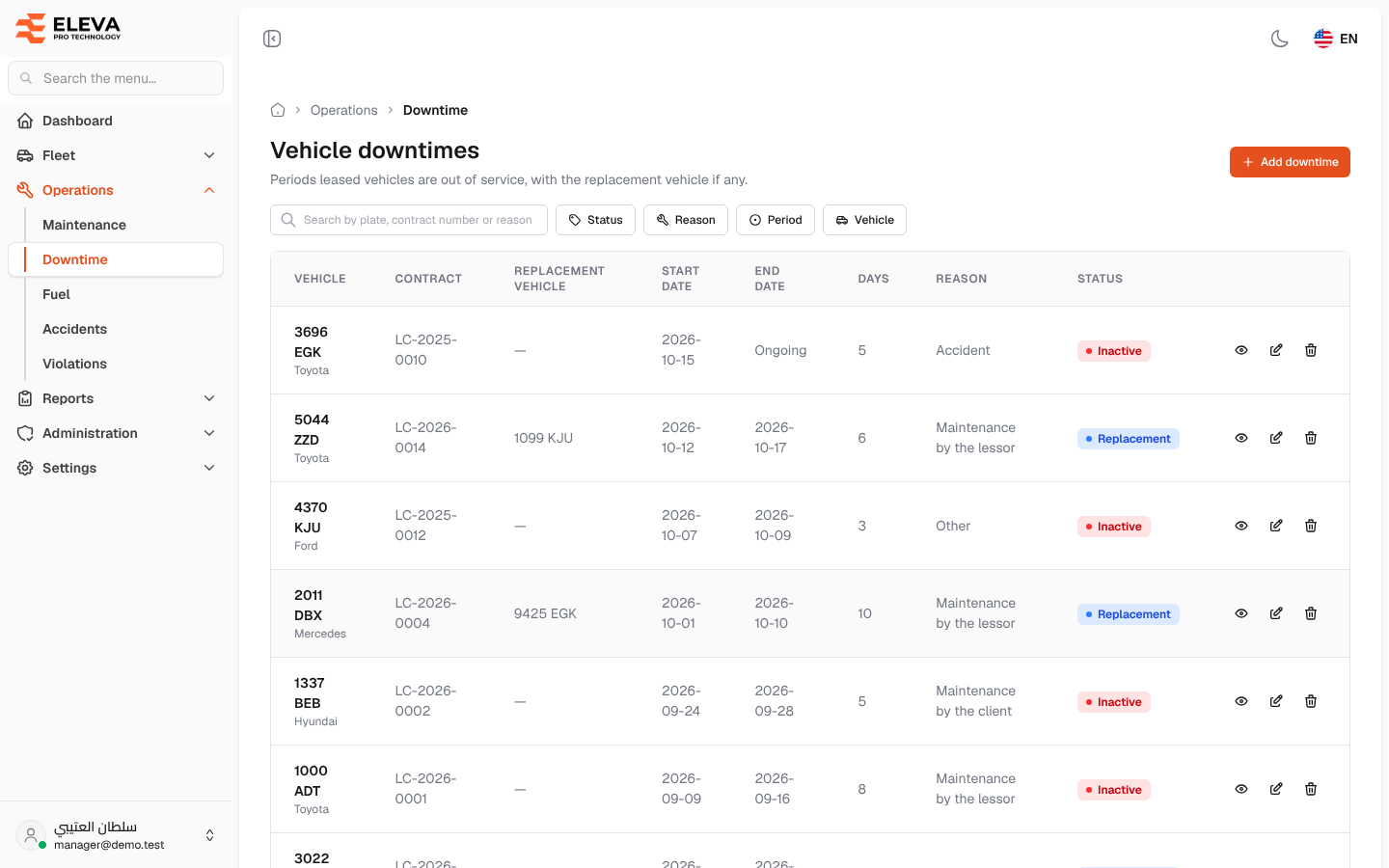
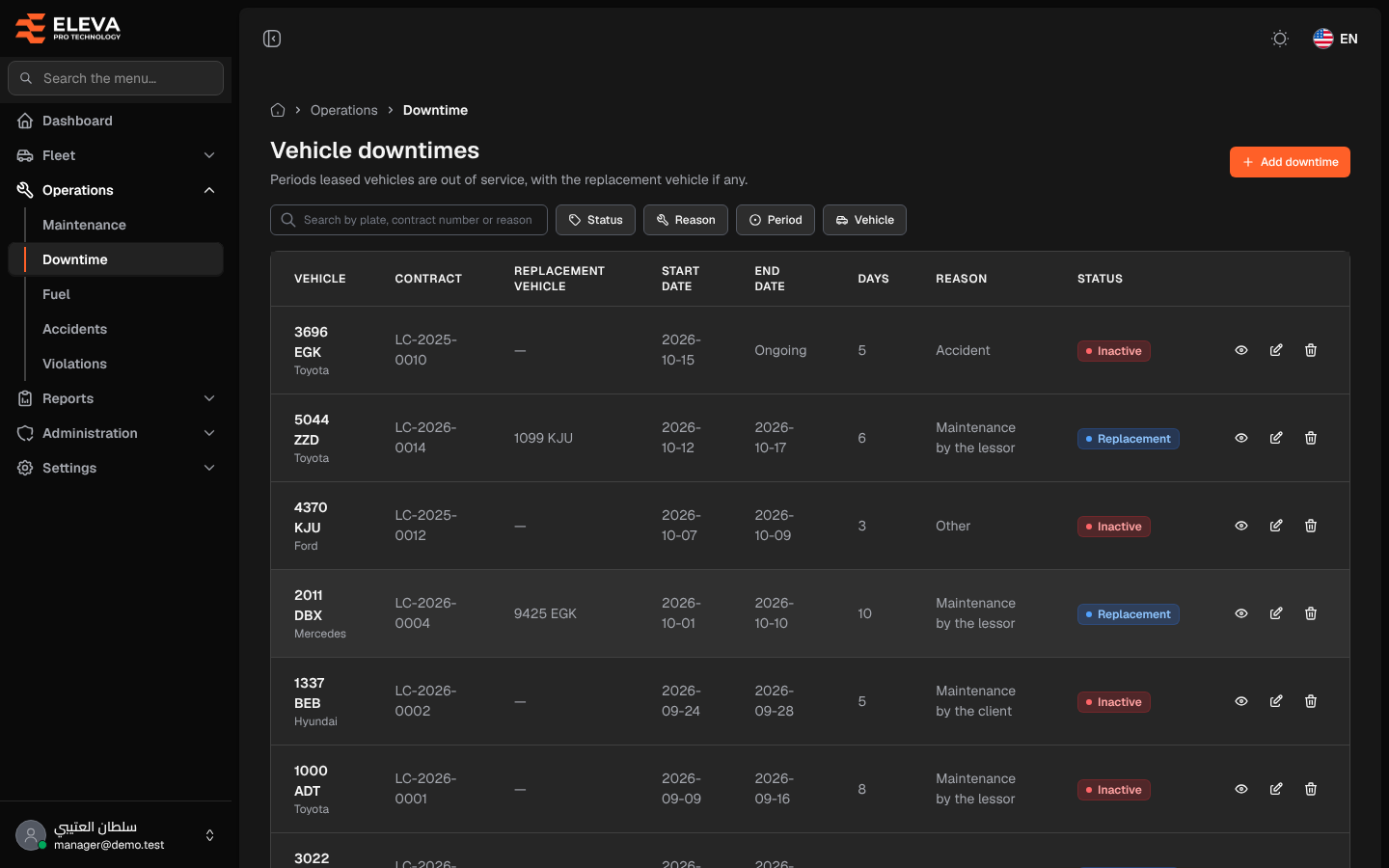
The Vehicle downtimes screen lists the periods when leased vehicles were out of service, with the replacement vehicle if one stood in. Downtime matters for billing: the days a vehicle is Inactive are deducted from its monthly lease invoice.
Use this screen to find downtime periods, check which vehicles are still down, and add, edit or delete periods.
What’s on this screen
Section titled “What’s on this screen”- Search box Search by plate, contract number or reason — also matches the replacement vehicle’s plate.
- Status filter — Inactive or Replacement.
- Reason filter — the reasons already used, for example Accident or Maintenance by the lessor.
- Period filter — Ongoing (no end date, or ending today or later) or Ended.
- Vehicle filter — shows the downtimes of a vehicle, whether it was the vehicle down or the replacement.
- Add downtime button — opens the form to record a new period.
- Table columns: Vehicle (plate and brand), Contract, Replacement vehicle, Start date, End date (Ongoing when it has none), Days, Reason and Status.
- Row icons: view, edit and delete.
How to open the downtime list
Section titled “How to open the downtime list”- From the side menu, open Operations.
- Click Downtime.
How to work with a downtime period
Section titled “How to work with a downtime period”- Click a row, or the eye icon, to open its details, including the contract number and contract period.
- Click the pencil icon to edit it. Edits follow the same overlap and contract rules as a new period.
- Click the trash icon, then confirm in the Delete downtime dialog. The period is deleted permanently.