

Add vehicle
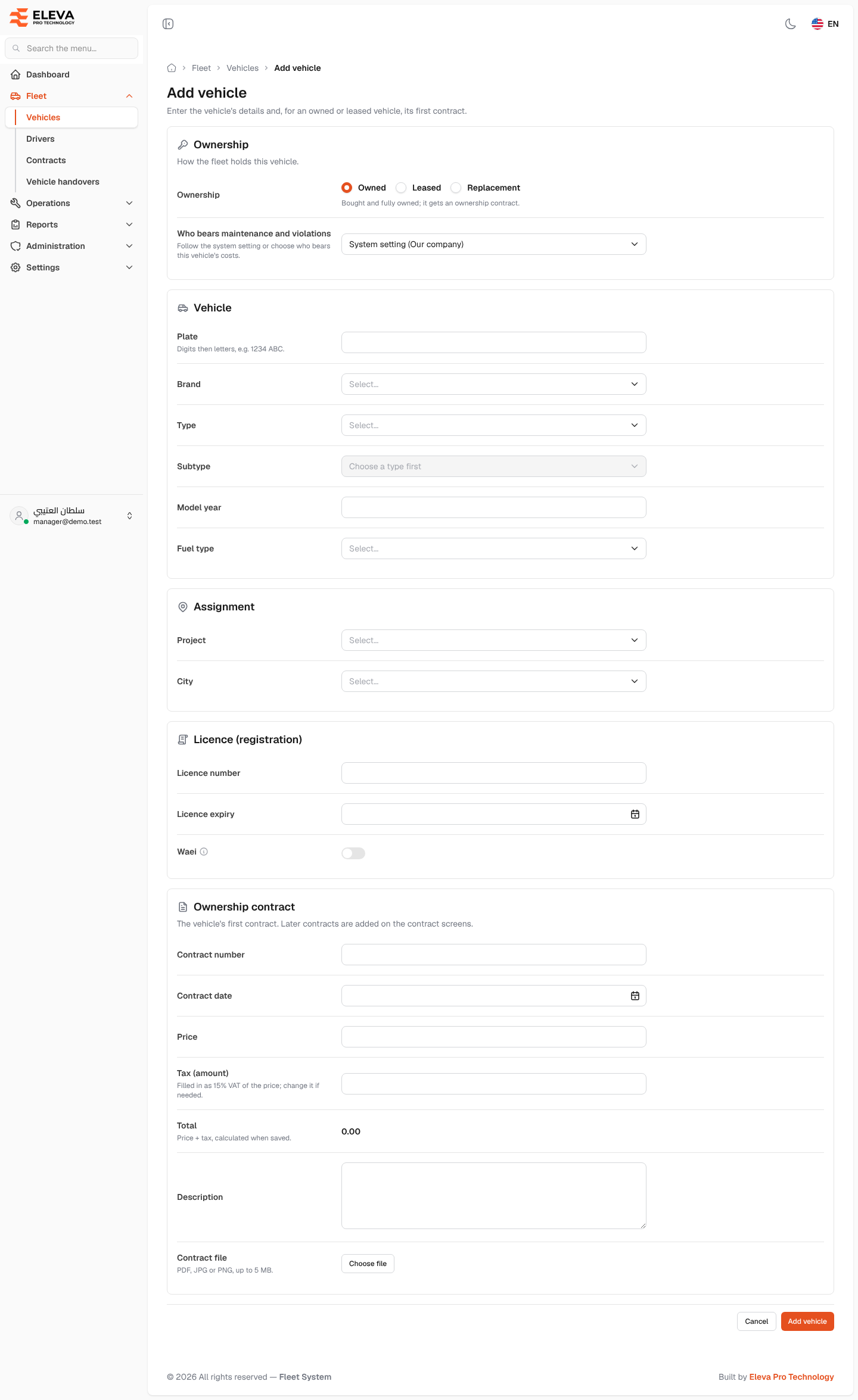
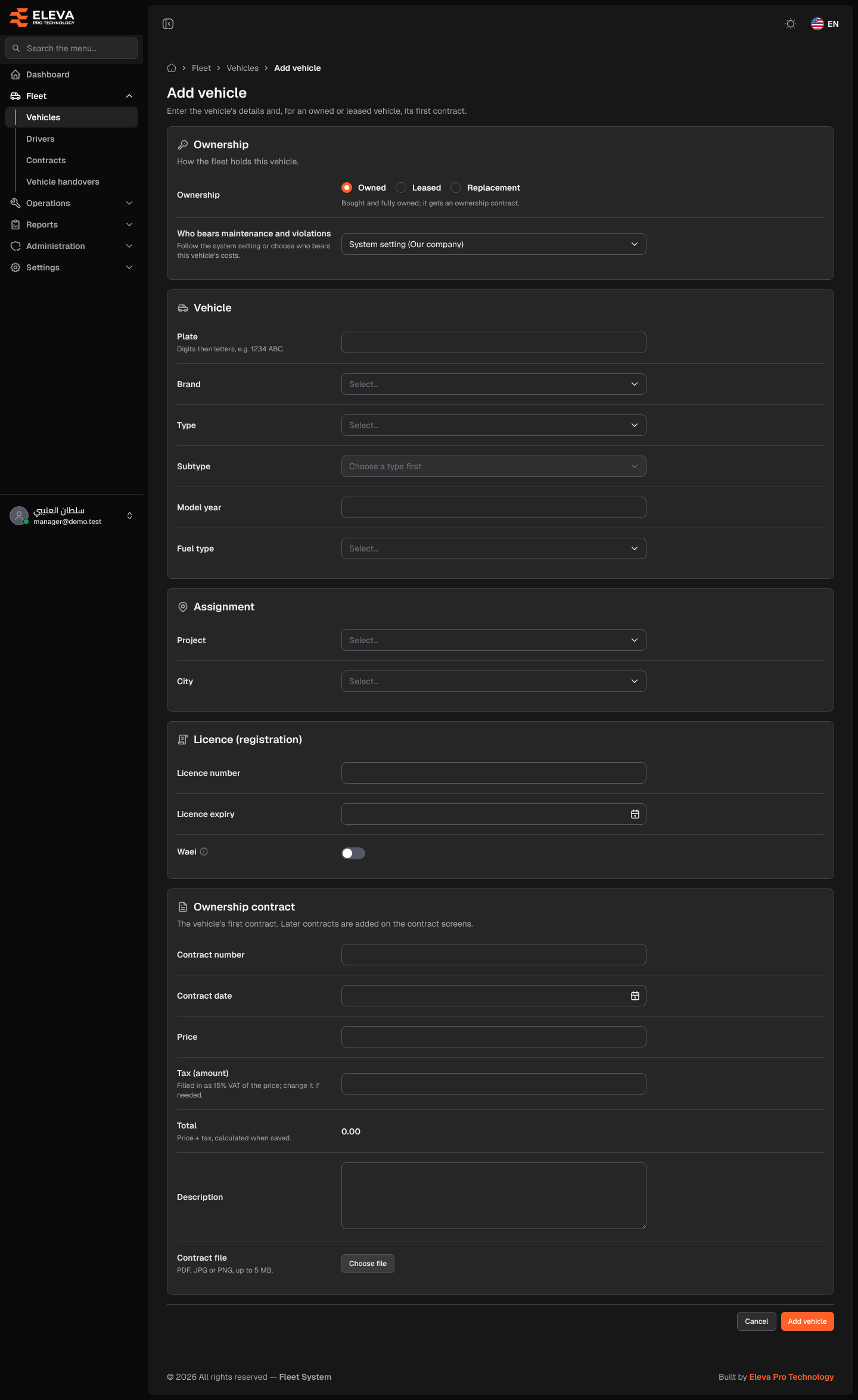
Add a vehicle when it joins the fleet. For an owned or leased vehicle you enter its first contract on the same form; later contracts (a renewal, or a leased vehicle bought out) are added on the Contracts screen.
What’s on this screen
Section titled “What’s on this screen”- Ownership section — the ownership type, then the Rental company for a leased or replacement vehicle, or Who bears maintenance and violations for an owned one.
- Vehicle section — plate, brand, type, subtype, model year and fuel type.
- Assignment section — project and city.
- Licence (registration) section — licence number, licence expiry and Waei.
- Ownership contract or Lease contract section — shown only for an owned or leased vehicle.
- Cancel and Add vehicle buttons at the bottom.
How to add a vehicle
Section titled “How to add a vehicle”- In the side menu, open Fleet and click Vehicles.
- Click Add vehicle.
- Choose the Ownership: Owned, Leased or Replacement. The fields below change with your choice.
- Fill in the vehicle, assignment and licence sections, then the contract details if that section is shown.
- Click Add vehicle, or Cancel to discard. After saving, the vehicle’s page opens.
Fields
Section titled “Fields”- Ownership (required) — Owned: bought and fully owned; it gets an ownership contract. Leased: rented from a company for a period; it gets a lease contract. Replacement: a rental company’s vehicle standing in for one under repair; no contract.
- Rental company (required for leased and replacement) — the company the vehicle is rented from.
- Who bears maintenance and violations (owned only) — leave System setting to follow the general rule in System settings (the brackets show who bears the costs under that setting today, e.g. “System setting (Our company)”), or choose Our company or The driver for this vehicle. The maintenance and violation forms show this choice for the vehicle instead of a cost-bearer field.
- Plate (required) — digits then letters, e.g. 1234 ABC: up to 4 digits followed by up to 3 Arabic or Latin letters. It must be unique.
- Brand, Type, Subtype and Fuel type (required) — pick from the lists. Subtype is enabled only after you choose a Type, and lists only that type’s subtypes.
- Model year (required) — four digits, from 1900 up to next year.
- Project and City (required) — if you are limited to some projects or cities, only those assigned to you are accepted.
- Licence number (required) — must be unique.
- Licence expiry (required) — the date the licence expires.
- Waei — turn on if the Waei tracking device is installed in the vehicle.
First-contract fields (owned and leased):
- Contract number (required) — must be unique among contracts.
- Start date and End date (required for a lease) — the end date must be after the start date.
- Contract date (required for ownership) — the day ownership began.
- Price (required) — the contract amount.
- Tax (amount) — filled in as 15% VAT of the price; change it if needed.
- Total — price + tax, calculated when saved.
- Description — up to 255 characters.
- Contract file — PDF, JPG or PNG, up to 5 MB.