

Lists: cities, brands and types
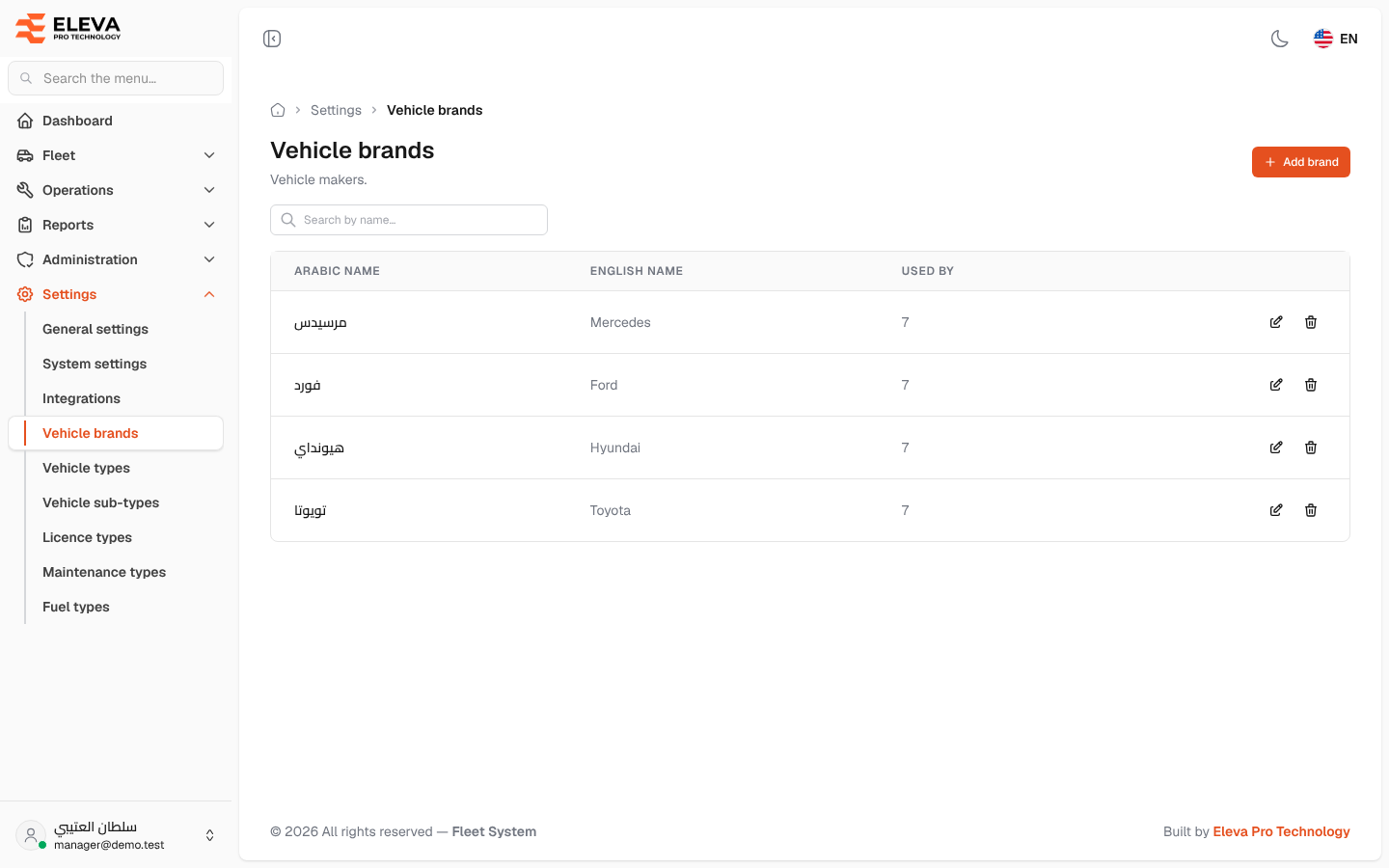
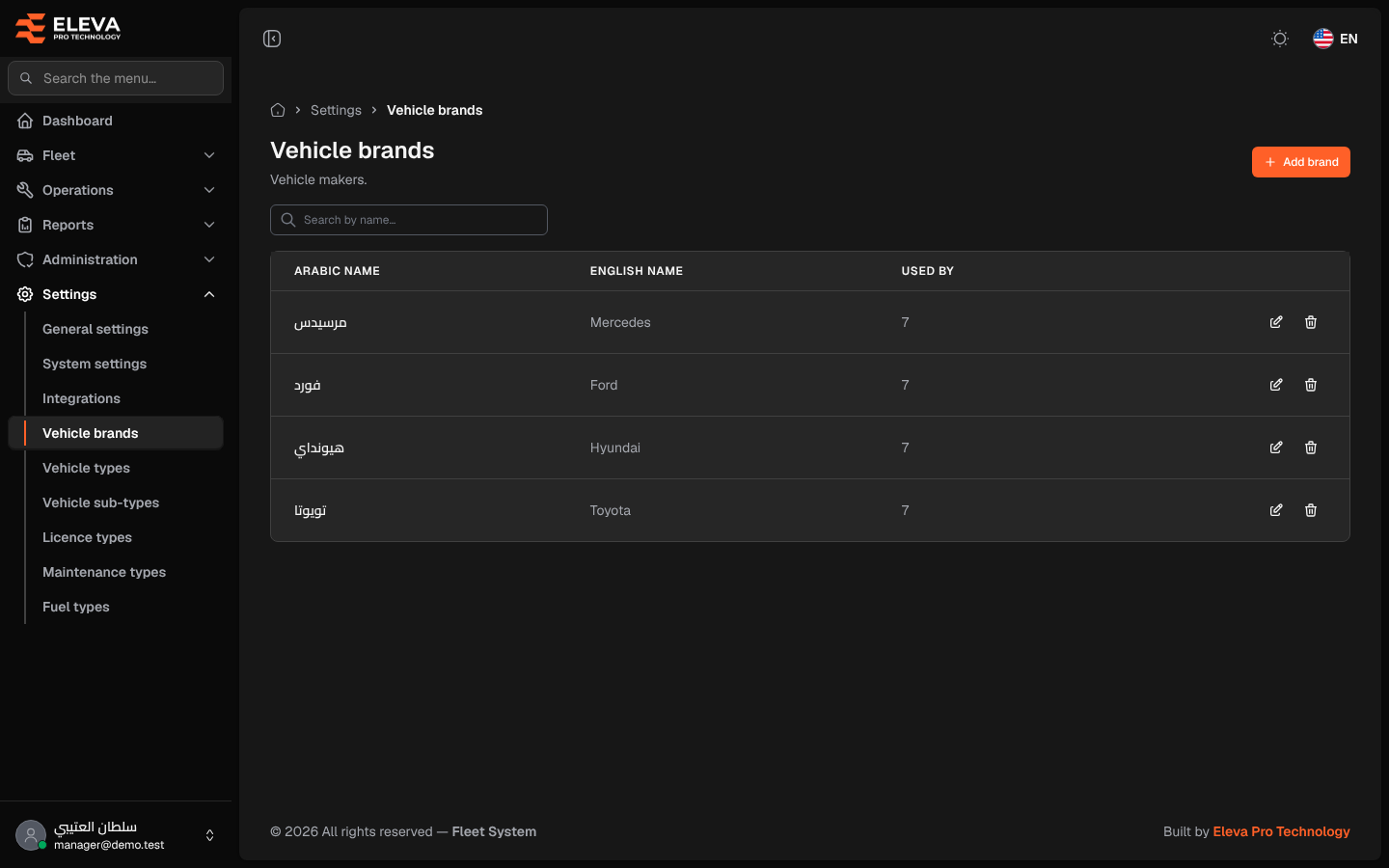
Several drop-down lists in the system hold only a name in Arabic and English. They all work the same way, on one kind of screen; the picture shows Vehicle brands. Fill these lists before you add vehicles and drivers, because the vehicle and driver forms pick their values from them.
| List | Where in the side menu | What it holds | Used by |
|---|---|---|---|
| Cities | Administration | Cities where vehicles operate | Vehicles |
| Vehicle brands | Settings | Vehicle makers | Vehicles |
| Vehicle types | Settings | Main vehicle categories | Vehicles and vehicle sub-types |
| Licence types | Settings | Driving licence classes held by drivers | Drivers |
| Maintenance types | Settings | Kinds of maintenance work recorded on vehicles | Maintenance records |
| Fuel types | Settings | The fuels vehicles run on | Vehicles |
What’s on this screen
Section titled “What’s on this screen”- Add brand (or Add city, Add vehicle type, Add licence type, Add maintenance type, Add fuel type): opens the form to add an item.
- Search by name…: searches both the Arabic and English names.
- Table columns: Arabic name, English name and Used by, the number of records that use the item, with the pencil (edit) and bin (delete) icons.
How to add an item
Section titled “How to add an item”- Open the list from the side menu, for example Settings > Vehicle brands.
- Click Add brand.
- Type the Arabic name and the English name.
- Click Save.
How to edit an item
Section titled “How to edit an item”- Click the pencil icon of the item.
- Change the names and click Save. The new name shows everywhere the item is used.
How to delete an item
Section titled “How to delete an item”- Click the bin icon of the item.
- Click Delete in the confirmation.
Fields
Section titled “Fields”- Arabic name (required): up to 255 characters, and not already used by another item of the same list.
- English name (required): up to 255 characters, and not already used by another item of the same list.