

Add user
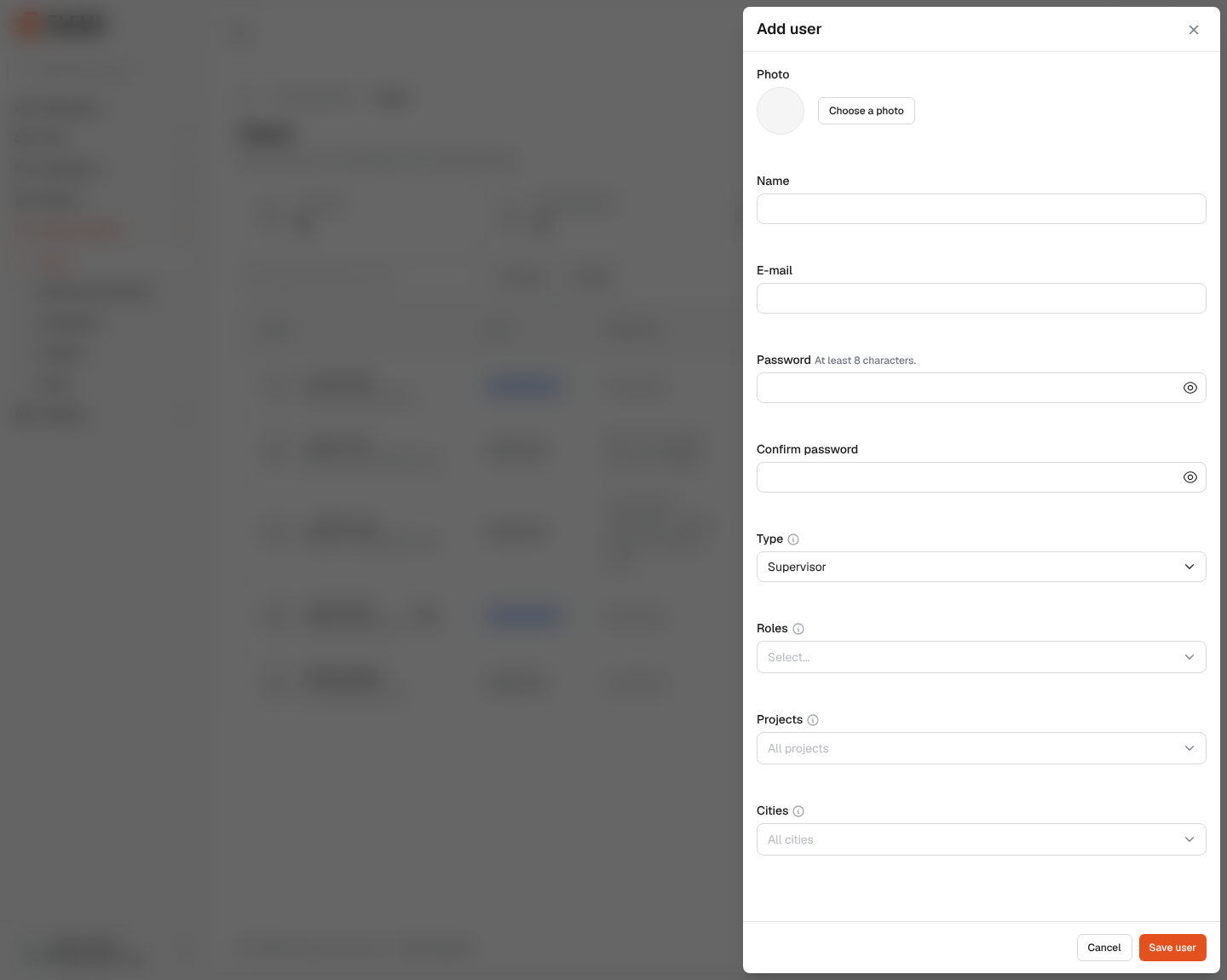
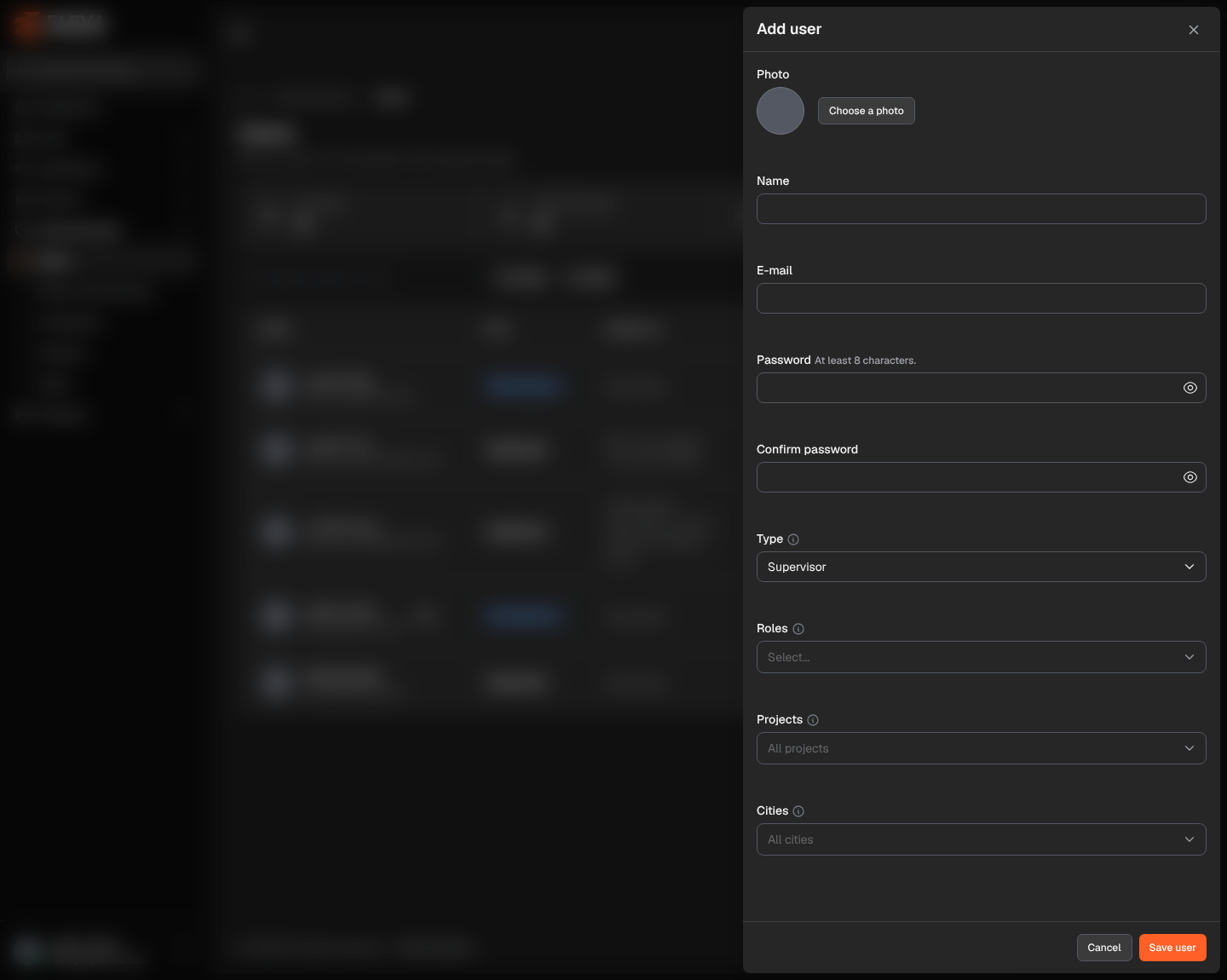
Add a user when someone new needs to sign in to the system. The same drawer, titled Edit user followed by the name, is used to change an existing user. The user’s roles decide what they can do, and their projects and cities decide which vehicles and records they see.
How to add a user
Section titled “How to add a user”- From the side menu, open Administration and click Users.
- Click Add user.
- Fill in the fields described below.
- Click Save user, or Cancel to close without saving.
- Give the new user their e-mail and password so they can sign in. They can change the password later in My profile.
How to edit a user
Section titled “How to edit a user”- In the users list, click the user’s row or pencil icon.
- Change what you need. Leave New password (optional) empty to keep the current password.
- Click Save user.
Fields
Section titled “Fields”- Photo: click Choose a photo to pick a JPG, PNG or WEBP image up to 2 MB. Without a photo, the initials of the name are shown.
- Name (required): up to 255 characters.
- E-mail (required): a valid address, up to 255 characters, not used by another user. The user signs in with it.
- Password (required when adding): at least 8 characters, as the hint beside the label says. When editing, the field reads New password (optional).
- Confirm password: type the same password again.
- Type (required): Supervisor or Administrator. It is only a label for sorting and filtering users (the Type column, the filter and the figures above the list) and grants nothing; what the user can do comes from the roles. Any user can be chosen as a driver’s supervisor, whatever their type.
- Roles: one or more roles. The roles decide what the user can see and do.
- Projects: the user sees only vehicles of these projects and their records. Leave it empty (All projects) for every project.
- Cities: the user sees only vehicles in these cities. Leave it empty (All cities) for every city.
How projects and cities limit what a user sees
Section titled “How projects and cities limit what a user sees”When a user has projects and/or cities, they see only vehicles that are in one of their projects and in one of their cities, plus those vehicles’ records: contracts, handovers, downtime, maintenance, fuel, accidents, violations, invoices, reports and the dashboard. They also see the drivers they supervise or who hold one of those vehicles, and the matching part of the activity log. A record outside their scope opens as “not found”. A user with no projects and no cities sees everything.
Rules enforced by the system
Section titled “Rules enforced by the system”- You can only give or remove roles whose permissions you hold yourself.
- Only a super-admin can give or remove the Super-admin role, and the last super-admin cannot lose it.
- You cannot change your own roles; the Roles field is locked when you edit yourself.
- If you are limited to some projects or cities, you can only give projects and cities within your own, and you cannot leave them empty: “You can’t give projects or cities outside the ones you work in, nor leave the scope open.”