

Creating an API token
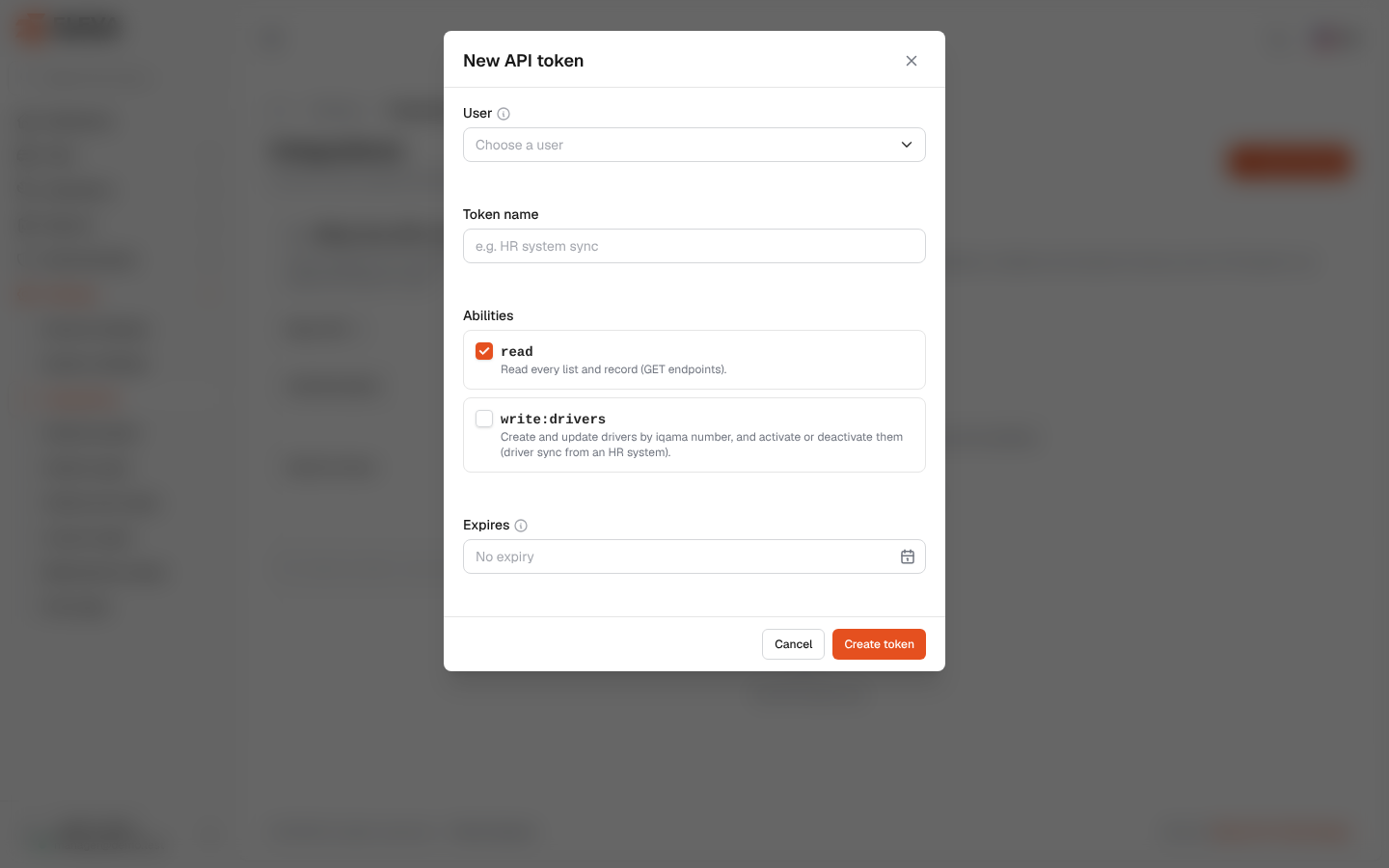
An API token lets another system, such as an HR system, use the fleet’s REST API. You create one token per system on the Integrations screen, give it to that system, and revoke it when the system no longer needs access.
Only a super-admin can create or revoke tokens.
What’s on this screen
Section titled “What’s on this screen”The New API token window has:
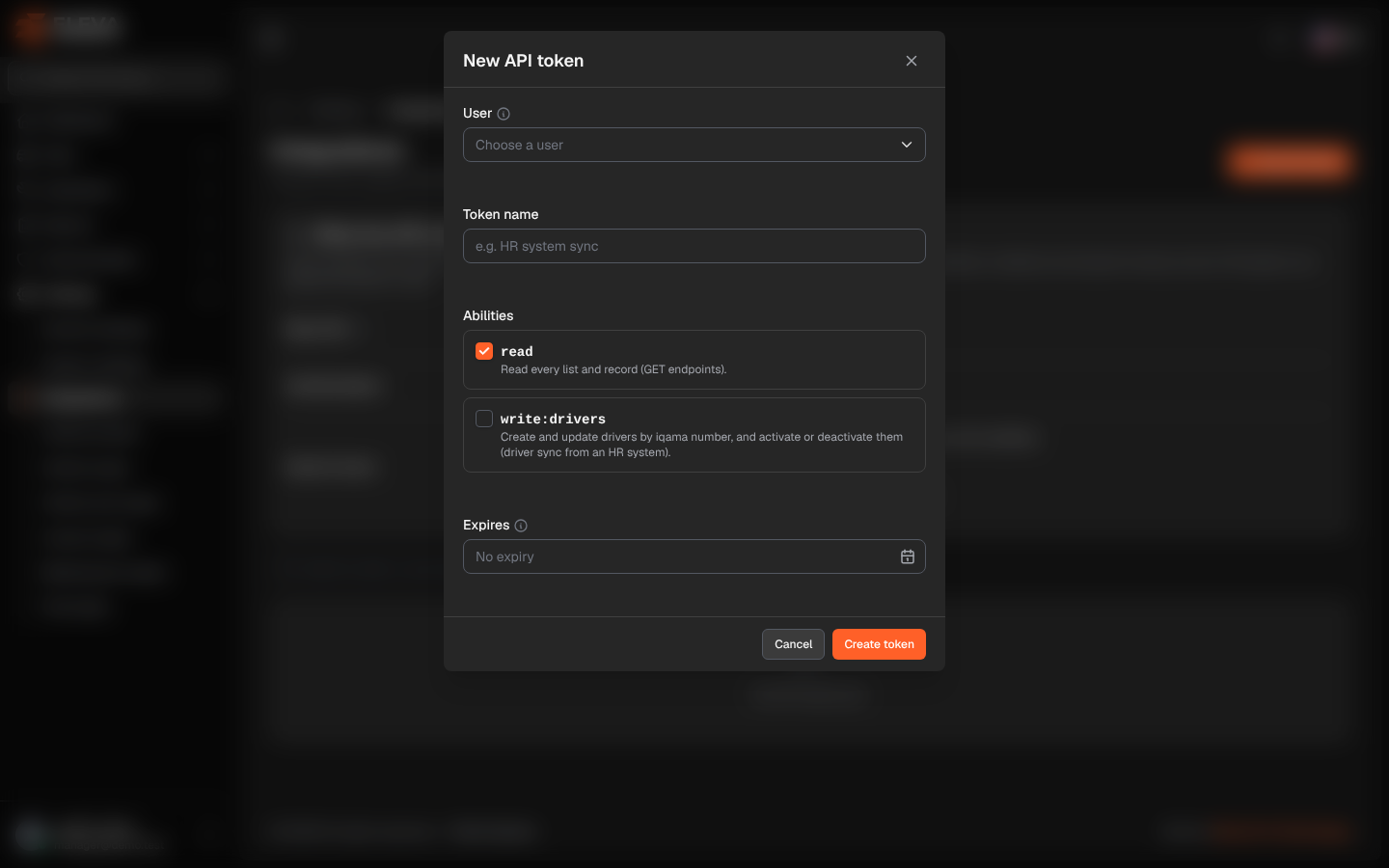
- User, with the info icon and the Choose a user list.
- Token name, with the example “e.g. HR system sync”.
- Abilities: the boxes read (“Read every list and record (GET endpoints).”) and write:drivers (“Create and update drivers by iqama number, and activate or deactivate them (driver sync from an HR system).”). read is ticked by default.
- Expires, with the info icon and a date picker that shows No expiry when empty.
- The Cancel and Create token buttons.
How to create a token
Section titled “How to create a token”- On the Integrations screen, click New API token.
- In User, choose the user the token will act as.
- In Token name, type a name that says which system uses it.
- Tick the abilities the system needs.
- If the token should stop working on a set day, choose it in Expires.
- Click Create token. The message “API token created. Copy it now: it will not be shown again.” appears.
How to copy the token
Section titled “How to copy the token”Right after it is created, a green box at the top of the screen shows Token “…” created and the token itself.
- Click Copy token. The button says Copied for a moment.
- Paste the token into the other system’s settings, or keep it somewhere safe.
- Click I’ve copied it to close the box.
Fields
Section titled “Fields”- User (required): the token acts as this user. Their permissions and their projects and cities apply, so the system sees only what that user may see. Use a dedicated service account with only the permissions the system needs.
- Token name (required): up to 100 characters. It is shown in the tokens list and the activity log.
- Abilities (at least one): what the token may do, in addition to the user’s permissions:
- read: read every list and record.
- write:drivers: create and update drivers by iqama number, and activate or deactivate them. The user also needs the Create and Edit permissions on Drivers.
- Expires: a day after today. After this day the token stops working and its status becomes Expired. Leave it empty for a token that does not expire.
How to revoke a token
Section titled “How to revoke a token”- In the tokens list, click the bin icon at the end of the token’s row.
- Click Revoke in the confirmation window. Any system using the token loses access at once; this cannot be undone.