

Vehicles per project, brand and type
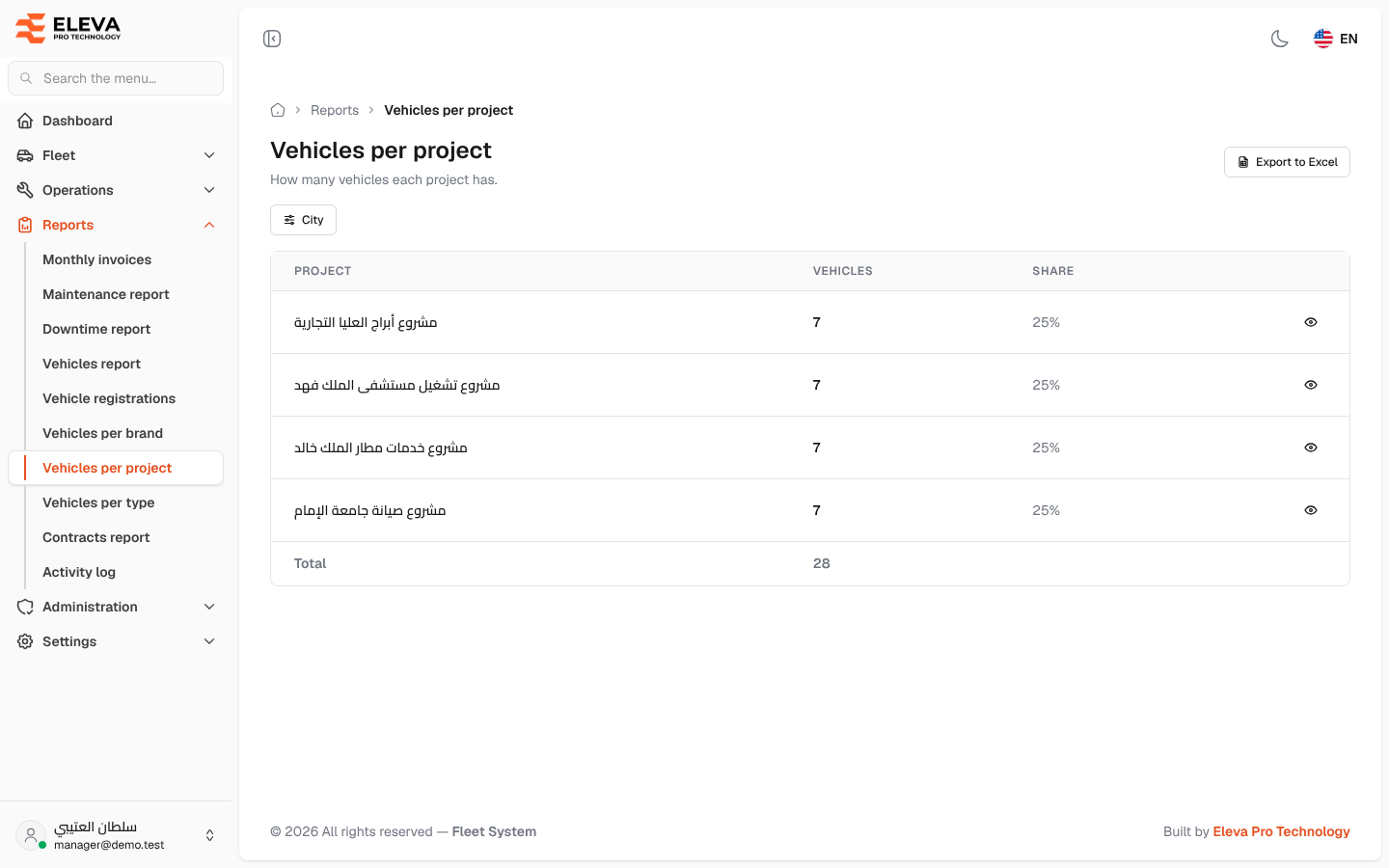
These reports count the fleet’s vehicles by group. The same screen comes in three versions, each with its own entry in the Reports menu:
- Vehicles per project — how many vehicles each project has (shown above).
- Vehicles per brand — how many vehicles of each brand, type and sub-type.
- Vehicles per type — how many vehicles of each type and sub-type.
What’s on this screen
Section titled “What’s on this screen”- Export to Excel button.
- City filter — counts only the vehicles in the cities you tick.
- Table columns: the group (Project; or Brand, Type, Sub-type; or Type, Sub-type), Vehicles and Share (the group’s percentage of the total).
- Eye icon — opens the Vehicles report filtered to that group and city.
- A Total row with the number of vehicles counted.
How to use the report
Section titled “How to use the report”- From the side menu, open Reports and click Vehicles per project, Vehicles per brand or Vehicles per type.
- Optionally tick one or more cities in City.
- Rows are ordered by the number of vehicles, the largest first.
- Click the eye icon on a row to see those vehicles in the Vehicles report.
- Click Export to Excel to download the counts as a CSV file.