

Vehicle sub-types
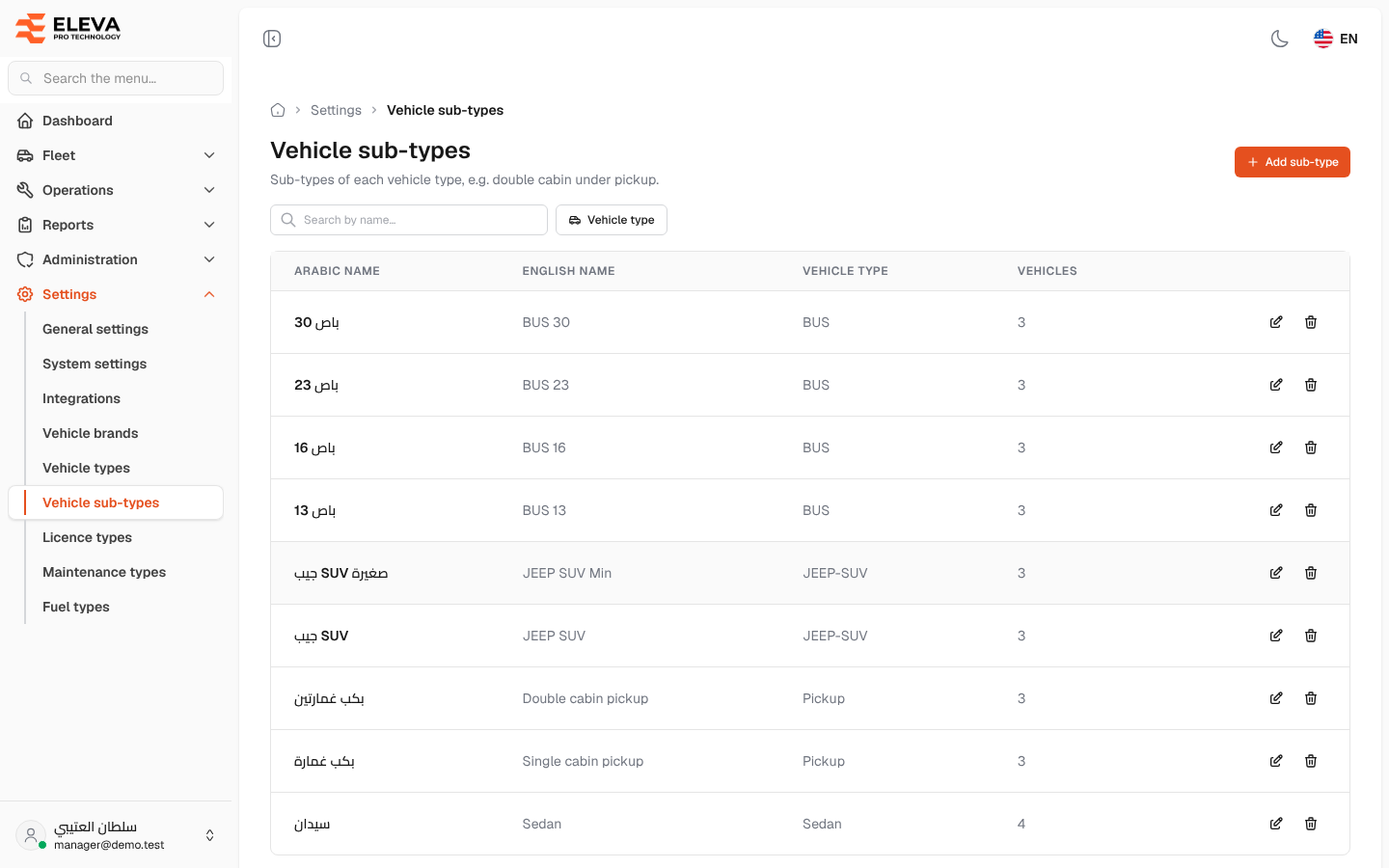
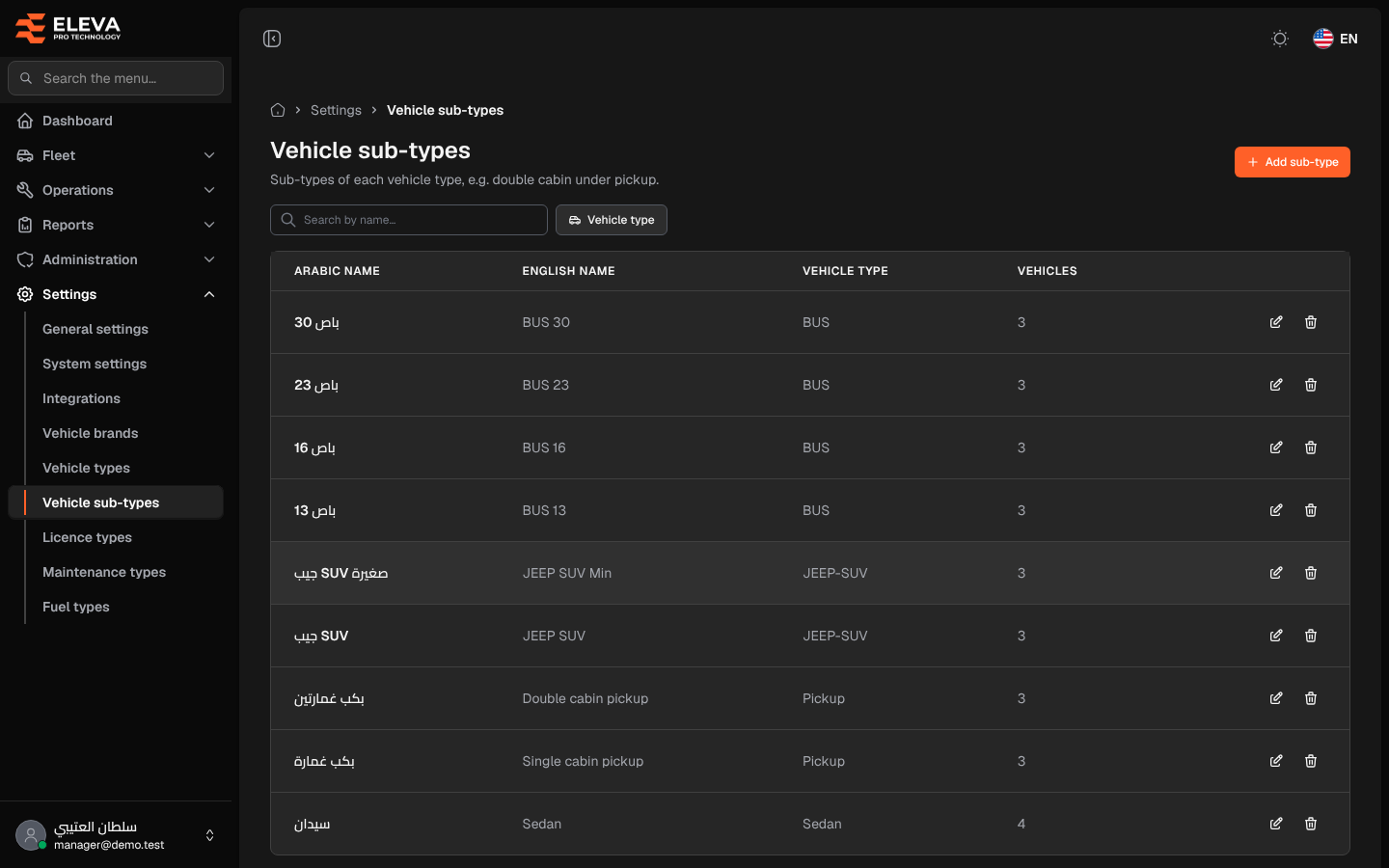
Vehicle sub-types split each vehicle type into finer kinds, for example Single cabin pickup and Double cabin pickup under Pickup. When you add a vehicle, you first choose its type and then one of that type’s sub-types. Add the vehicle types first, in Settings > Vehicle types.
How to open vehicle sub-types
Section titled “How to open vehicle sub-types”- From the side menu, open Settings.
- Click Vehicle sub-types.
What’s on this screen
Section titled “What’s on this screen”- Add sub-type: opens the form to add a sub-type.
- Search by name…: searches the Arabic and English names.
- Vehicle type filter: shows only the sub-types of the chosen types. You can tick several.
- Table columns: Arabic name, English name, Vehicle type, Vehicles (how many vehicles use the sub-type), and the pencil (edit) and bin (delete) icons.
How to add a sub-type
Section titled “How to add a sub-type”- Click Add sub-type.
- Choose the Vehicle type it belongs to.
- Type the Arabic name and the English name.
- Click Save sub-type, or Cancel to close without saving.
How to edit a sub-type
Section titled “How to edit a sub-type”- Click the pencil icon of the sub-type.
- Change the names or the type and click Save sub-type.
How to delete a sub-type
Section titled “How to delete a sub-type”- Click the bin icon of the sub-type.
- Check the name in Delete sub-type and click Delete.
Fields
Section titled “Fields”- Vehicle type (required): the main type this sub-type belongs to.
- Arabic name (required): up to 255 characters.
- English name (required): up to 255 characters.