

Contract details
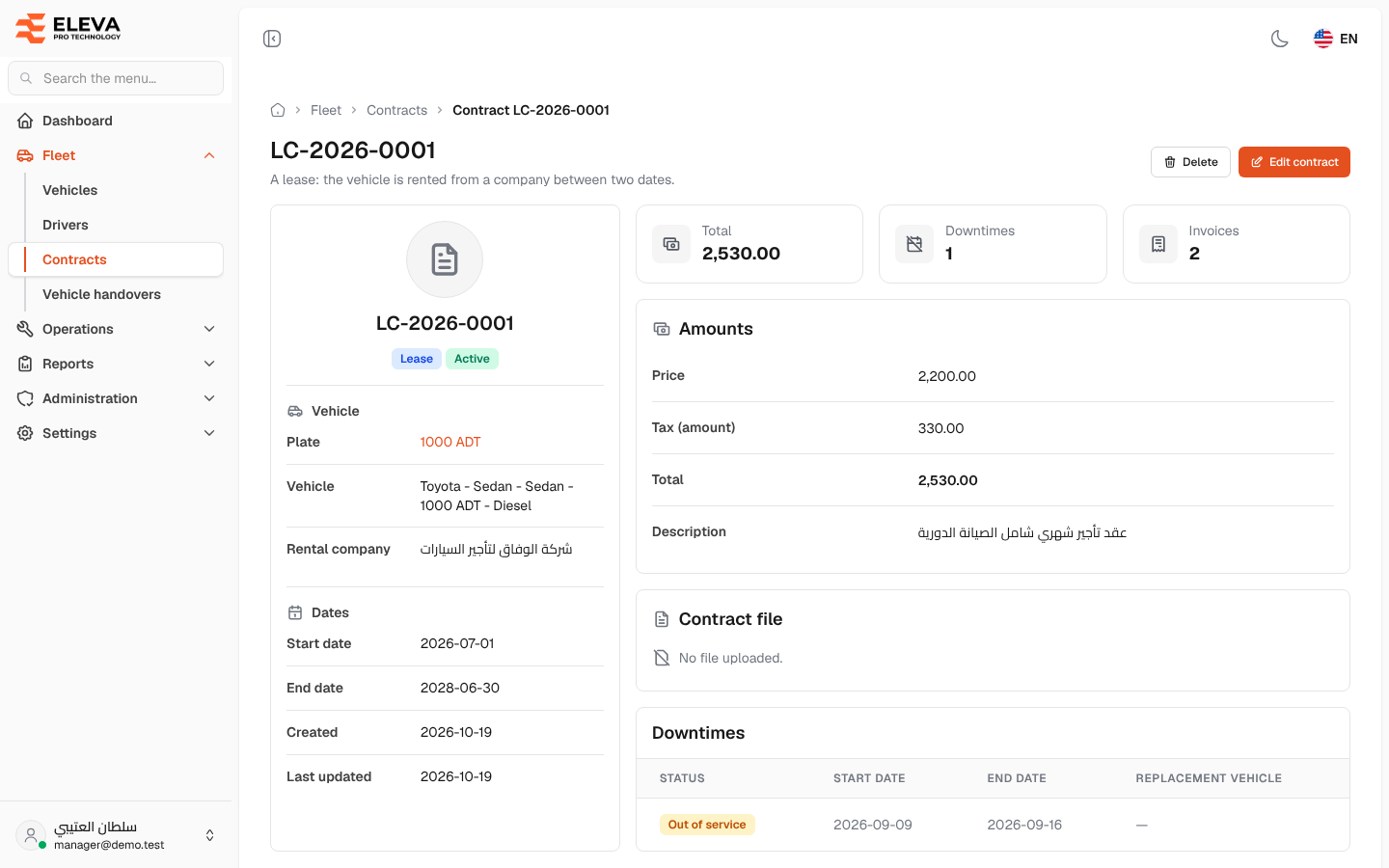
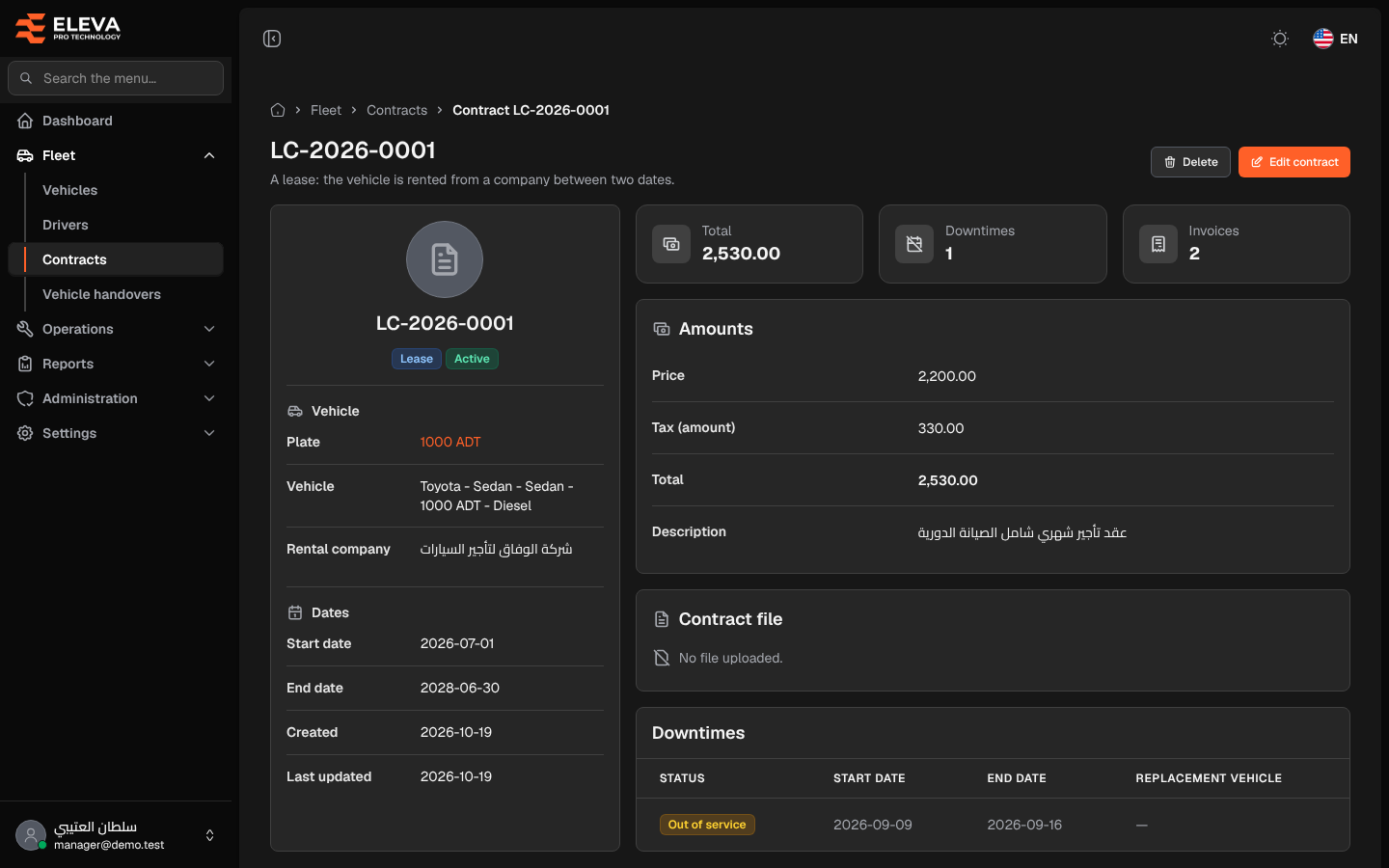
A contract’s page shows its full terms: vehicle, rental company, dates and amounts, along with the contract file and the downtimes recorded against it. Open it by clicking the contract’s row in the Contracts list or on the Contracts tab of a vehicle’s page.
What’s on this screen
Section titled “What’s on this screen”- Title — the contract number, with a description of its type below.
- Download file (shown when the contract has a file), Delete and Edit contract buttons.
- Contract card: the contract number with a type tag (Lease or Ownership) and a status tag (Active, Upcoming or Expired), then:
- Vehicle — Plate (a link to the vehicle’s page), Vehicle and, for a lease, Rental company.
- Dates — Start date and End date for a lease, or Contract date for ownership, then Created and Last updated.
- Total, Downtimes and Invoices tiles — the contract amount and how many downtimes and invoices refer to it.
- Amounts section — Price, Tax (amount), Total and Description.
- Contract file section — the file name and a Download file button, or “No file uploaded.”.
- Downtimes table — Status (Out of service or Replaced), Start date, End date and Replacement vehicle, for the latest 10 downtimes.
How to download the contract file
Section titled “How to download the contract file”- Click Download file at the top of the page or in the Contract file section.
- The file downloads, named after the contract number.
How to review the downtimes
Section titled “How to review the downtimes”- Go to the Downtimes table.
- Click any row to open that downtime on its own screen.
How to edit or delete the contract
Section titled “How to edit or delete the contract”- Click Edit contract to change its number, dates, amounts or file. The contract’s type and vehicle cannot change.
- Click Delete, then confirm. The contract and its file are deleted together.