

My profile
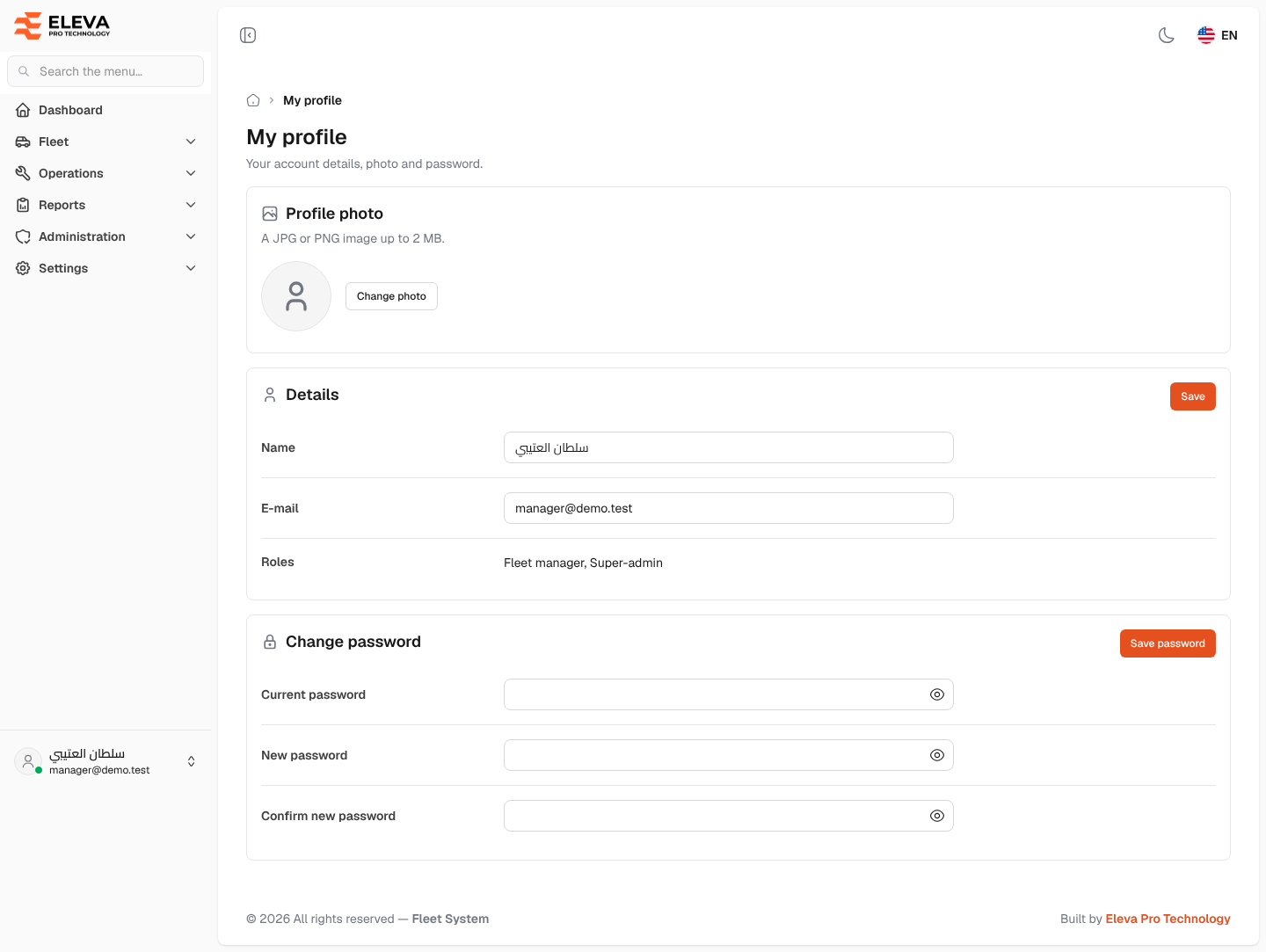
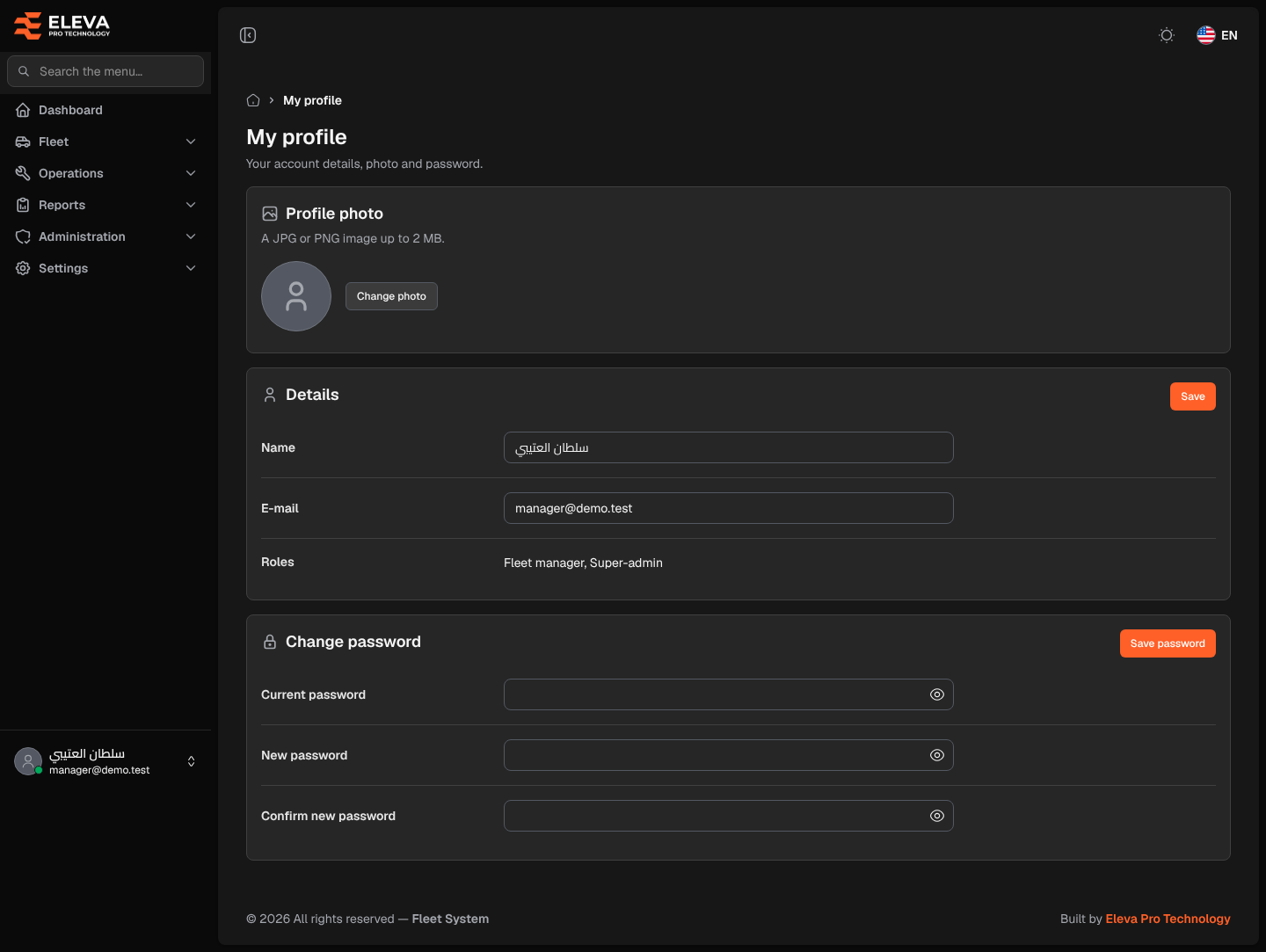
My profile holds your own account: your photo, your name and e-mail, and your password. Every signed-in user can open it, whatever their role.
How to open your profile
Section titled “How to open your profile”- At the bottom of the side menu, click your name.
- Click My profile.
What’s on this screen
Section titled “What’s on this screen”- Profile photo: your current photo, or a placeholder, with the Change photo button.
- Details: Name, E-mail and Roles, with a Save button. Roles is read-only and lists the roles you hold.
- Change password: Current password, New password and Confirm new password, with a Save password button. Each password field has an eye icon to show or hide what you typed.
How to change your photo
Section titled “How to change your photo”- Click Change photo.
- Choose an image. It is uploaded and saved straight away; there is no separate save step.
How to change your name or e-mail
Section titled “How to change your name or e-mail”- In Details, edit Name or E-mail.
- Click Save. The message “Profile updated successfully.” appears.
How to change your password
Section titled “How to change your password”- In Current password, type the password you use now.
- Type the new password in New password and again in Confirm new password.
- Click Save password. The fields are cleared when the password is saved.
Fields
Section titled “Fields”- Name (required): up to 255 characters.
- E-mail (required): a valid e-mail address, up to 255 characters, that no other user has. You sign in with this address.
- Profile photo: a JPG, PNG or WEBP image up to 2 MB. The new photo replaces the old one.
- Current password (required to change the password): must be your correct current password.
- New password (required): at least 8 characters, and must match Confirm new password.