

Downtime report
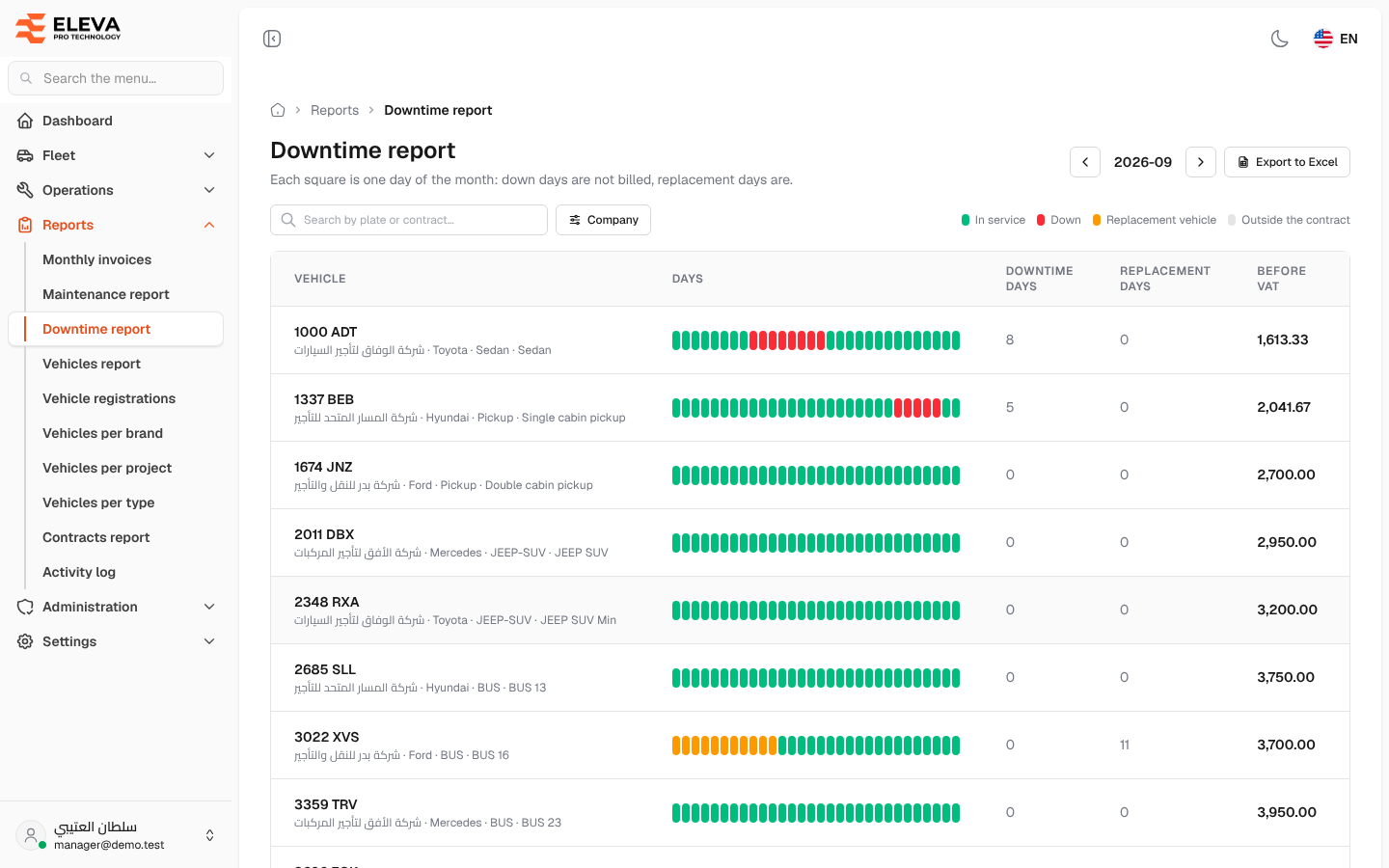
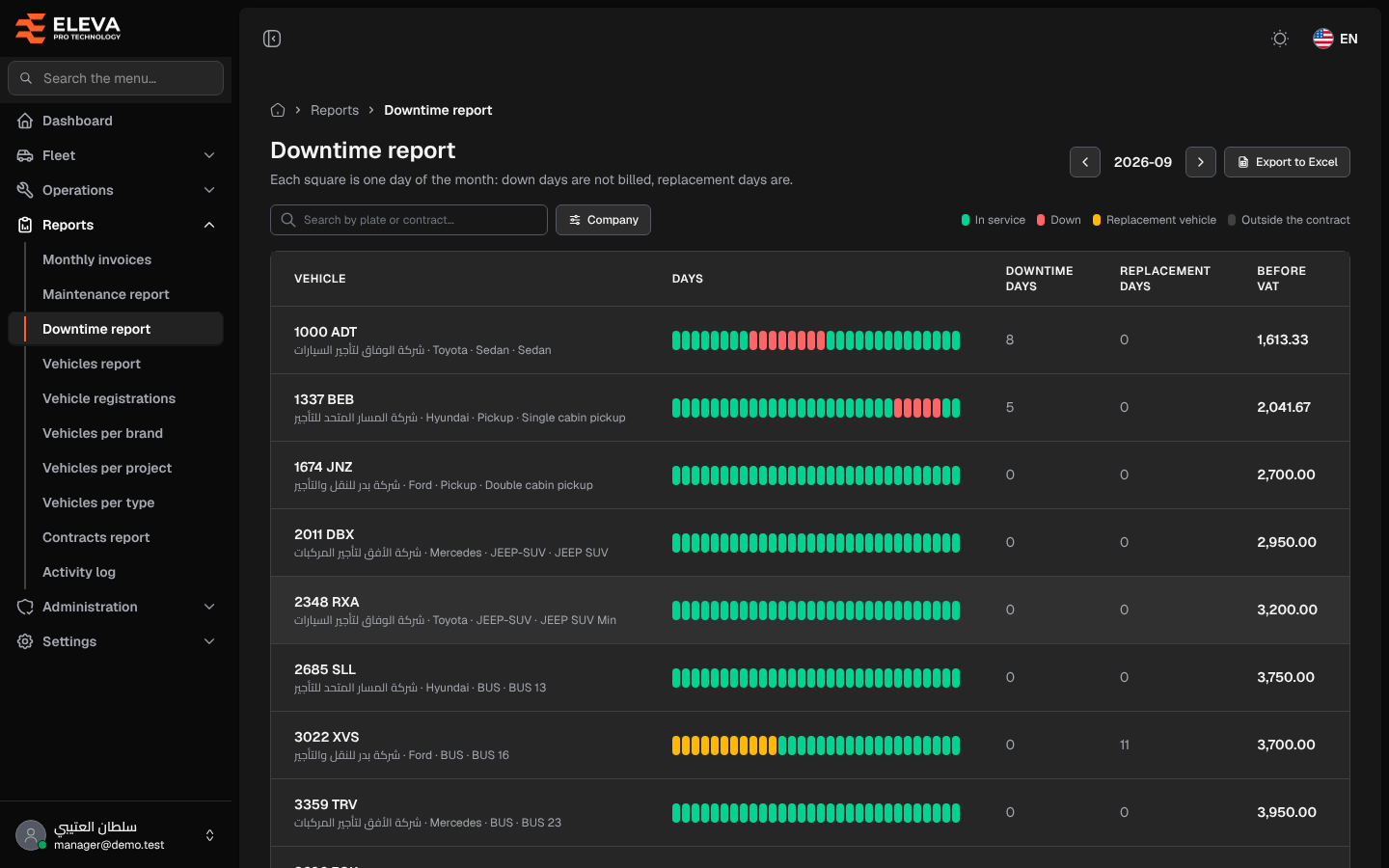
The Downtime report shows every leased vehicle of a month as a row of day squares, so you can see at a glance which days a vehicle was in service, down or replaced, and what that month costs for it. It is the detail behind the Monthly invoices report.
What’s on this screen
Section titled “What’s on this screen”- Month stepper (for example 2026-09) and Export to Excel.
- Search box Search by plate or contract… and Company filter.
- Legend: In service (green), Down (red), Replacement vehicle (orange), Outside the contract (gray).
- Table columns: Vehicle (plate, company, brand and type), Days (one square per day of the month), Downtime days, Replacement days, Before VAT, Maintenance, Violations, and a Total row.
How to read the day squares
Section titled “How to read the day squares”- Day 1 is at the start of the row (on the right in Arabic).
- Point at a square to see the day number, its status and, on a replacement day, the replacement vehicle’s plate.
- Click a replacement square to open the replacement vehicle (requires the View permission on vehicles).
- Down days are not billed. Replacement days are billed. Outside the contract days are before the contract starts or after it ends.
Before VAT is the monthly rent × billable days ÷ days in the month, as on the Monthly invoices report. It is always computed live.
How to use the report
Section titled “How to use the report”- From the side menu, open Reports and click Downtime report.
- Choose the month with the arrows.
- Search by plate or contract number, or pick a Company.
- Click Export to Excel to download every filtered row, with one column per day (✓ in service, ✗ down, ↔ replacement).