

Activity log
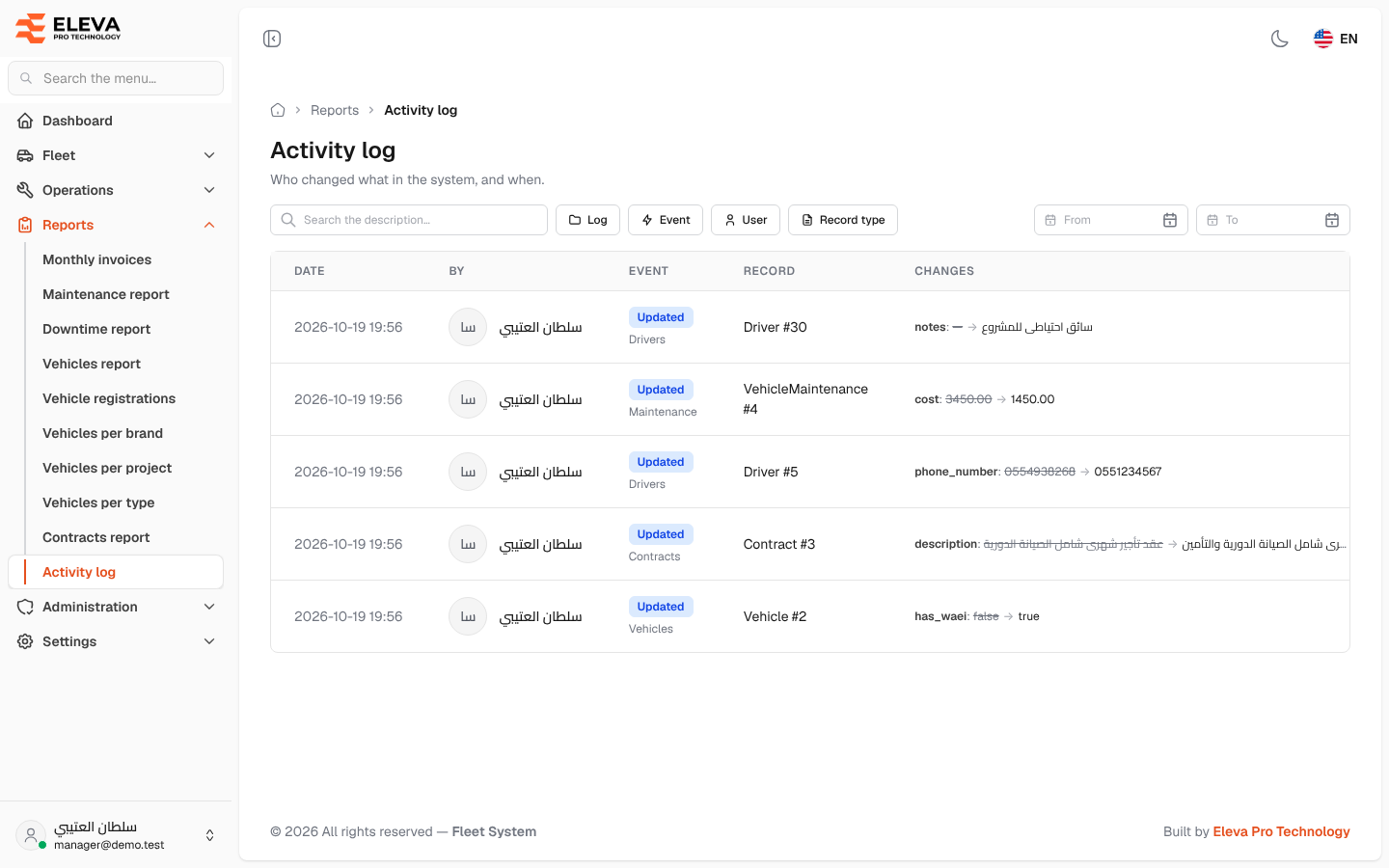
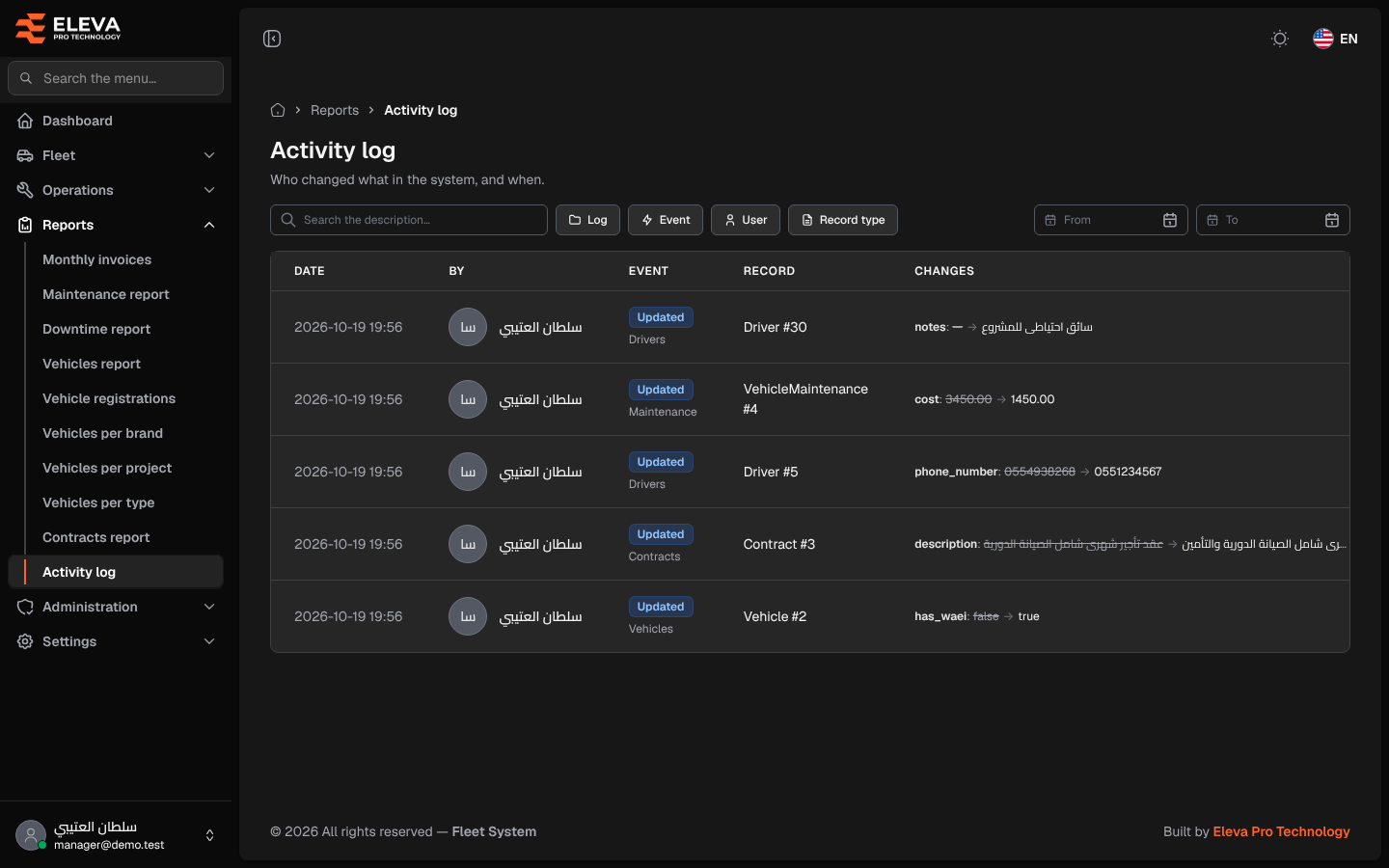
The Activity log records who changed what in the system, and when. Every time a vehicle, driver, contract, user, setting or other record is created, updated or deleted, an entry is added with the old and new values. Use it to find out who changed a record, or to check what a value was before.
How to open the activity log
Section titled “How to open the activity log”- From the side menu, open Reports.
- Click Activity log.
What’s on this screen
Section titled “What’s on this screen”- Search the description…: searches the entry descriptions.
- Filters (you can tick several values in each):
- Log: the part of the system, such as Drivers, Vehicles, Contracts or Maintenance.
- Event: Created, Updated or Deleted.
- User: who made the change. System covers changes made by the system itself.
- Record type: the kind of record, such as Vehicle, Driver or Contract.
- From and To: limit the entries to a date range.
- Table columns:
- Date: date and time of the change.
- By: the user who made it.
- Event: the event tag, with the log name below it.
- Record: the record type and number, for example Driver #30.
- Changes: the first 2 changed fields as field: old → new, with the old value struck through. +N more shows that more fields changed.
How to see the full details of a change
Section titled “How to see the full details of a change”- Click the entry’s row.
- The Activity # drawer opens with Date, By, Event, Log, Record and Description.
- Under Changes, a table lists every changed Field with its Before and After value. A dash means the field had no value.
- Click Close.
How to find the history of one record
Section titled “How to find the history of one record”- Choose its Record type in the filter.
- Narrow down with From, To or User, then find the record number in the Record column.