

Vehicles
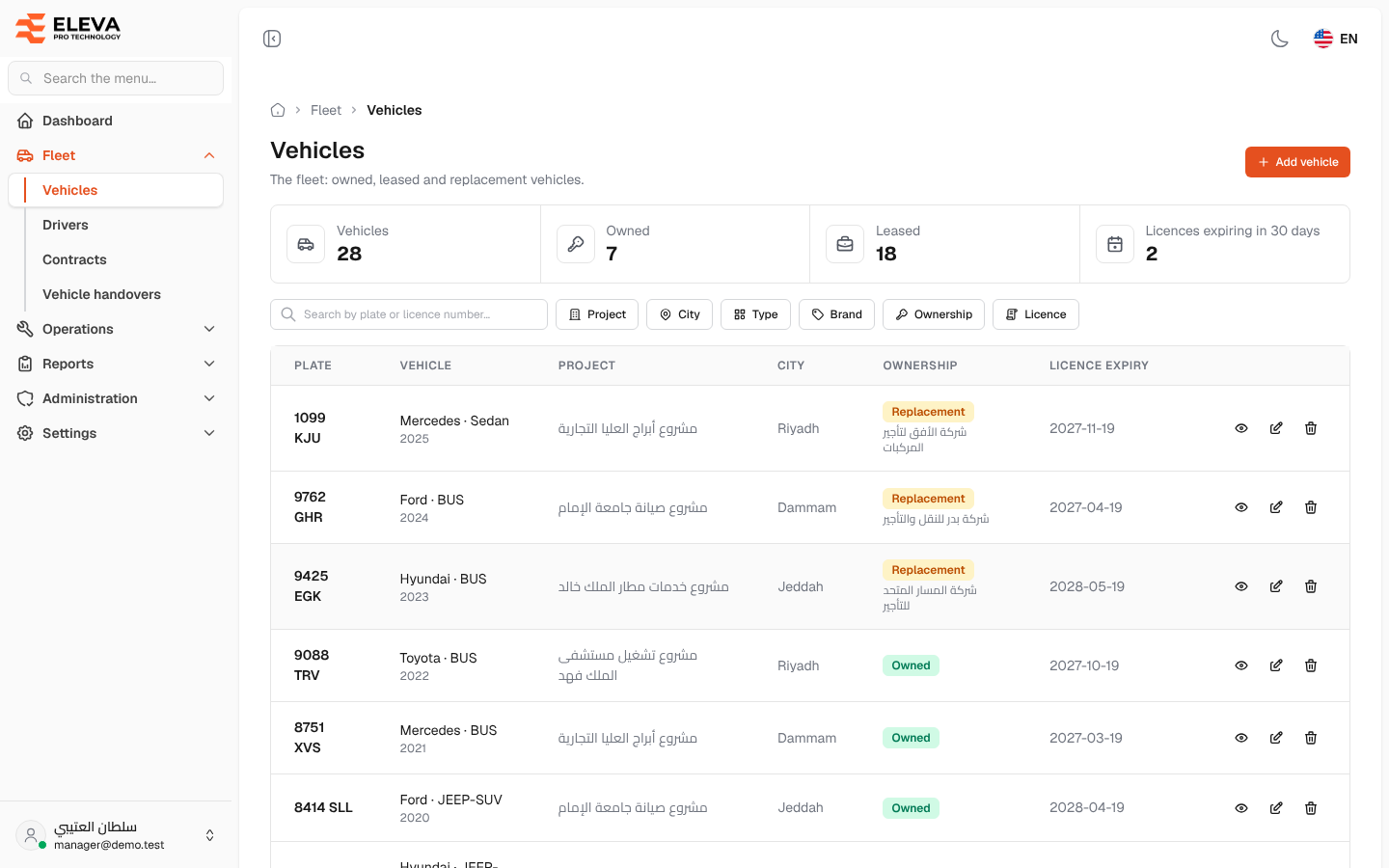
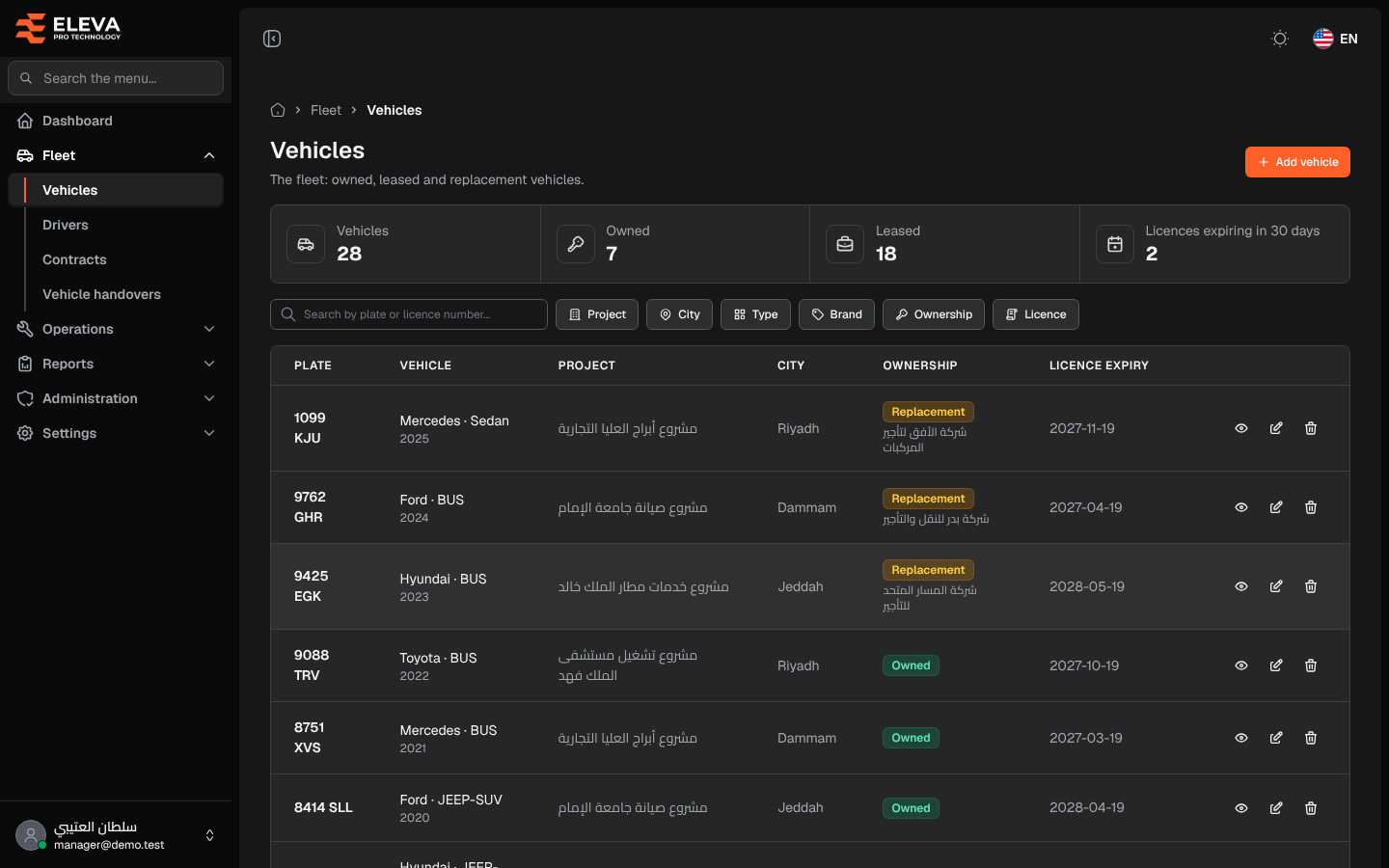
The Vehicles screen lists your whole fleet: owned, leased and replacement vehicles, with each vehicle’s project, city and licence (registration) status.
Use this screen to find a vehicle, keep an eye on licences that are about to expire, and open, edit or delete a vehicle.
What’s on this screen
Section titled “What’s on this screen”- Stat cards: Vehicles, Owned, Leased and Licences expiring in 30 days.
- Search box — searches by plate or licence number.
- Filters: Project, City, Type, Brand, Ownership and Licence (Expired, Expiring soon, Valid).
- Add vehicle button — opens the form for a new vehicle.
- Table columns: Plate, Vehicle (brand, type and model year), Project, City, Ownership (with the rental company’s name for leased and replacement vehicles) and Licence expiry.
- Action icons on each row: view, edit and delete.
A licence expiry date is shown in red with an Expired tag once it has passed, and in amber with an Expiring soon tag when 30 days or fewer remain.
How to open the vehicles list
Section titled “How to open the vehicles list”- In the side menu, open Fleet.
- Click Vehicles.
How to find a vehicle
Section titled “How to find a vehicle”- Type a plate or licence number in the search box.
- To narrow the results, pick one or more values in the filters, such as Project or Ownership.
- To see vehicles whose licence needs renewing, choose Expiring soon or Expired in the Licence filter.
How to work with a vehicle
Section titled “How to work with a vehicle”- Click the row or the eye icon to open the vehicle’s page.
- Click the pencil icon to edit the vehicle.
- Click the bin icon to delete the vehicle, then confirm.