

Users
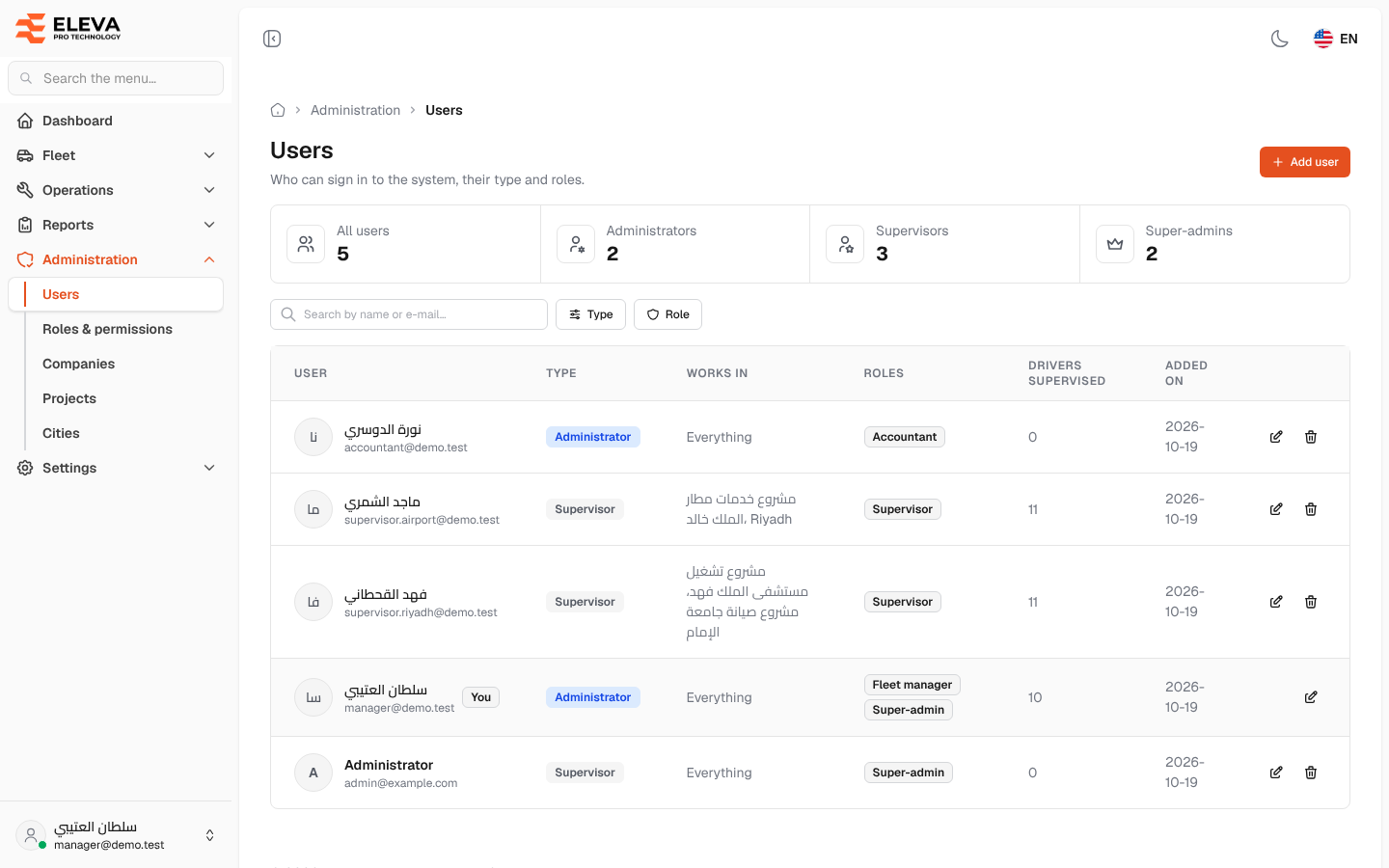
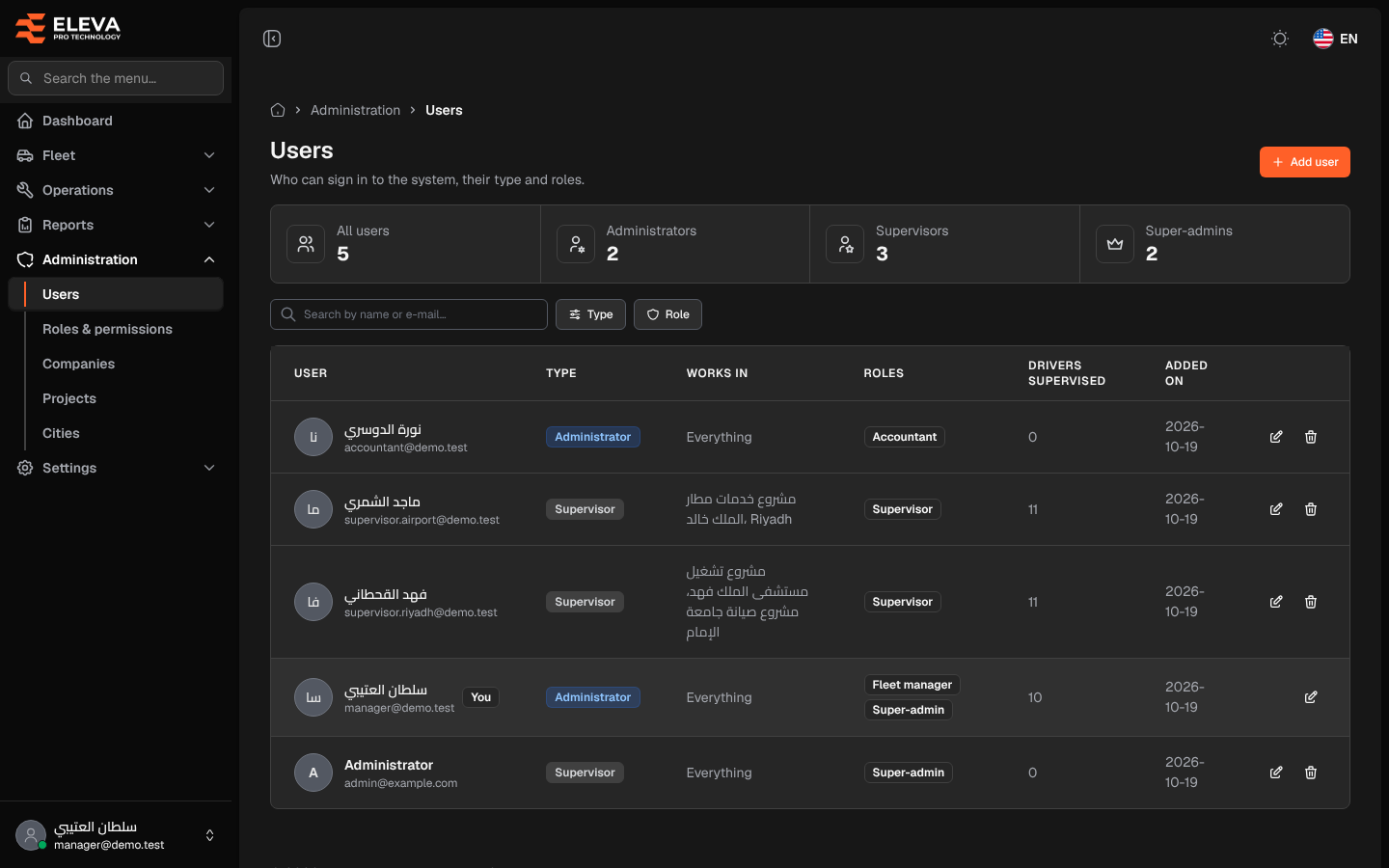
The Users screen lists everyone who can sign in to the system, with their type label, the projects and cities they work in, and their roles. Administrators use it to add staff, change their access, and remove accounts that are no longer needed.
How to open the users list
Section titled “How to open the users list”- From the side menu, open Administration.
- Click Users.
What’s on this screen
Section titled “What’s on this screen”- Add user: opens the drawer to create a user.
- Figures: All users, Administrators and Supervisors (by user type), and Super-admins (users holding the super-admin role).
- Search by name or e-mail…: finds users by name or e-mail.
- Type and Role filters: show only users of the chosen types or roles. You can tick several values.
- Table columns:
- User: photo or initials, name and e-mail. Your own row is marked You.
- Type: Administrator or Supervisor. It is only a label for sorting and filtering and grants nothing; permissions come from the Roles.
- Works in: the projects and cities the user is limited to, or Everything when the user is not limited.
- Roles: the roles the user holds.
- Drivers supervised: how many drivers have this user as their supervisor.
- Added on: the date the account was created.
- The edit (pencil) and delete (bin) icons. A lock icon appears instead when only a super-admin can change the account.
How to edit a user
Section titled “How to edit a user”- Click the user’s row or its pencil icon.
- Change the details in the drawer and click Save user. The fields are explained on the Add user page of this manual.
How to delete a user
Section titled “How to delete a user”- Click the bin icon of the user.
- Check the name in Delete user and click Delete.
Rules for editing and deleting
Section titled “Rules for editing and deleting”- You cannot delete your own account; your row has no bin icon.
- A user who is still the supervisor of drivers cannot be deleted. The confirmation tells you how many drivers they supervise; move those drivers to another supervisor first.
- You can only change or delete a user who holds no permission you lack. Otherwise the system replies “You can’t change or delete a user who holds permissions you don’t have.”
- Only a super-admin can change or delete a super-admin account, and the last super-admin can never be deleted.
- If you are limited to some projects or cities, you can only manage users limited within your own projects and cities.