

Add fuel fill-up
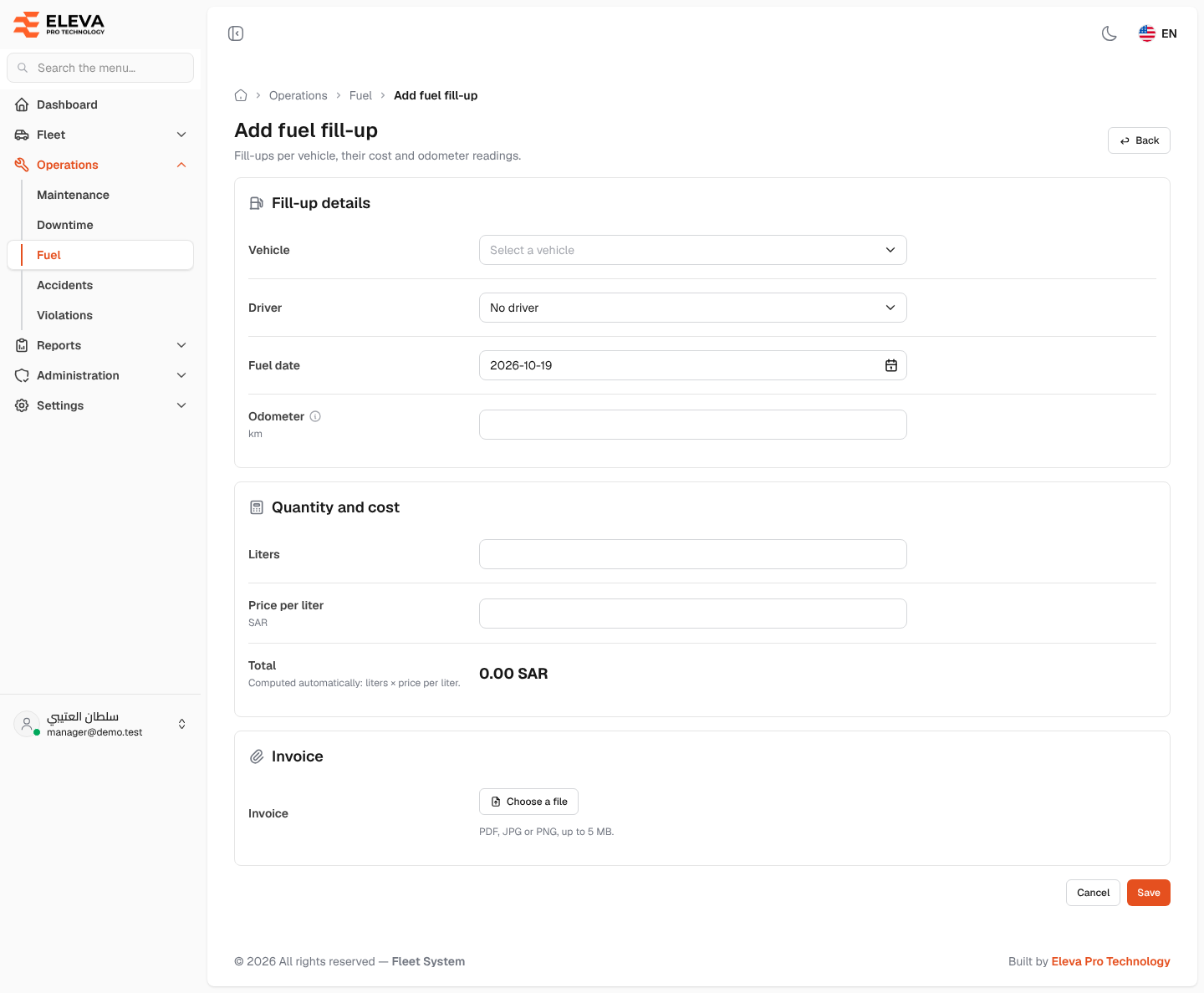
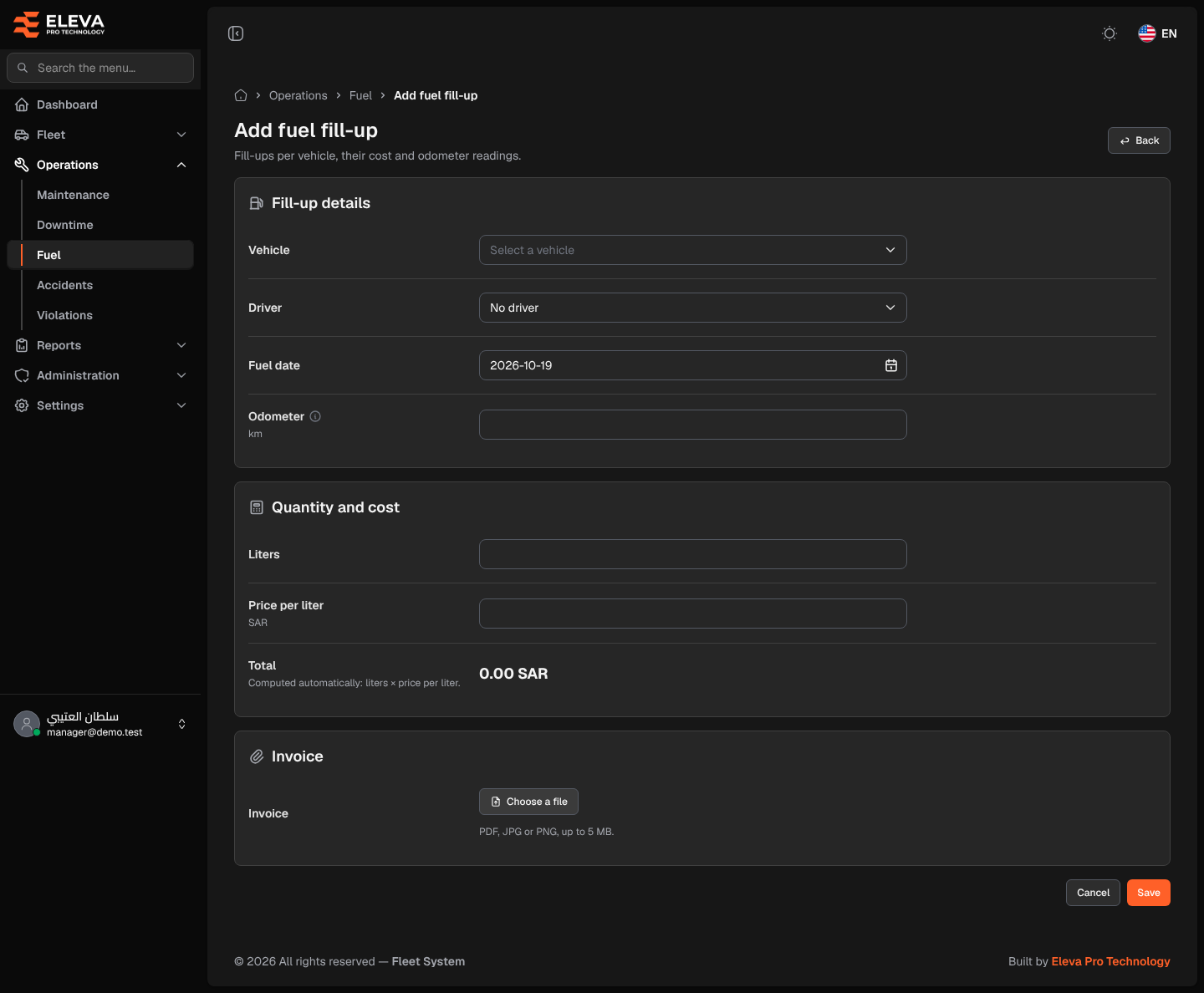
Record a fill-up each time a vehicle is refuelled. The odometer reading lets the system show the distance driven between fill-ups and the vehicle’s km per liter.
How to add a fill-up
Section titled “How to add a fill-up”- From the side menu, open Operations and click Fuel.
- Click Add fill-up.
- Fill in the fields described below. The Total updates as you type.
- Click Save, or Cancel (or Back) to discard. After saving, the fill-up details open.
Fields
Section titled “Fields”Fill-up details
- Vehicle (required) — the vehicle that was refuelled.
- Driver — the driver who filled up, or No driver.
- Fuel date (required) — today by default.
- Odometer (required) — the reading in km at the fill-up. It can’t be below the reading of the same vehicle’s previous fill-up (on the same date or earlier), and it can’t be above the reading of its next fill-up (a later date).
Quantity and cost
- Liters (required) — more than zero, up to two decimals.
- Price per liter (required) — in SAR, more than zero, up to two decimals.
- Total — computed automatically: liters × price per liter, rounded to two decimals. You can’t type it; the system calculates it again on save.
Invoice
- Invoice — the fuel receipt. Click Choose a file. PDF, JPG or PNG, up to 5 MB. When editing you can Open file, Remove file or Replace file.