

Forgot password
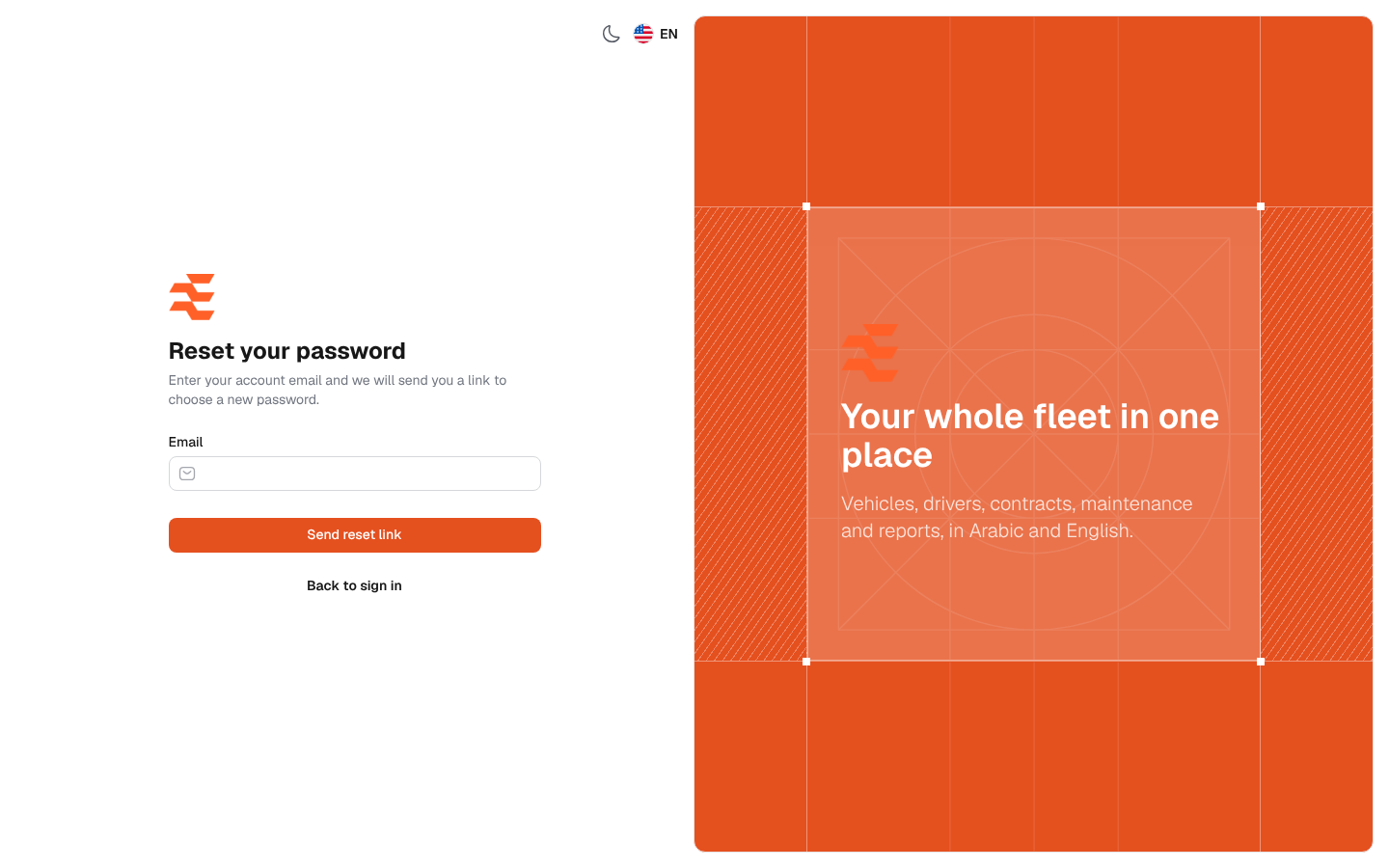
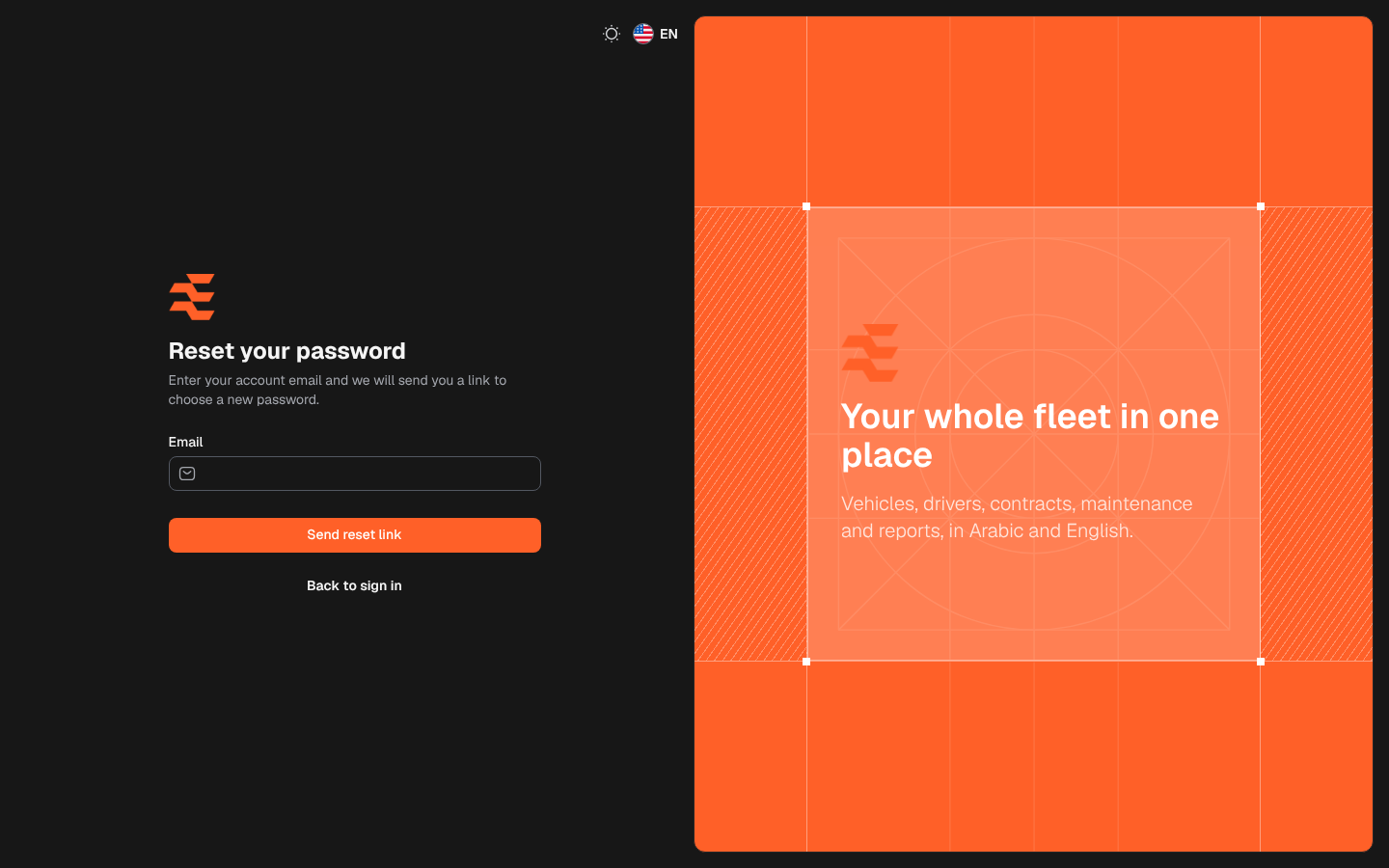
Use this screen when you have forgotten your password. You enter your account e-mail and the system sends you a link to choose a new password. Open it by clicking Forgot password? on the sign-in screen.
What’s on this screen
Section titled “What’s on this screen”- Reset your password: the screen title, with a short explanation below it.
- Email: the e-mail address of your account.
- Send reset link: sends the link to your e-mail.
- Back to sign in: returns to the sign-in screen.
How to reset your password
Section titled “How to reset your password”- On the sign-in screen, click Forgot password?.
- Type your account e-mail in Email.
- Click Send reset link. The message “We have emailed your password reset link.” appears.
- Open the e-mail and click the link.
- On the page that opens, type a New password and Confirm new password, then click Save password.
- Sign in with the new password.
Messages you may see
Section titled “Messages you may see”- “We can’t find a user with that email address.”: the e-mail is not registered. Check it, or ask an administrator to confirm your account.
- “Please wait before retrying.”: you asked for a link a moment ago. Wait, then try again.
- “This password reset token is invalid.”: the link is old or was already used. Request a new one.