

Driver page
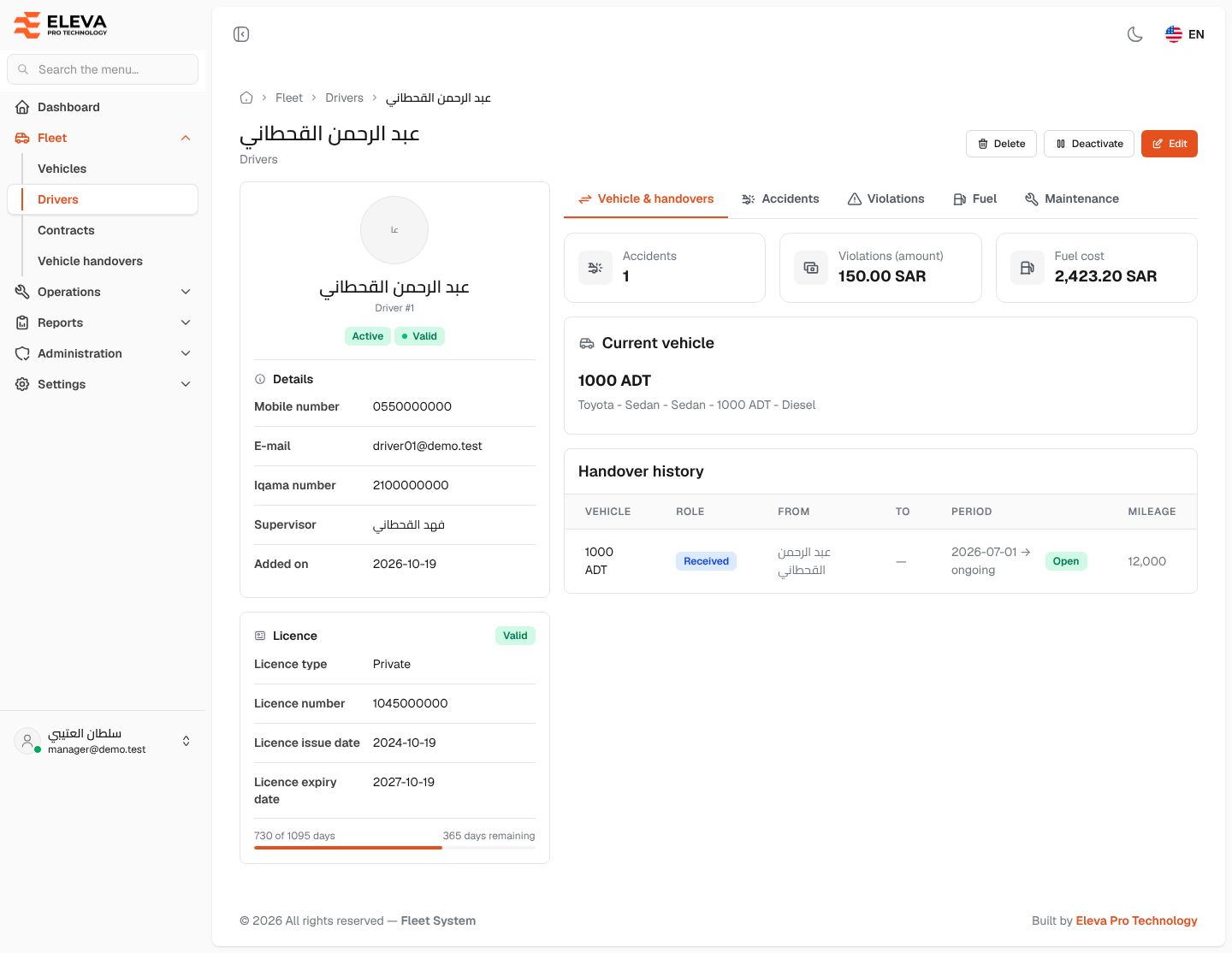
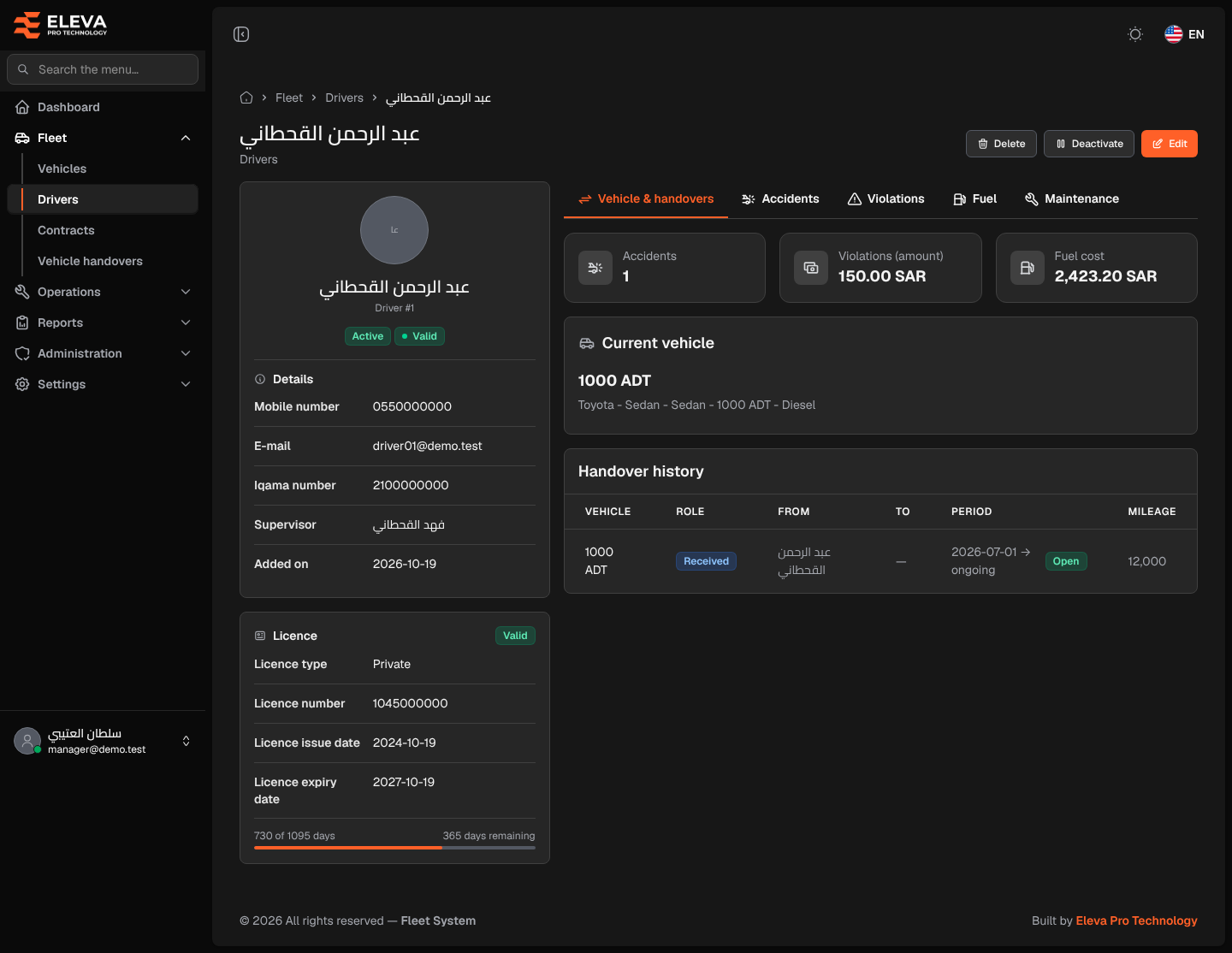
A driver’s page shows their details, their licence and the vehicle they hold now, with their full history: handovers, accidents, violations, fuel and maintenance. It is also where you deactivate or reactivate a driver. Open it by clicking the driver’s row in the Drivers list.
What’s on this screen
Section titled “What’s on this screen”- Title — the driver’s name, with a link back to Drivers below it.
- Delete, Deactivate (or Activate for an inactive driver) and Edit buttons.
- Driver card: photo, name and driver number, with a status tag (Active or Inactive) and a licence tag, then the Details section: Mobile number, E-mail, Iqama number, Supervisor, Added on and Notes when there are any.
- Licence card: its status tag (Valid, Expiring soon or Expired), Licence type, Licence number, Licence issue date and Licence expiry date, with a bar showing the days used and the days remaining.
- Tabs Vehicle & handovers, Accidents, Violations, Fuel and Maintenance.
- Accidents, Violations (amount) and Fuel cost tiles — the driver’s totals.
- On the Vehicle & handovers tab: the Current vehicle card (plate and vehicle description, or “No vehicle is assigned to this driver now.”) and the Handover history table with Vehicle, Role (Received or Handed over), From, To, Period and Mileage. The current handover carries an Open tag.
How to review the driver’s history
Section titled “How to review the driver’s history”- Click a tab, such as Violations or Fuel.
- Click any row to open that record on its own screen.
- Click the vehicle description in the Current vehicle card to open the vehicle’s page.
Each tab shows the latest 50 records.
How to deactivate or activate a driver
Section titled “How to deactivate or activate a driver”- Click Deactivate (or Activate for an inactive driver).
- Confirm in the dialog.
How to edit or delete the driver
Section titled “How to edit or delete the driver”- Click Edit to change their details or licence.
- Click Delete, then confirm.