

Roles & permissions
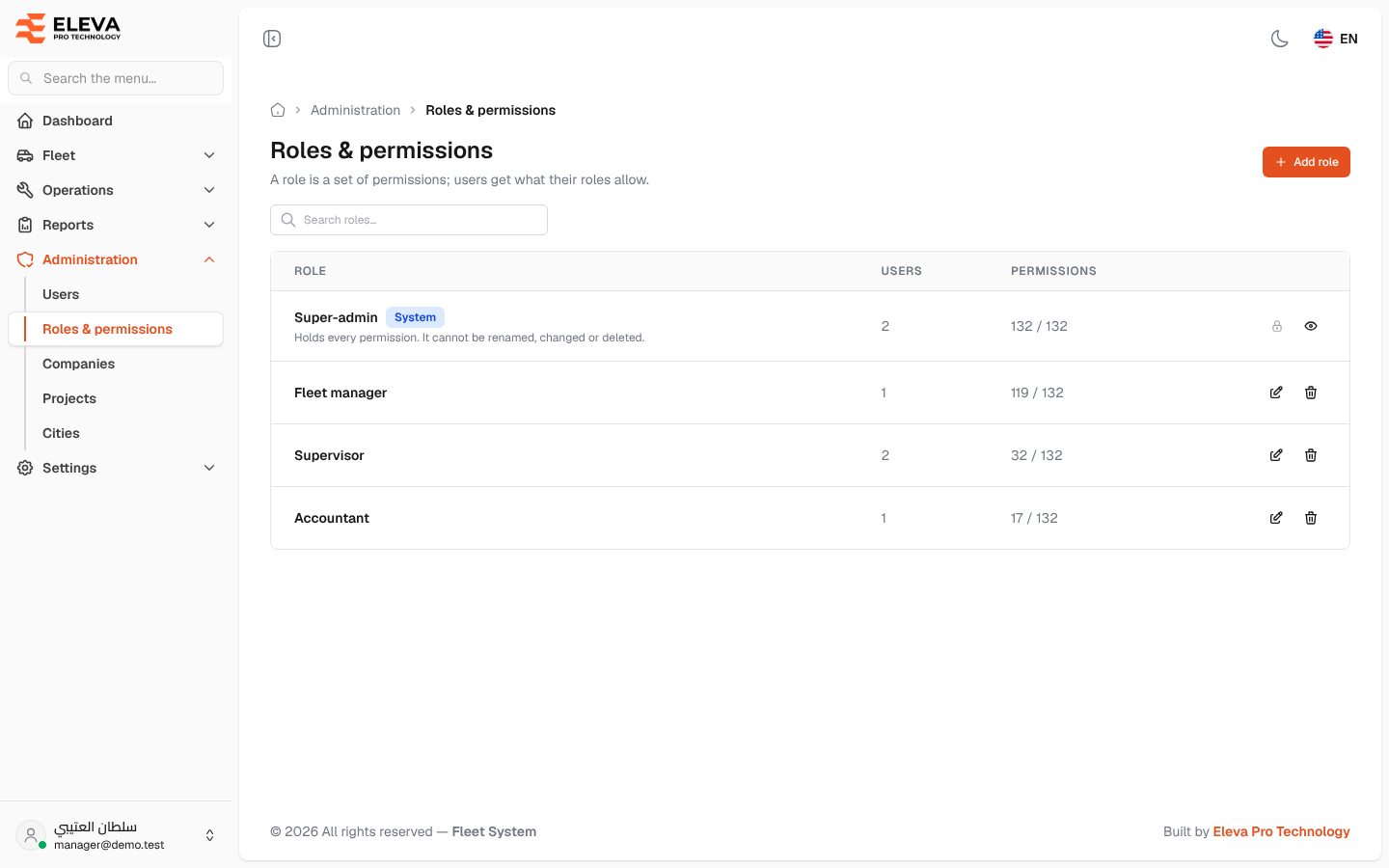
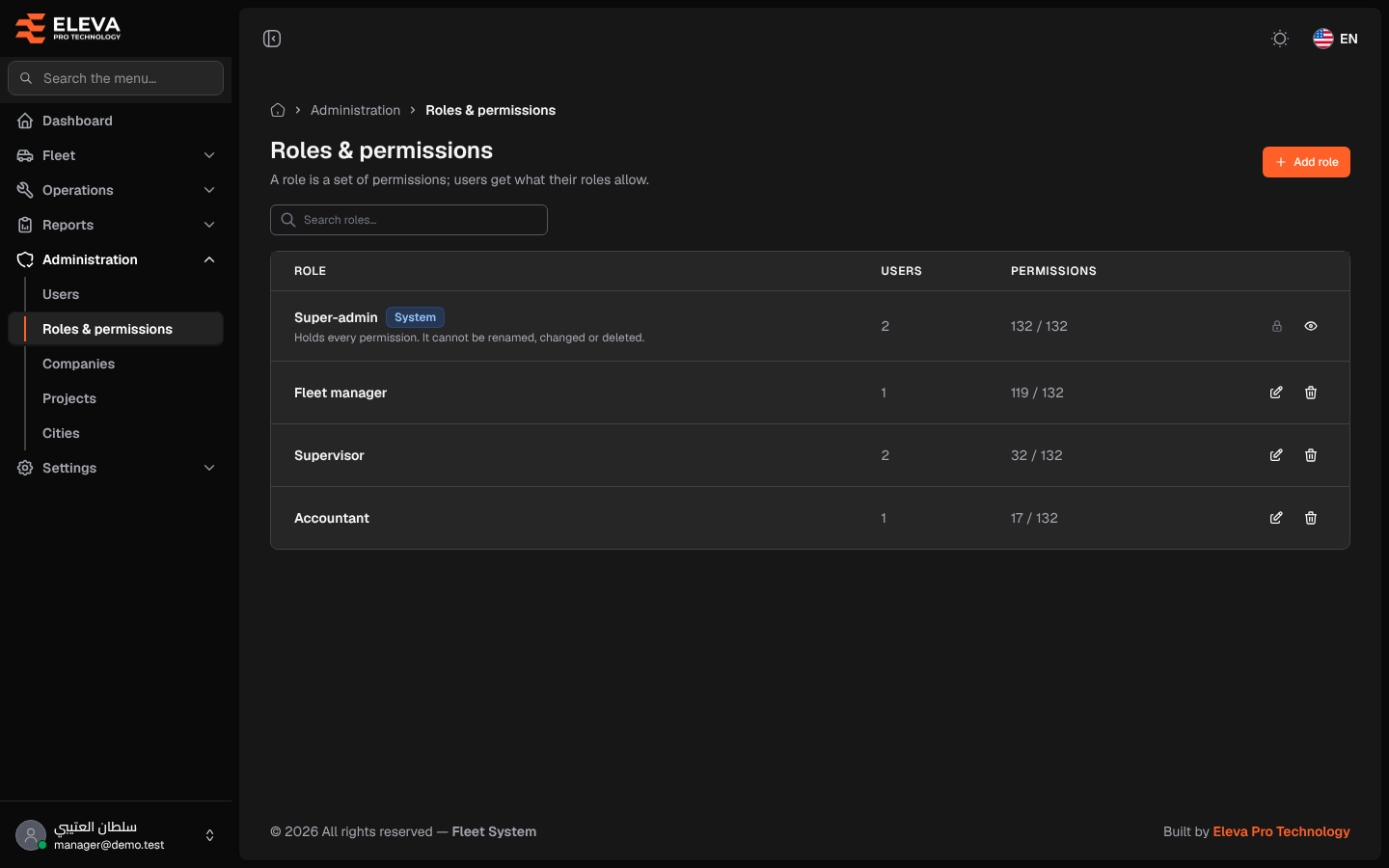
A role is a named set of permissions, and users get what their roles allow. The Roles & permissions screen lists every role, how many users hold it and how many permissions it gives. Use it to add a role for a new job, change what a role allows, or remove a role that is no longer used.
How to open roles
Section titled “How to open roles”- From the side menu, open Administration.
- Click Roles & permissions.
What’s on this screen
Section titled “What’s on this screen”- Add role: opens the role editor to create a role.
- Search roles…: finds roles by name.
- Table columns:
- Role: the role name. The Super-admin role carries the System tag and the note “Holds every permission. It cannot be renamed, changed or deleted.”
- Users: how many users hold the role.
- Permissions: how many permissions the role gives out of the total, for example 119 / 132.
- Actions: the pencil icon opens the role editor and the bin icon deletes the role. A locked role shows a lock icon and an eye icon instead, which opens it read-only.
How to delete a role
Section titled “How to delete a role”- Click the bin icon of the role.
- Check the name in Delete role and click Delete.
- The Super-admin role cannot be renamed, changed or deleted.
- You cannot change or delete a role you hold yourself (unless you are a super-admin). Such a role shows “You hold this role, so you cannot change it.”
- A role that is given to users cannot be deleted. The system replies “This role is given to N user(s). Remove it from them before deleting it.” Remove the role from those users on the Users screen first.