

Role permissions
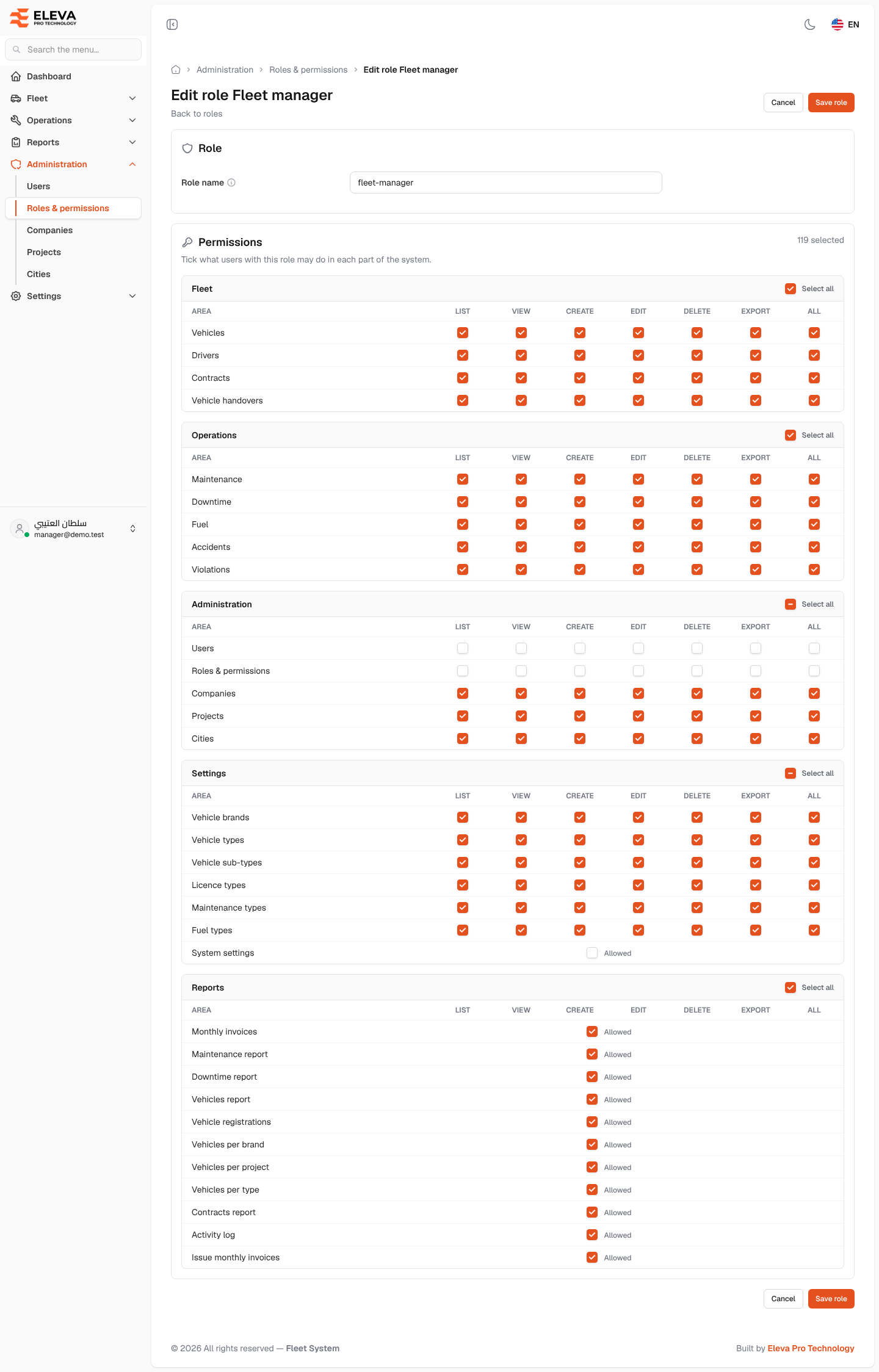
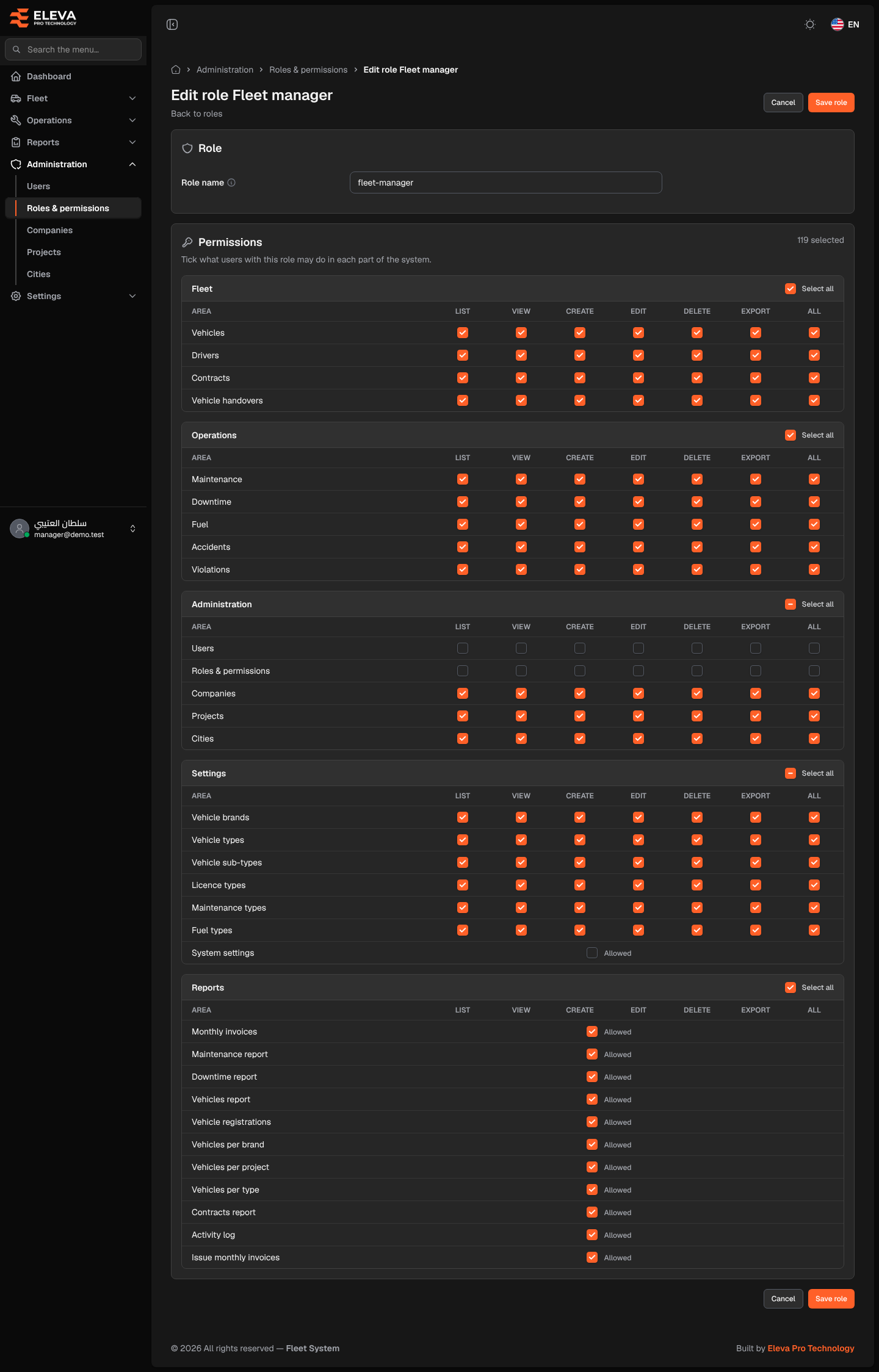
The role editor is where you name a role and tick what it allows. It opens when you click Add role, or a role’s row or pencil icon, on the Roles & permissions screen. Changes apply to every user who holds the role.
What’s on this screen
Section titled “What’s on this screen”- The title Edit role followed by the role’s name (for example Edit role Fleet manager), or Add role for a new role.
- Back to roles: returns to the list without saving.
- Cancel and Save role: at the top and again at the bottom of the page.
- Role: the Role name field. The name is shown in the users list and the user form.
- Permissions: the permission matrix under the line “Tick what users with this role may do in each part of the system.”, with the number ticked shown as 119 selected.
- The matrix is grouped like the side menu: Fleet, Operations, Administration, Settings and Reports. Each group has a Select all box.
- In each group, one row per Area (for example Vehicles, Drivers, Contracts, Vehicle handovers) and one column per action:
- List: open the list screen of that area.
- View: open one record.
- Create, Edit, Delete: add, change or remove records.
- Export: export the list.
- All: ticks or clears the whole row.
- In the Settings group, after the list rows (such as Vehicle brands and Vehicle types), a System settings row with a single Allowed box that gives access to the System settings screen.
- Reports: one Allowed box per report: Monthly invoices, Maintenance report, Downtime report, Vehicles report, Vehicle registrations, Vehicles per brand, Vehicles per project, Vehicles per type, Contracts report and Activity log, then Issue monthly invoices, which allows issuing a month’s invoices.
How to create a role
Section titled “How to create a role”- Click Add role.
- Type the Role name, for example accountant.
- Tick the permissions the role needs, using Select all or All to tick groups or rows quickly.
- Click Save role.
How to edit a role
Section titled “How to edit a role”- Click the role’s row or pencil icon.
- Change the name or the ticked permissions.
- Click Save role.
Rules and limits
Section titled “Rules and limits”- The role name is required, up to 255 characters, and must be unique.
- The Super-admin role always holds every permission. It opens read-only, with the note “Holds every permission. It cannot be renamed, changed or deleted.”
- You can only give or remove permissions you hold yourself. When this limits you, the editor says “You can only give or remove permissions you hold yourself.” A super-admin can grant any permission.
- You cannot change a role you hold yourself, unless you are a super-admin. It opens read-only.