

Add maintenance
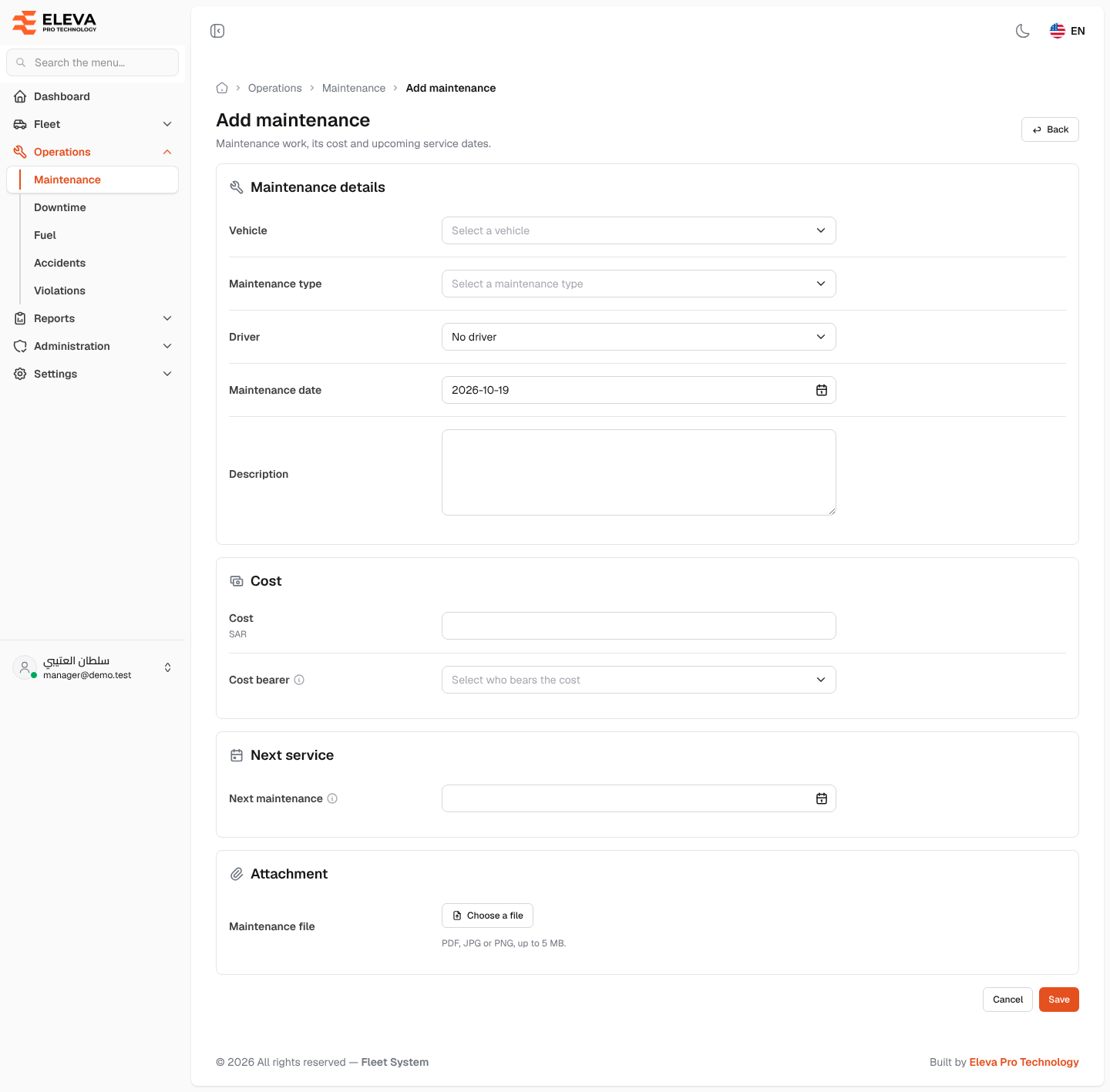
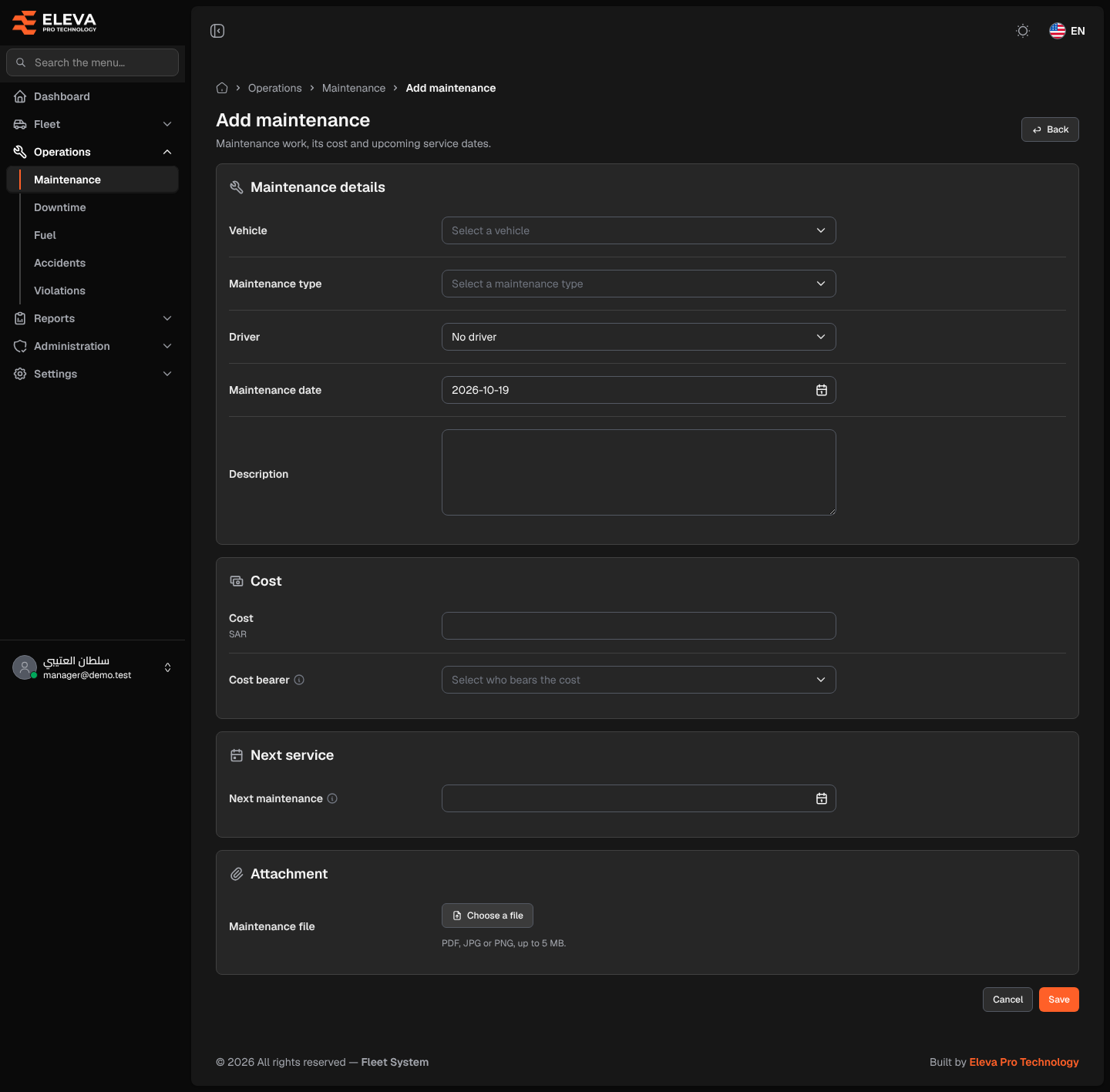
Record maintenance each time work is done on a vehicle: the type of work, its cost, who bears the cost and, for periodic services, when the next one is due. The next date feeds the due status on the maintenance list.
How to add maintenance
Section titled “How to add maintenance”- From the side menu, open Operations and click Maintenance.
- Click Add maintenance.
- Fill in the fields described below.
- Click Save, or Cancel (or Back) to discard. After saving, the record details open.
Fields
Section titled “Fields”Maintenance details
- Vehicle (required) — the vehicle that was serviced.
- Maintenance type (required) — from the list kept under maintenance types in settings.
- Driver — the driver involved, or No driver.
- Maintenance date (required) — today by default.
- Description — what was done, up to 5000 characters.
Cost
- Cost (required) — in SAR, zero or more.
- Cost bearer — Rental company, Our company or Driver.
- For a leased vehicle: required, chosen from the list.
- For an owned vehicle: the list is replaced by a text naming who actually bears the cost, for example “Owned vehicle: the cost is borne by Our company (from the vehicle’s or the system settings).” The bearer is the one set on the vehicle itself or, when the vehicle has none, the default in System settings; the system saves it with the record.
- A vehicle counts as owned when it is registered as owned or has an active Ownership contract.
Next service
- Next maintenance — leave empty when there is no periodic service. It must be after the maintenance date.
Attachment
- Maintenance file — click Choose a file. PDF, JPG or PNG, up to 5 MB. When editing you can Open file, Remove file (with Undo) or Replace file.