

General settings: Branding & appearance
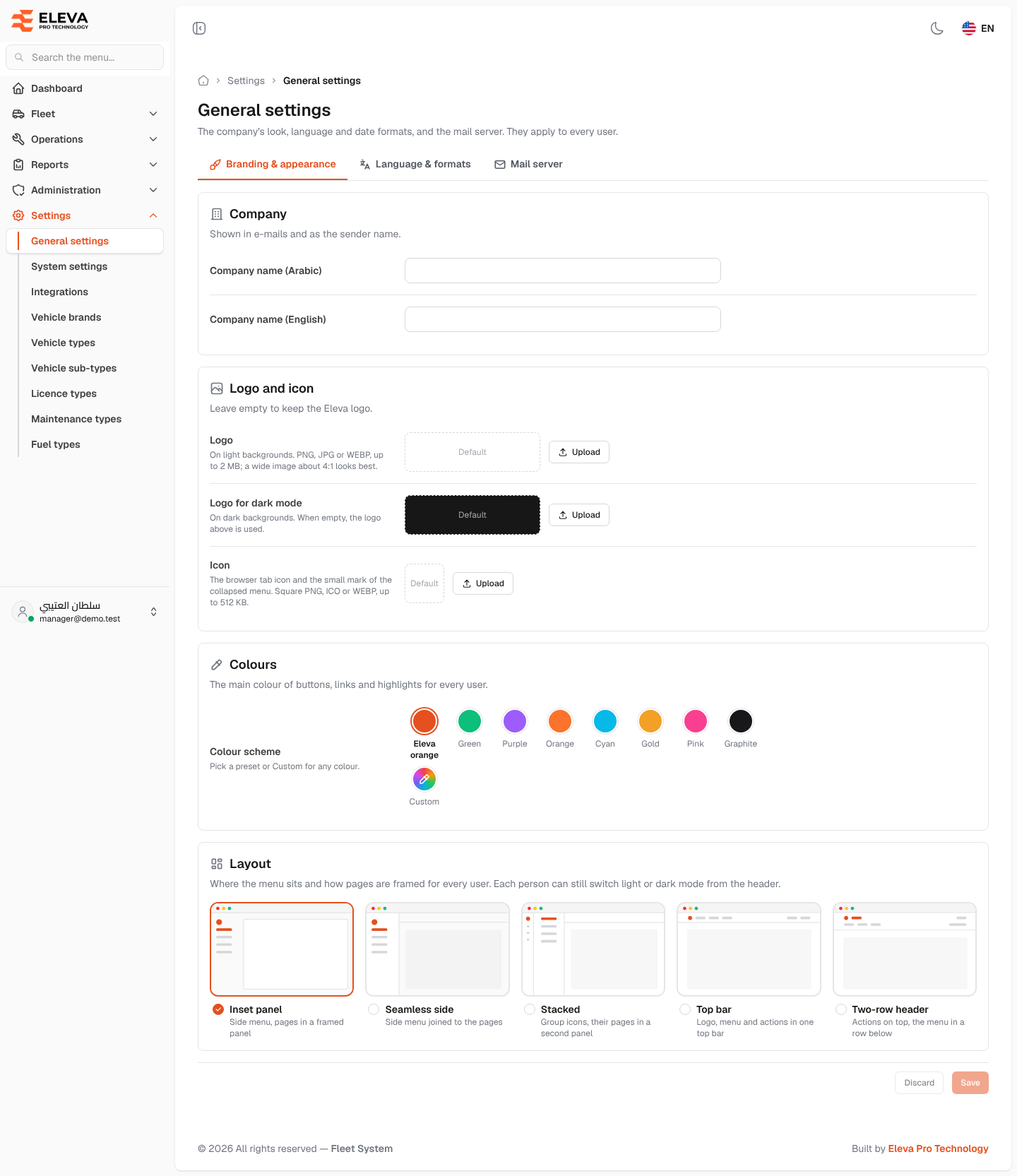
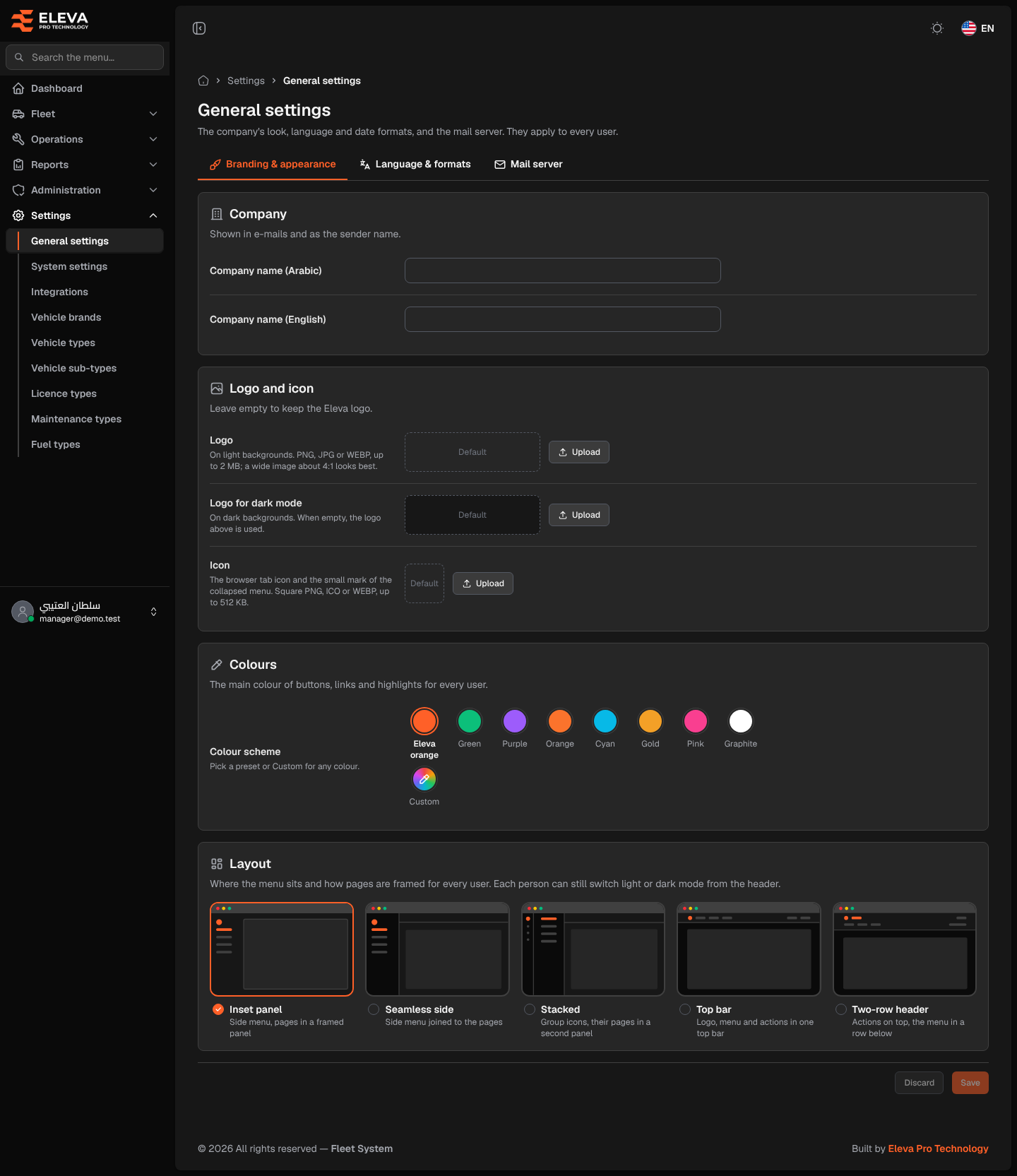
General settings holds the company’s look, language and date formats, and the mail server. They are the same for every user. The Branding & appearance tab sets the company names, the logo and icon, the colour scheme and the page layout that everyone sees.
Only a super-admin can open this screen. It is not a permission in the role editor: no other role can be given access.
How to open general settings
Section titled “How to open general settings”- From the side menu, open Settings.
- Click General settings. The Branding & appearance tab opens first.
What’s on this screen
Section titled “What’s on this screen”- The tabs Branding & appearance, Language & formats and Mail server.
- Company: “Shown in e-mails and as the sender name.”, with Company name (Arabic) and Company name (English).
- Logo and icon: “Leave empty to keep the Eleva logo.”, with three rows, Logo, Logo for dark mode and Icon. Each shows a preview (or Default when nothing is uploaded), an Upload button (Replace once there is an image) and a Remove button when there is one.
- Colours: the Colour scheme swatches Eleva orange, Green, Purple, Orange, Cyan, Gold, Pink, Graphite and Custom.
- Layout: five cards with a preview: Inset panel, Seamless side, Stacked, Top bar and Two-row header.
- The save bar at the bottom (it stays visible while scrolling): one Save button for the whole tab, active only after you change something, with “You have unsaved changes.” and a Discard button that puts back the saved values.
How to change the logo or icon
Section titled “How to change the logo or icon”- In Logo, Logo for dark mode or Icon, click Upload (or Replace) and choose the image.
- The preview shows the new image. Click Save.
To go back to the Eleva logo, click Remove next to the image, then Save.
How to choose the colour scheme
Section titled “How to choose the colour scheme”- In Colours, click a swatch. To use your own colour, click Custom, then pick a colour from the circle or type its code as
#rrggbb. - Click Save. The buttons, links and highlights change for every user.
How to choose the page layout
Section titled “How to choose the page layout”- In Layout, click the card you want.
- Click Save.
Fields
Section titled “Fields”- Company name (Arabic) and Company name (English): optional, up to 150 characters each. The name in the default language is the sender name of e-mails when From name on the Mail server tab is empty.
- Logo: shown on light backgrounds. PNG, JPG or WEBP, up to 2 MB; a wide image about 4:1 looks best.
- Logo for dark mode: shown on dark backgrounds. When empty, the Logo is used.
- Icon: the browser tab icon and the small mark of the collapsed menu. A square PNG, ICO or WEBP image, up to 512 KB.
- Colour scheme (required): one of the presets or Custom. Custom requires a colour code in the form
#rrggbb. Choose a colour dark enough for white text on it to stay readable. - Layout (required): where the menu sits and how pages are framed.
The company name also ends the browser tab title, in the reader’s language; when empty, the system name is shown.