

Users
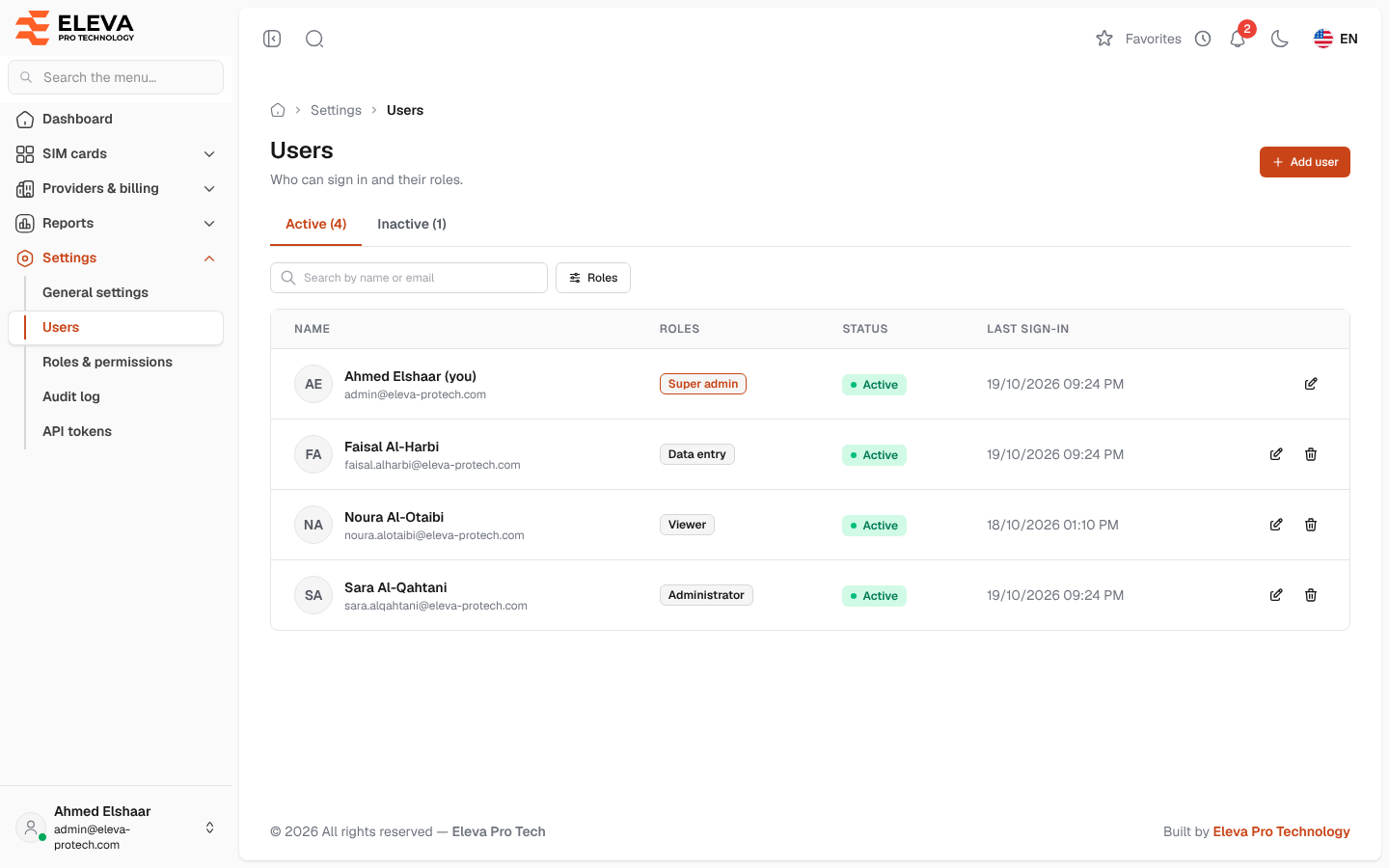
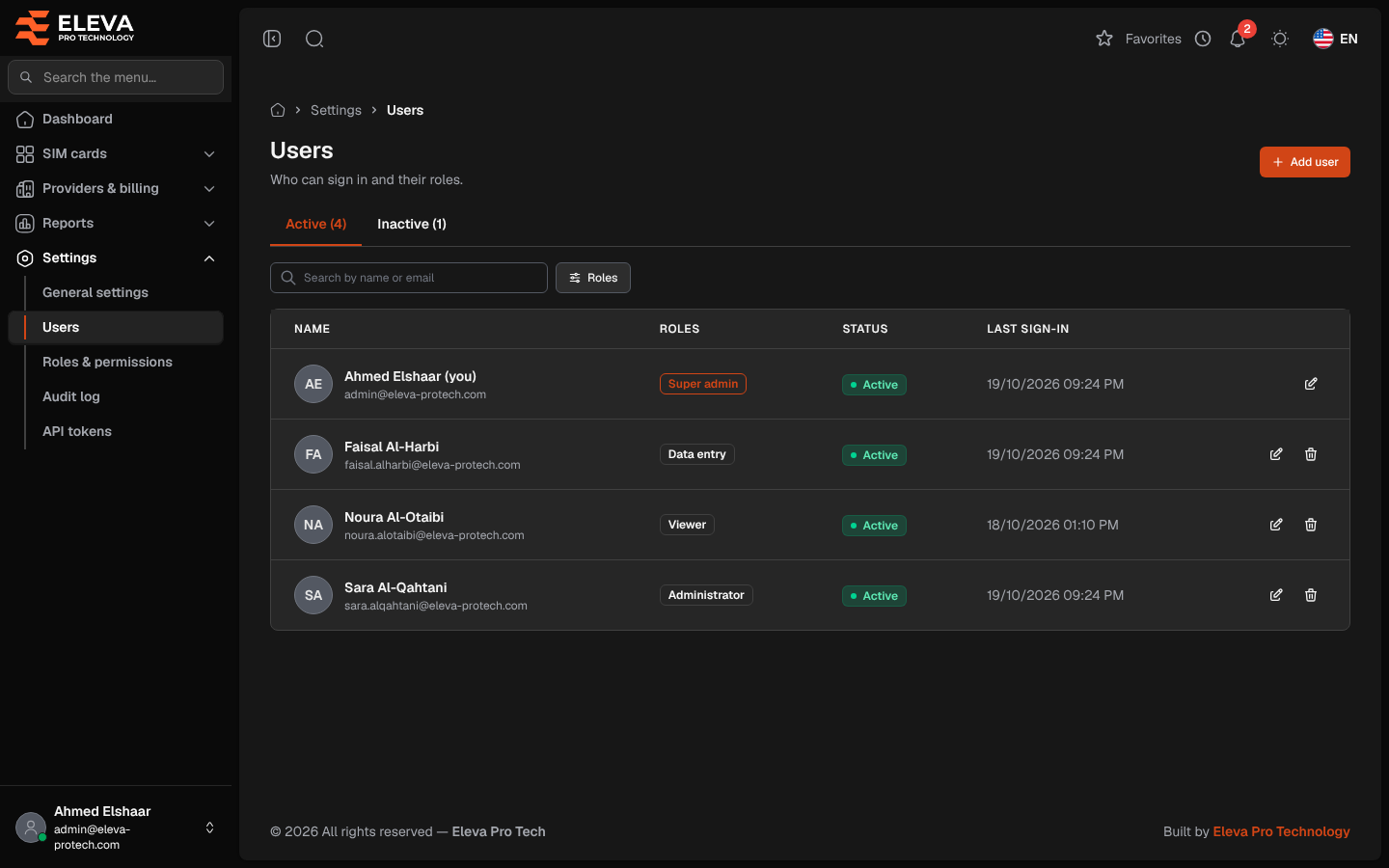
The Users screen lists who can sign in to the system, with their roles. Use it to add a user, change their roles, deactivate them or delete them.
From the side menu, open Settings › Users.
What’s on this screen
Section titled “What’s on this screen”- Active (N) and Inactive (N): tabs with the number of users in each.
- Search by name or email
- Filter: Roles.
- Add user: opens the user form. See Add or edit a user.
Columns
Section titled “Columns”- Name: with the e-mail underneath; your own account is marked (you).
- Roles: Super admin, Administrator, Data entry, Viewer or the roles your organisation created.
- Status: Active or Inactive.
- Last sign-in: or Never.
- Actions: Edit and Delete. A user with permissions you do not hold shows Has more access than you instead.
How to deactivate a user
Section titled “How to deactivate a user”- Click the pencil icon on the user’s row.
- Switch Status to Inactive and click Save user.
An inactive user cannot sign in, is signed out if they are using the system at that moment, and their API tokens stop working. They stay in the list and in the history.
How to delete a user
Section titled “How to delete a user”- Click the bin icon on the user’s row.
- Read Delete user and confirm with Delete. Their entries in the audit log are kept.
Saving and deleting ask for your password first if you have not typed it in the last 15 minutes (see Confirm your password).
Required permissions
Section titled “Required permissions”Users › View to open the screen; Users › Add, Edit and Delete for the buttons.