

Sign in
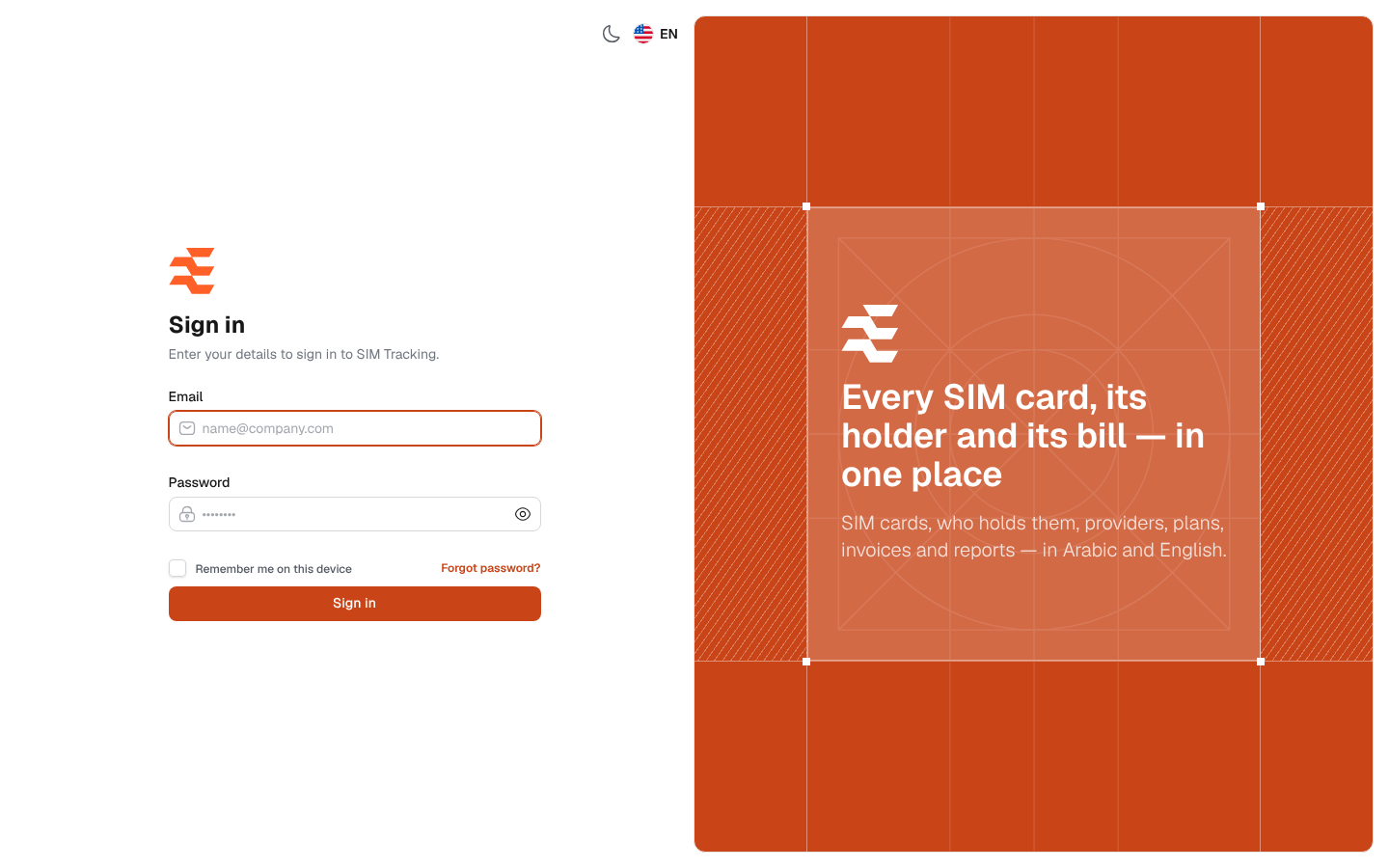
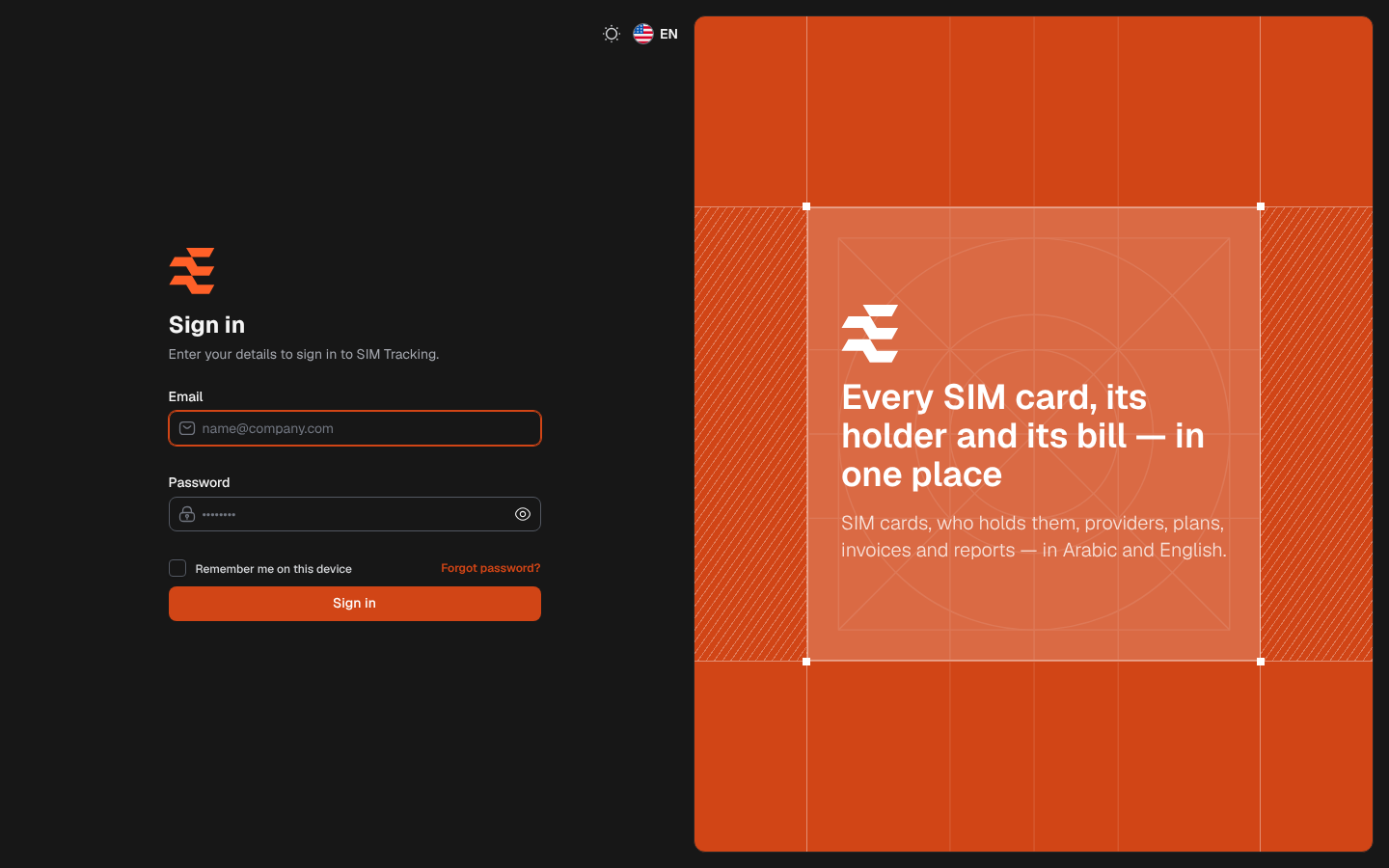
The sign-in page is where every user starts. Users sign in with the e-mail and password of the account an administrator created for them in Settings › Users. What they can see and do afterwards depends on their roles.
What’s on this screen
Section titled “What’s on this screen”- Email: the e-mail address of your account.
- Password: your password, with an eye icon to show or hide what you typed.
- Remember me on this device: keeps you signed in on this device.
- Forgot password?: opens the password reset page. See Forgot password.
- Sign in: submits your details. While they are checked, the button reads Checking….
- At the top of the page: the moon icon switches to dark mode, and the flag switches the page between Arabic and English.
How to sign in
Section titled “How to sign in”- In Email, type your work e-mail.
- In Password, type your password.
- On a personal device, tick Remember me on this device.
- Click Sign in.
The Dashboard opens. If your role does not include the dashboard figures, the page shows You do not have access to the dashboard figures. and you work from the side menu.
Signing in with your password also counts as confirming it: for the next 15 minutes, sensitive changes do not ask for it again. See Confirm your password.
Two-factor sign-in
Section titled “Two-factor sign-in”If two-factor sign-in is turned on for your account (see Password and two-factor sign-in), a second step, Two-factor sign-in, appears after the password:
- Open your authenticator app and type the 6-digit Code it shows.
- Click Verify.
If you do not have your phone, click Use a recovery code, type one of the recovery codes you saved in Recovery code, and click Verify. Each recovery code works once. Use the authenticator app switches back, and Back to sign in returns to the first step.
- The code is not valid.: the code is wrong or has already changed in the app. Type the current code.
- The sign-in took too long. Enter your email and password again.: the second step waited more than 10 minutes. Start again from the e-mail and password.
If sign-in fails
Section titled “If sign-in fails”- These credentials do not match our records.: the e-mail or password is wrong, or the account has been set to Inactive by an administrator. Check for extra spaces, the keyboard language and Caps Lock. The password field is cleared so you can type it again.
- Too many login attempts. Please try again in … seconds.: sign-in is paused for a while. Wait and try again.
- Your account is inactive. Contact your administrator.: you were signed in when an administrator deactivated your account in Settings › Users, so you were signed out.
Sign-in limits
Section titled “Sign-in limits”To protect accounts against password guessing, sign-in is paused after too many mistakes:
- After five wrong passwords for the same e-mail from the same network address, sign-in is paused for a short while.
- After ten wrong passwords for the same account within 15 minutes, from any address, sign-in to that account is paused for 15 minutes, even with the right password. The account owner receives an e-mail about it, and the event appears in the audit log as Sign-in paused (wrong passwords).
- In the two-factor step, too many wrong codes pause it in the same way. After ten wrong codes in 10 minutes the owner is e-mailed and the audit log shows Two-factor sign-in paused (wrong codes).