

Branding
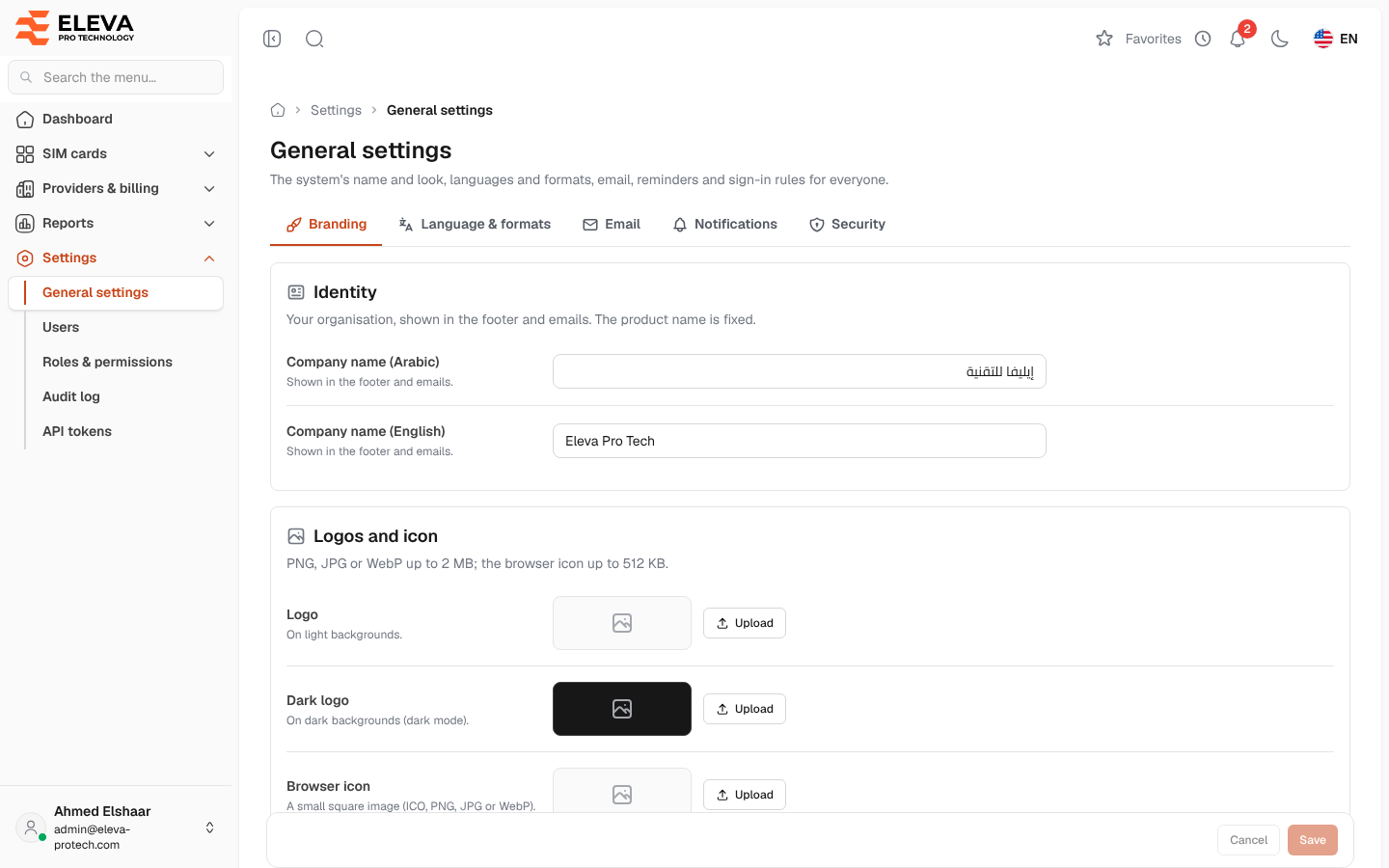
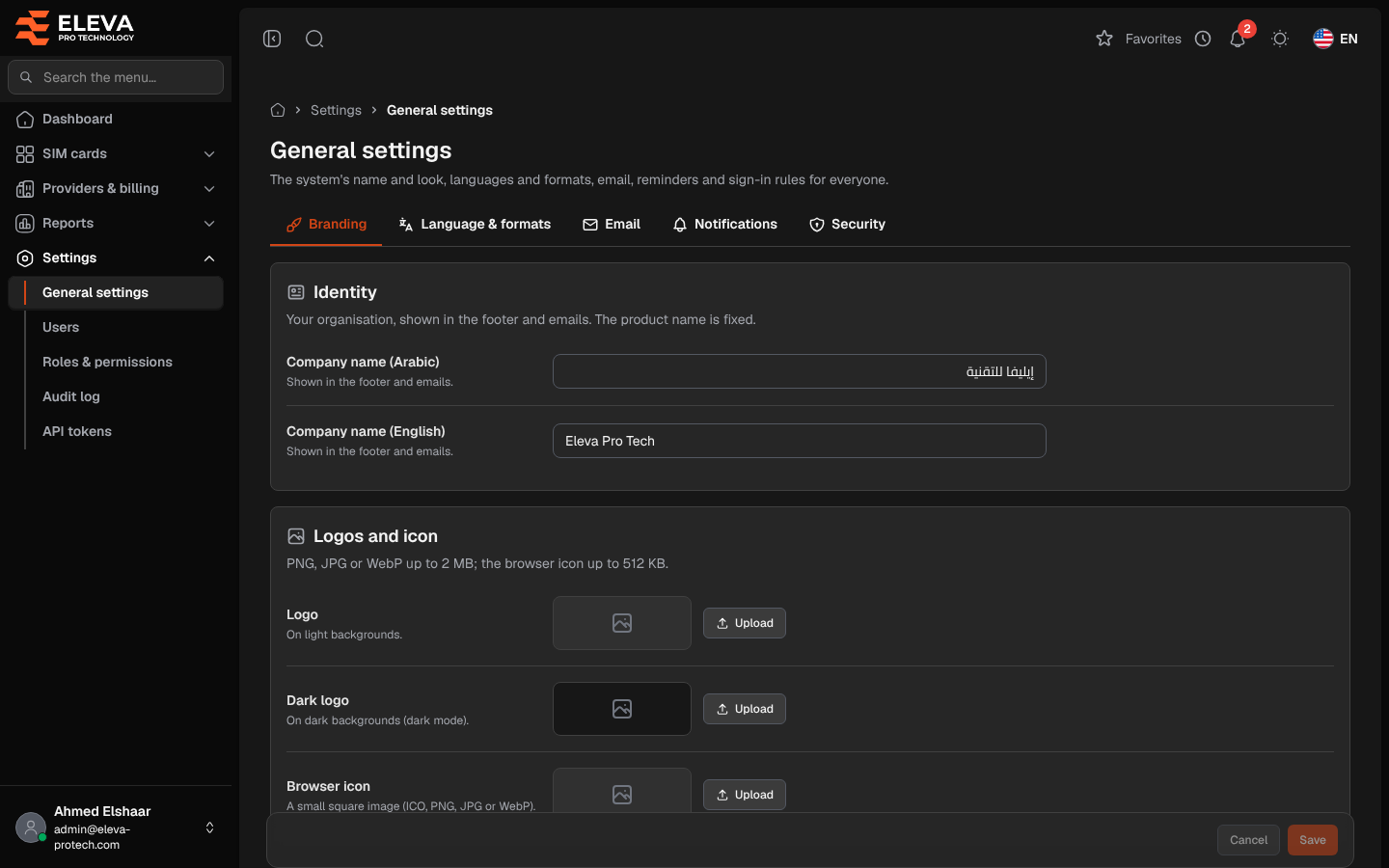
The Branding tab sets how the system looks for everyone: your organisation’s name, the logos and browser icon, the main colour and the page layout. The product name, SIM Tracking, is fixed.
From the side menu, open Settings › General settings; Branding is the first tab. Each tab of the settings screen is saved on its own, and the open tab is kept in the address, so a reload or a shared link opens it again.
Identity
Section titled “Identity”- Company name (Arabic) and Company name (English): up to 150 characters each. Shown in the page footer and in e-mails. When only one is filled in, it is used in both languages.
Logos and icon
Section titled “Logos and icon”- Logo: shown on light backgrounds.
- Dark logo: shown on dark backgrounds (dark mode).
- Browser icon: a small square image (ICO, PNG, JPG or WebP).
Until a logo is uploaded, the system shows the Eleva logo in the page language: the dark-text version in light mode and the white-text version in dark mode. Where there is room for a mark only (the folded side menu and the sign-in page), it shows the Eleva mark. An uploaded logo replaces the Eleva logo and mark everywhere; an uploaded browser icon replaces the Eleva icon.
Logos can be PNG, JPG or WebP files up to 2 MB; the browser icon up to 512 KB. Upload chooses a file and Remove takes the current image away; the change is applied when you save.
Theme colour
Section titled “Theme colour”- Colour scheme: the main colour of buttons and links for every user: Eleva (the default), Blue, Green, Purple, Orange, Cyan, Gold, Pink, Graphite or Custom.
- Colour code: type a colour code such as #1E88E5, or pick it from the swatch. Typing a code selects Custom. Hover and light shades are mixed from it.
Users can still pick their own colour in Appearance.
Layout
Section titled “Layout”Where the menu sits and how pages are framed, for every user: Inset panel, Seamless side, Stacked, Top bar or Two-row header.
How to change the branding
Section titled “How to change the branding”- Change the fields or images. Unsaved changes appears at the bottom.
- Click Save. To discard your edits, click Cancel.
Required permissions
Section titled “Required permissions”General settings › View to open the screen; General settings › Edit to save. Users with view only see You can view these settings but not change them.