

Record a payment
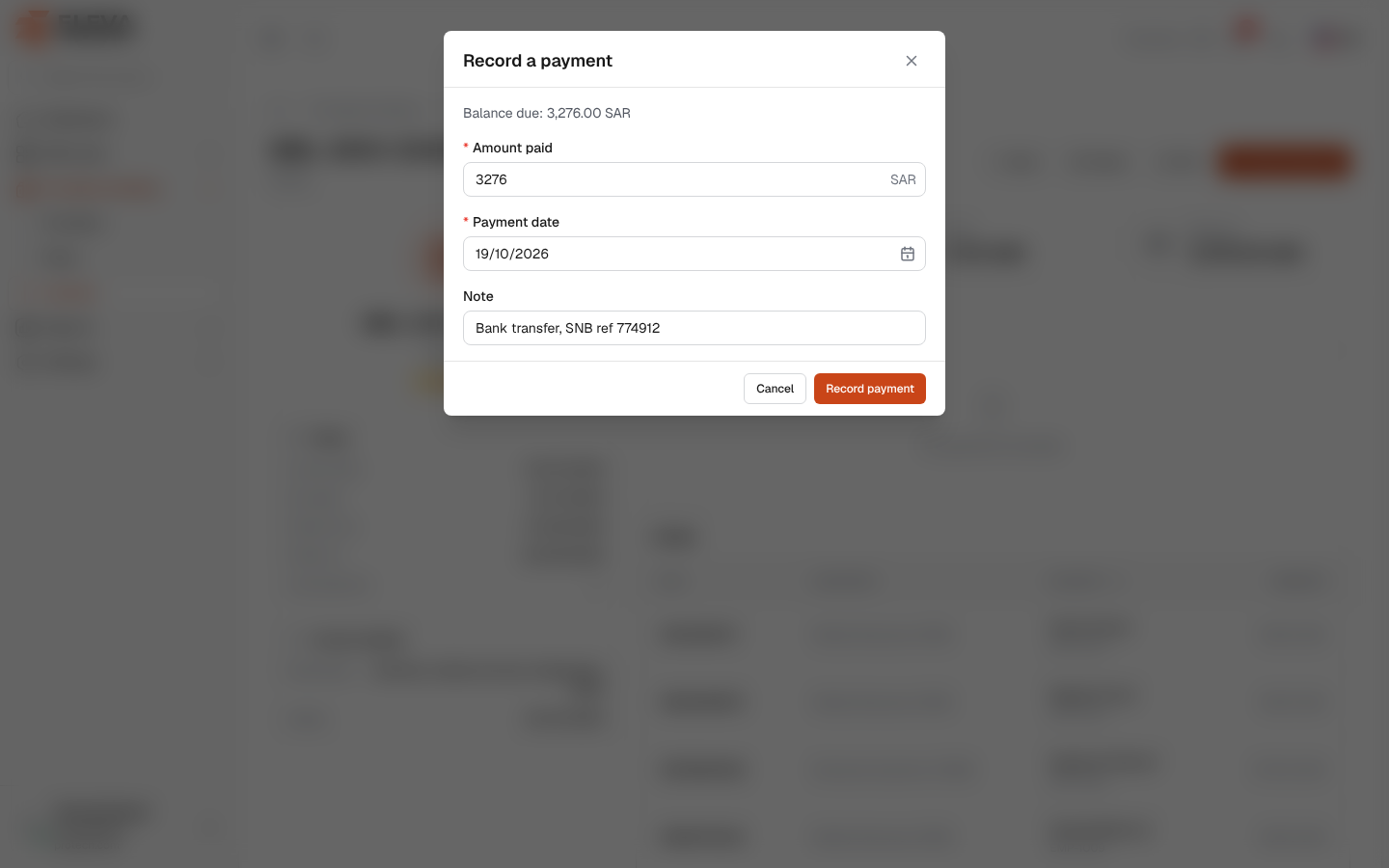
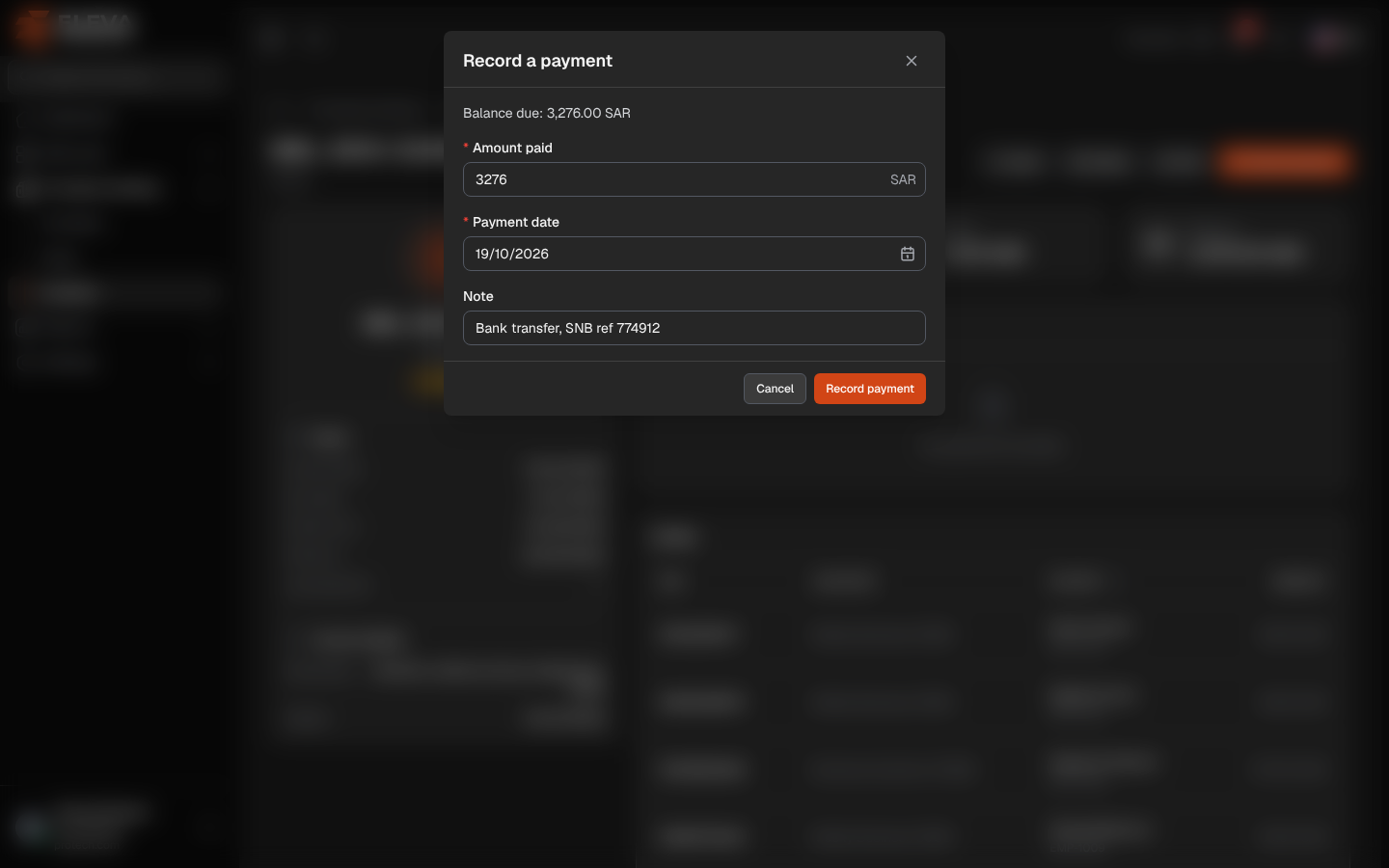
Record a payment each time part or all of an invoice is paid. The invoice keeps every payment in its ledger; what has been paid, the balance and the status are worked out from them.
Open the invoice (Providers & billing › Invoices, then click it) and click Record payment. The button shows only while something is still owed.
Fields
Section titled “Fields”The window shows Balance due: …, what is still owed on the invoice.
- Amount paid (required): it starts at the full balance. It must be at least 0.01, with at most two decimals, and cannot be more than the balance. Click Pay the full balance to put the balance back after changing it.
- Payment date (required): today by default. It cannot be before the invoice date or after today.
- Note: for example the bank transfer reference, up to 255 characters.
How to record a payment
Section titled “How to record a payment”- On the invoice page, click Record payment.
- Check the Amount paid: leave the full balance, or enter the part that was paid.
- Set the Payment date and add a Note if you need one.
- Click Record payment. The message Payment recorded. confirms it.
The payment appears in the Payments list with your name under Recorded by, and the invoice changes:
- Paid goes up by the amount and Balance goes down by it.
- The status becomes Partially paid, or Paid when the balance reaches zero. An invoice partly paid after its due date stays Overdue until it is fully paid.
- Last payment shows the latest payment date.
Validation messages
Section titled “Validation messages”- The payment cannot be more than the balance (…).
- The payment date cannot be before the invoice date (…).
- The payment amount can have at most two decimals.
Required permissions
Section titled “Required permissions”Invoices › Edit.