

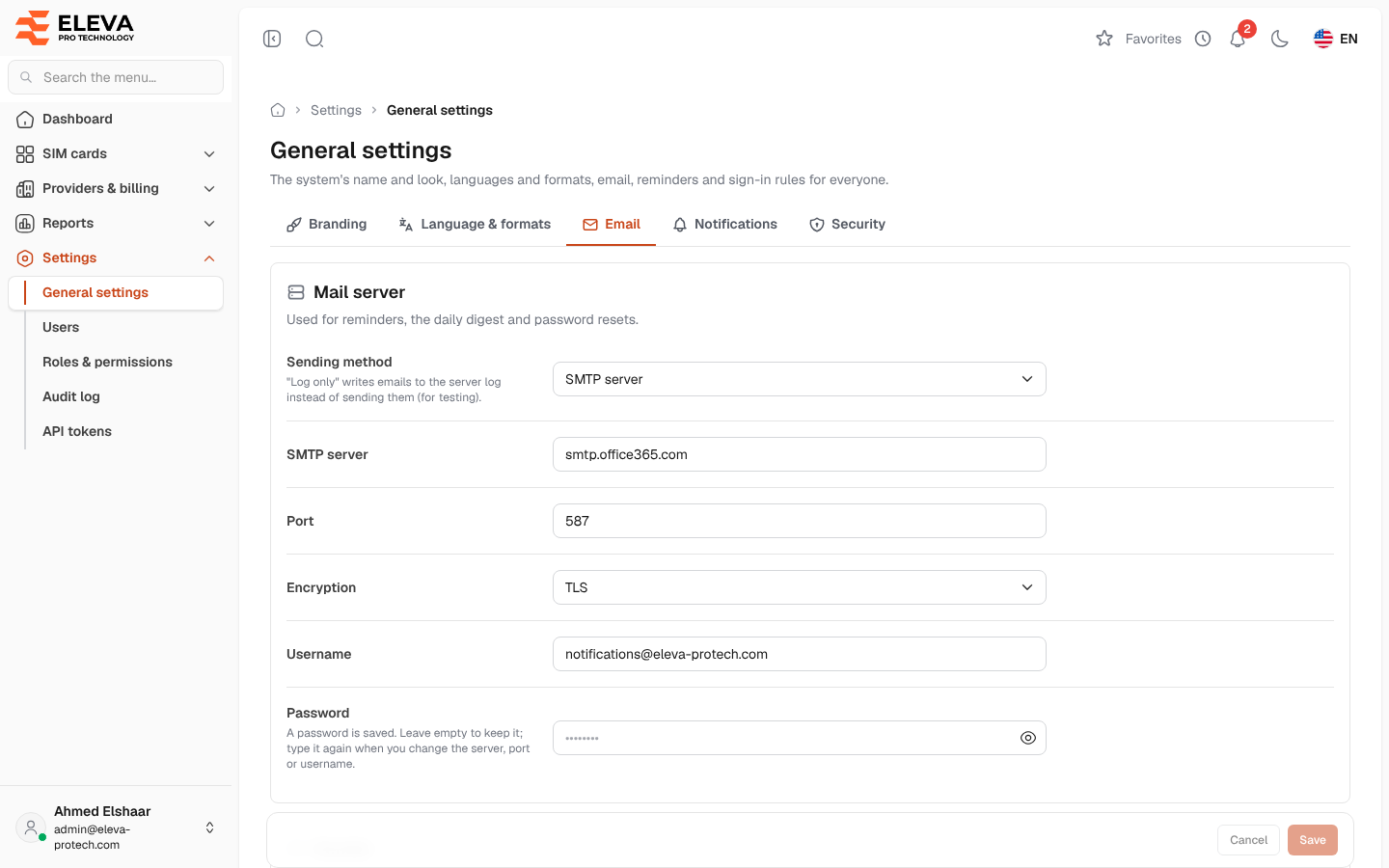
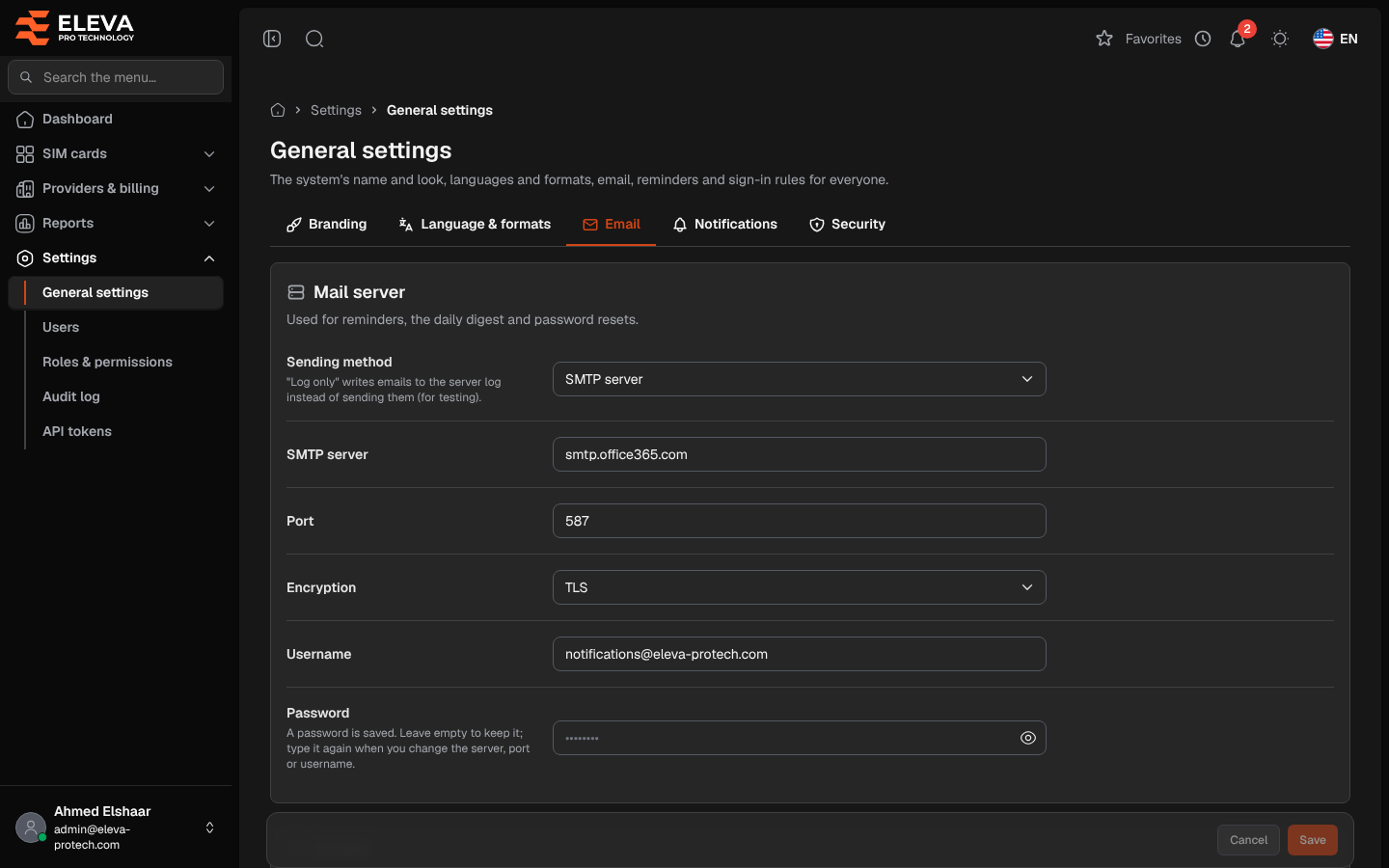
The Email tab connects the system to your mail server. E-mail is used for the reminders, the daily digest, password reset links and the security e-mails sent to account owners.
From the side menu, open Settings › General settings and click Email. Only super admins see this tab, because the mail server receives the saved SMTP password and every password reset link.
Mail server
Section titled “Mail server”- Sending method: SMTP server, or Log only, which writes e-mails to the server log instead of sending them (for testing).
- SMTP server and Port (1 to 65535): required for SMTP server.
- Encryption: TLS, SSL or None.
- Username and Password: when a password is saved, the field stays empty; leave it empty to keep it, and type it again when you change the server, port or username (otherwise Type the mail password again: the server, port or username changed.).
Sender
Section titled “Sender”- Sender address: the address e-mails come from. Required for SMTP server.
- Sender name: when empty, the company name is used (or the product name when no company name is set).
Send a test email
Section titled “Send a test email”- Send to: the address to send the test to.
- Send test email: sends a short e-mail with the saved settings and shows the error if it fails.
How to set up e-mail
Section titled “How to set up e-mail”- Choose SMTP server and fill in the server, port, encryption, username and password given by your e-mail provider.
- Fill in the Sender address and Sender name.
- Click Save. If you have not typed your password in the last 15 minutes, confirm it first (see Confirm your password).
- Under Send a test email, type your address in Send to and click Send test email. The message Test email sent to … confirms it, or The test email could not be sent: … gives the reason.
Required permissions
Section titled “Required permissions”The super admin role, to see and save the tab. Saving needs a recent password confirmation.