

Confirm your password
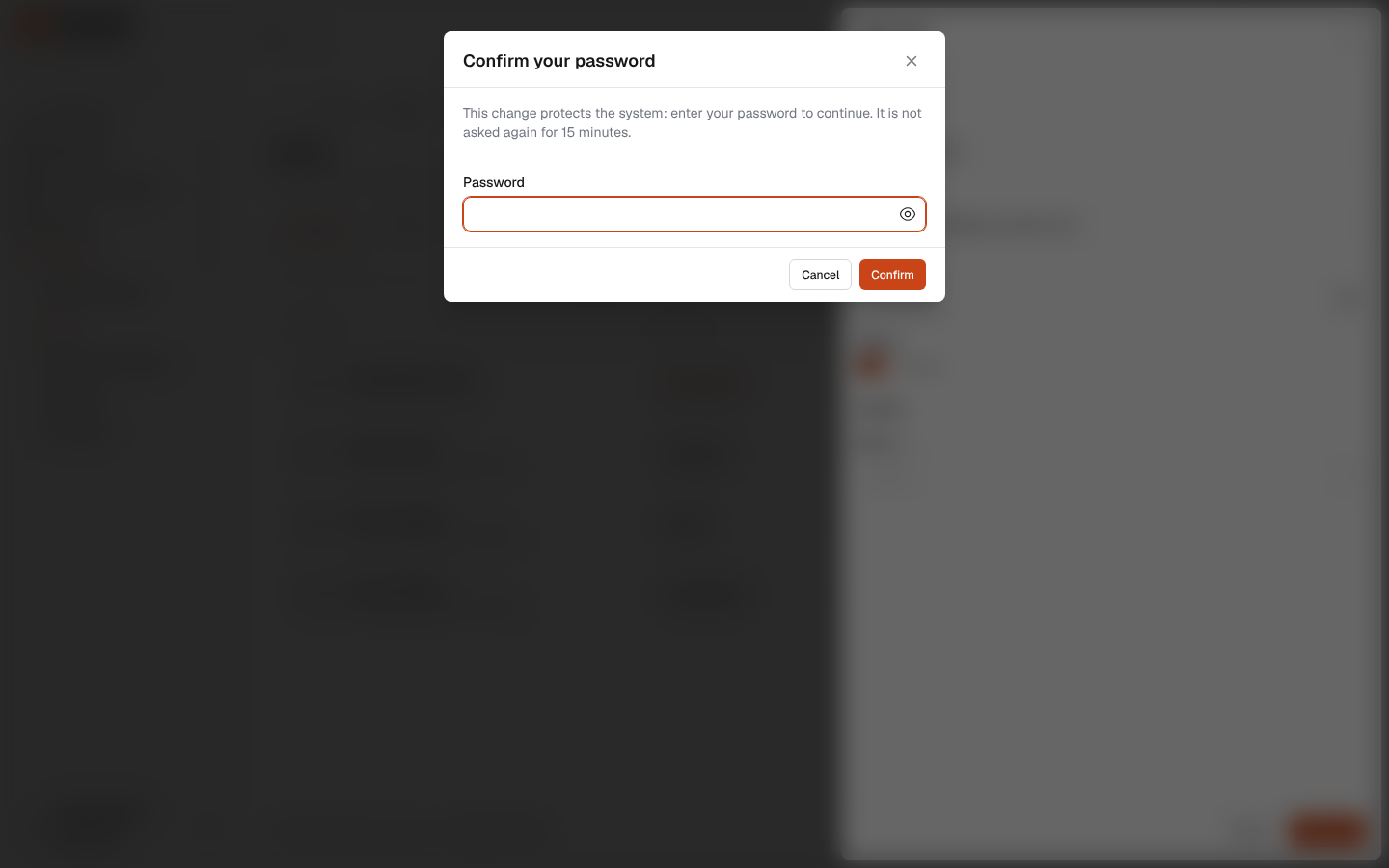
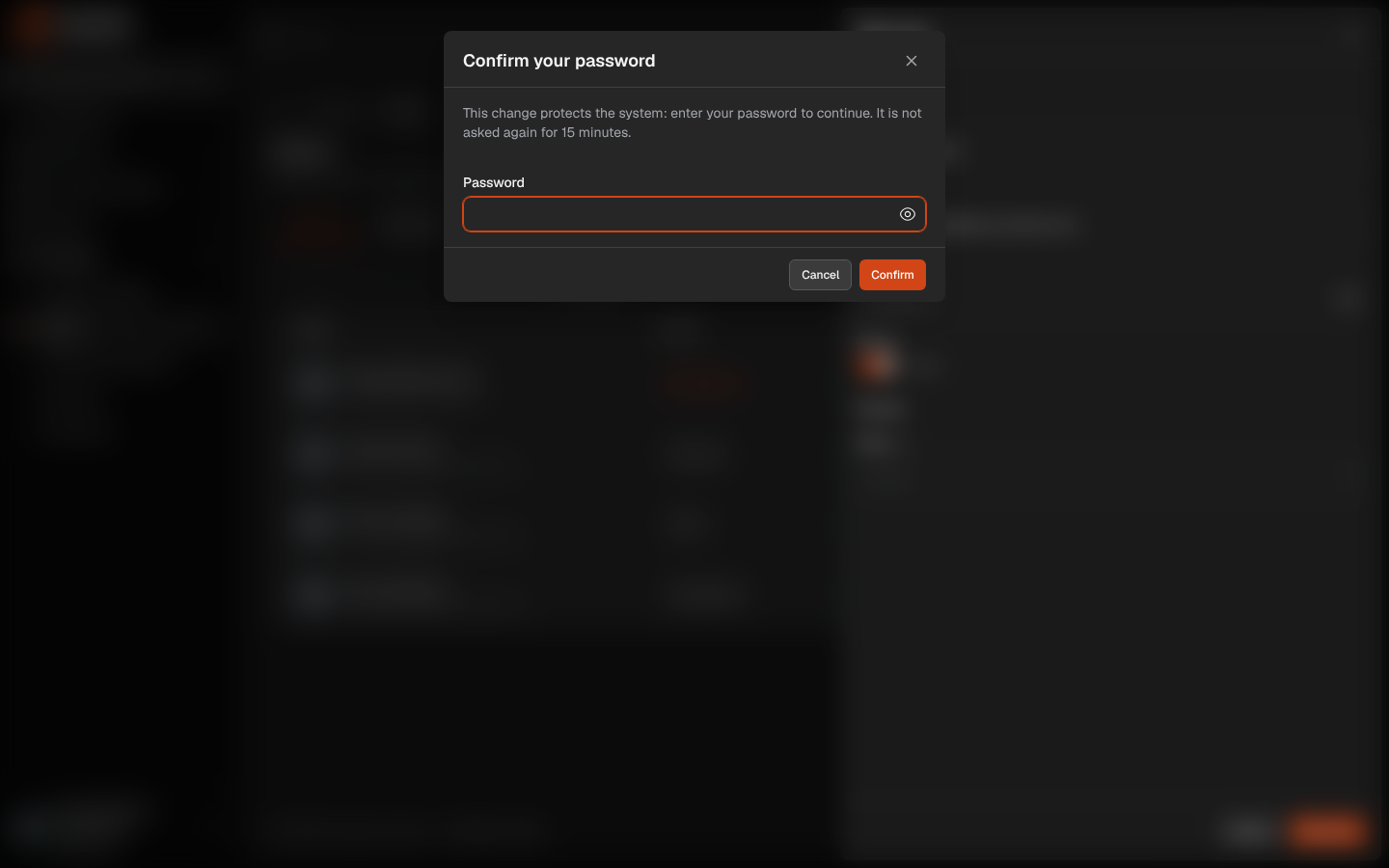
Some changes protect the whole system, so the system asks for your password again before saving them, even though you are signed in. This way a session left open on an unattended computer cannot be used to add users, change permissions or turn off security. Once you confirm, you are not asked again for 15 minutes.
When the password is asked
Section titled “When the password is asked”- Settings › Users: adding, editing or deleting a user.
- Settings › Roles & permissions: opening the form to add or edit a role, saving it, and deleting a role.
- Settings › API tokens: creating or revoking a token.
- Settings › General settings: saving the Email and Security tabs, and changing the Extra recipients of the Notifications tab (super admins).
- Password in your account: making new recovery codes and turning two-factor sign-in off.
Signing in with your password counts as a confirmation, so right after signing in you are not asked. Typing your own password in a form that asks for it, such as Your password in the user form, counts too.
What’s on this screen
Section titled “What’s on this screen”Usually the question appears as a dialog on top of the screen you are working on, and whatever you typed in the open form is kept:
- Confirm your password: the title, with This change protects the system: enter your password to continue. It is not asked again for 15 minutes.
- Password: your sign-in password.
- Confirm and Cancel.
If the system asks while it opens a page (for example a role form opened from a link), a full page with the same text appears instead. It also shows Signed in as with your e-mail, Go back to return to the previous page, and Sign out.
How to confirm
Section titled “How to confirm”- Type your password in Password.
- Click Confirm. The change you started is saved, or the page you were opening appears.
If the password is wrong
Section titled “If the password is wrong”- The password is incorrect.: type it again, checking the keyboard language and Caps Lock.
- After ten wrong passwords within 10 minutes, counting every place where the system asks for your password again, the session is signed out to protect your account. The sign-in page shows Too many wrong passwords: you were signed out to protect your account. Sign in again to continue., you receive an e-mail about it, and the audit log records Signed out (wrong passwords). Signing in again with your password ends the pause.