

Invoices
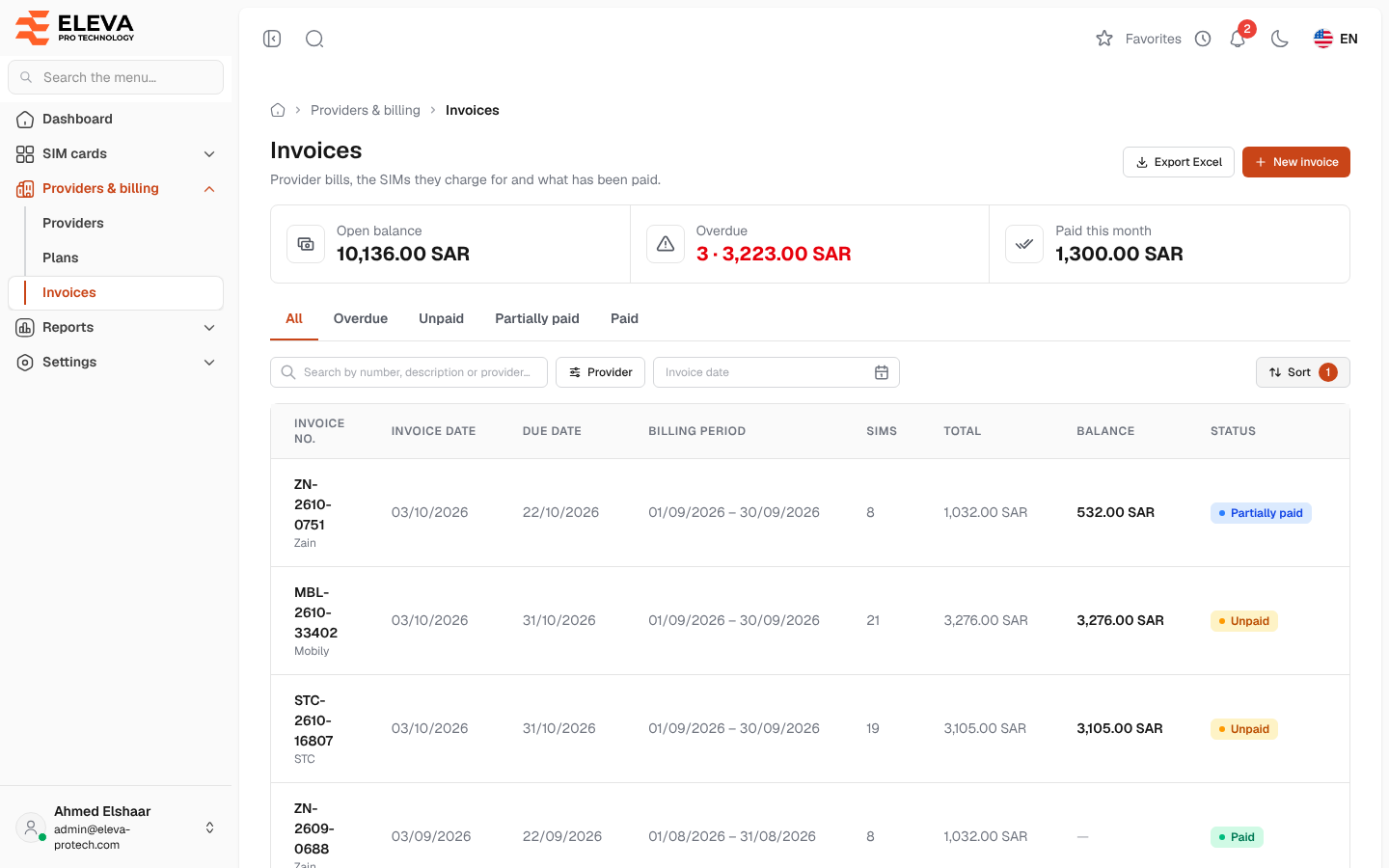
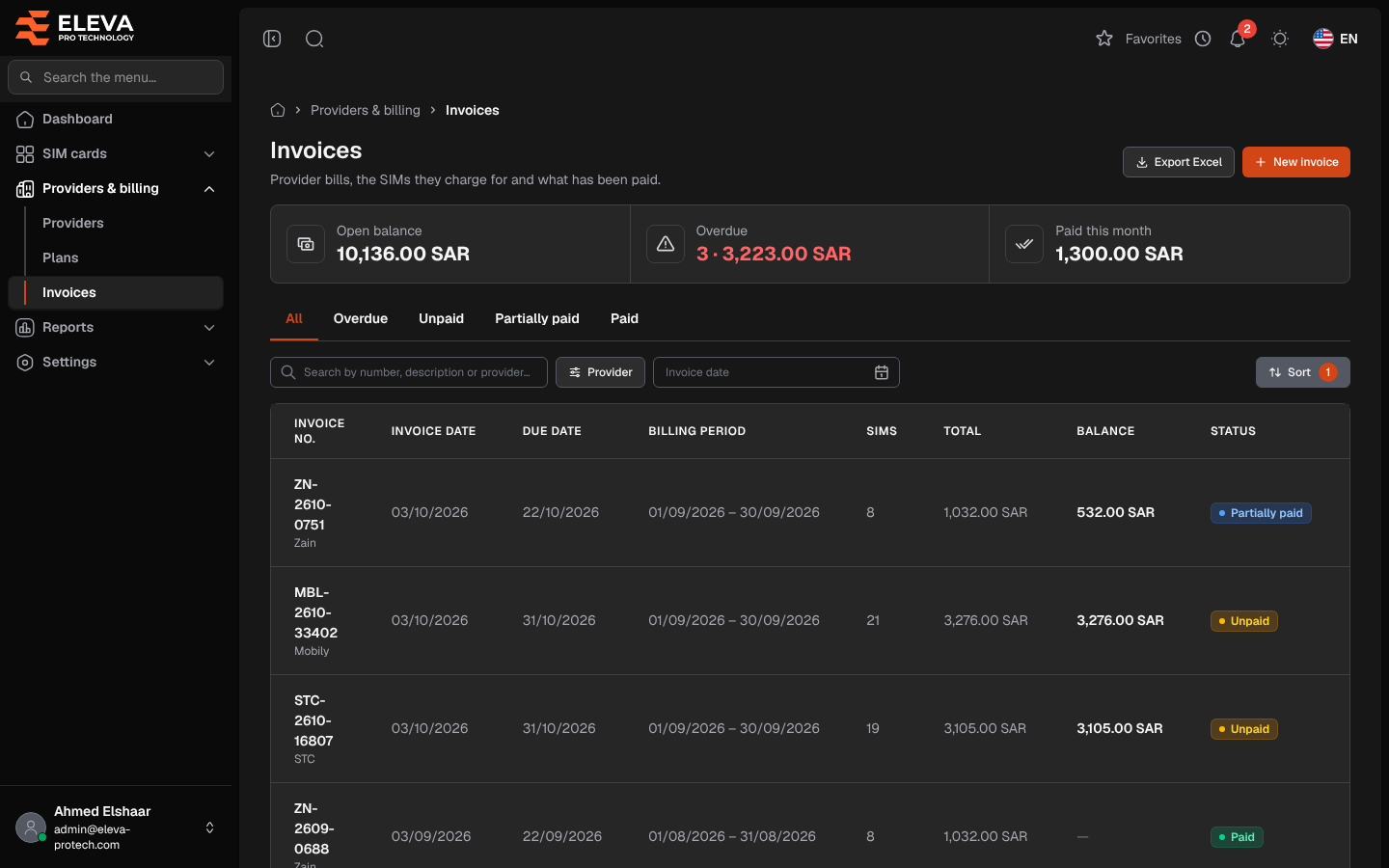
The Invoices screen lists the providers’ bills: the SIM cards each one charges for, its total and what has been paid. Use it to record new invoices, follow up on unpaid and overdue ones, and export them.
From the side menu, open Providers & billing › Invoices.
What’s on this screen
Section titled “What’s on this screen”- Summary cards: Open balance (what is still owed on all open invoices), Overdue (the number and balance of overdue invoices) and Paid this month (the payments dated this month).
- Tabs: All, Overdue, Unpaid, Partially paid and Paid. The list opens on All.
- Search by number, description or provider…
- Filters: Provider and Invoice date (a date range).
- Sort: Newest first (the default), Oldest first, Due date, Highest total, Highest balance or Provider.
- Export Excel and New invoice.
Columns
Section titled “Columns”- Invoice no.: the provider’s invoice number, a link to the invoice, with the provider underneath. An invoice entered without a number shows as # and its record number.
- Invoice date
- Due date: in red when the invoice is overdue.
- Billing period: the period the bill covers.
- SIMs: the number of lines (SIM cards) on the invoice.
- Total
- Balance: what is still owed (total − paid).
- Status: Unpaid, Partially paid, Paid or Overdue.
- A paperclip column: the number of files attached.
- Actions: Edit and Delete.
Click a row to open the invoice. See Invoice details.
How the status is set
Section titled “How the status is set”The status is never chosen by hand: it follows the payments recorded on the invoice.
- Unpaid: nothing has been paid yet.
- Partially paid: part of the total has been paid.
- Paid: the payments reach the total. An invoice with a total of zero is paid.
- Overdue: shown instead of Unpaid or Partially paid when the invoice is still open and its due date has passed. An invoice without a due date is due on its invoice date; an invoice due today is not overdue yet.
The Unpaid and Partially paid tabs also list the overdue invoices of that status. The Overdue tab, the dashboard, the Invoice aging report and the daily reminders all use this same rule.
How to delete an invoice
Section titled “How to delete an invoice”- Click the bin icon in the invoice’s row.
- Read the Delete invoice message and confirm with Delete. The invoice is deleted with its lines, payments and attachments.
How to export the list
Section titled “How to export the list”Set the tab, search and filters you need, then click Export Excel. The file has the invoices as listed, with Invoice no., Provider, Invoice date, Due date, Period from, Period to, SIMs, Total, Paid, Balance, Payment date (the latest payment), Status and Description.
Required permissions
Section titled “Required permissions”- Invoices › View to open the screen.
- Invoices › Add for New invoice.
- Invoices › Edit and Invoices › Delete for Edit and Delete.
- Invoices › Export for Export Excel.