

Appearance
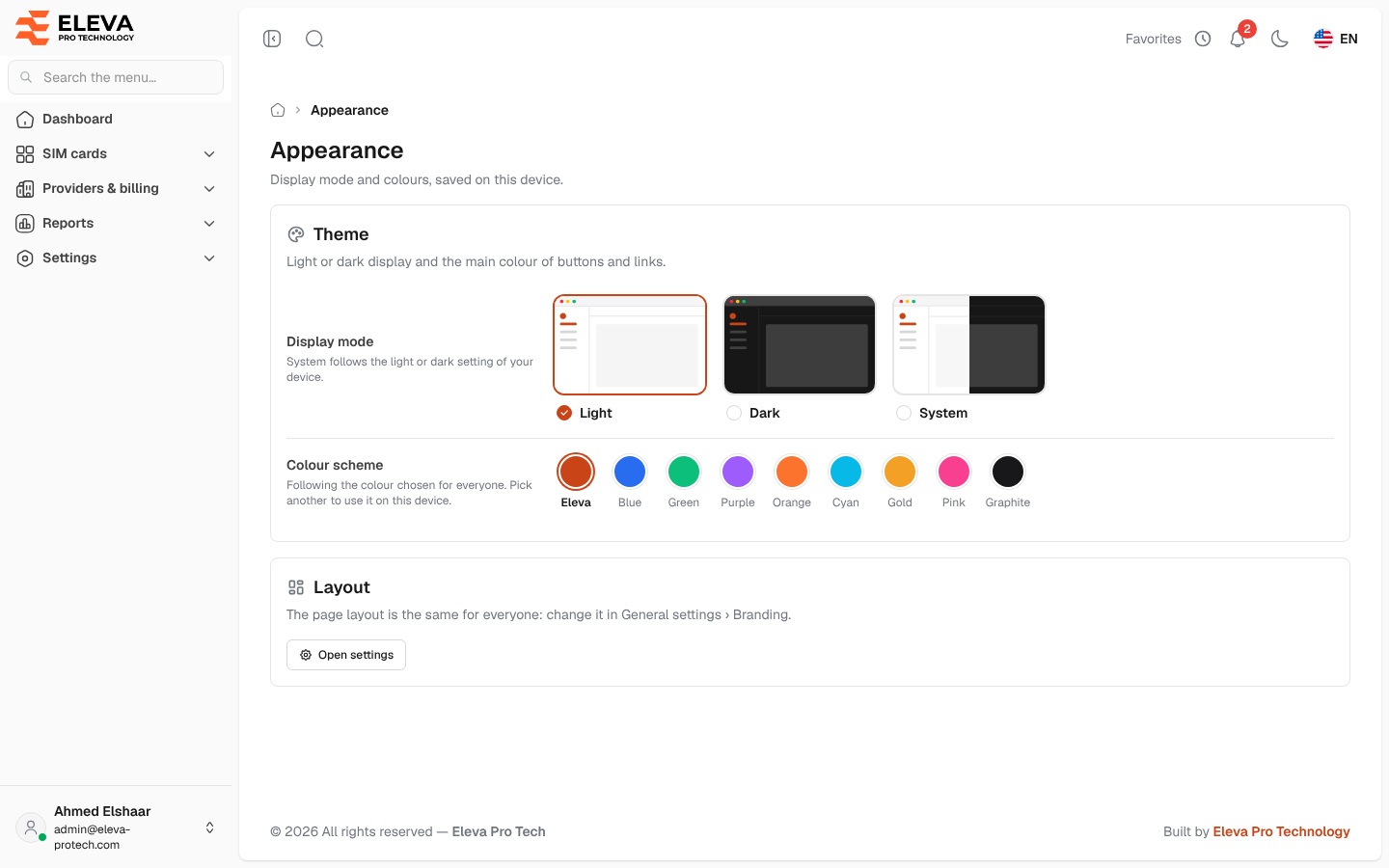
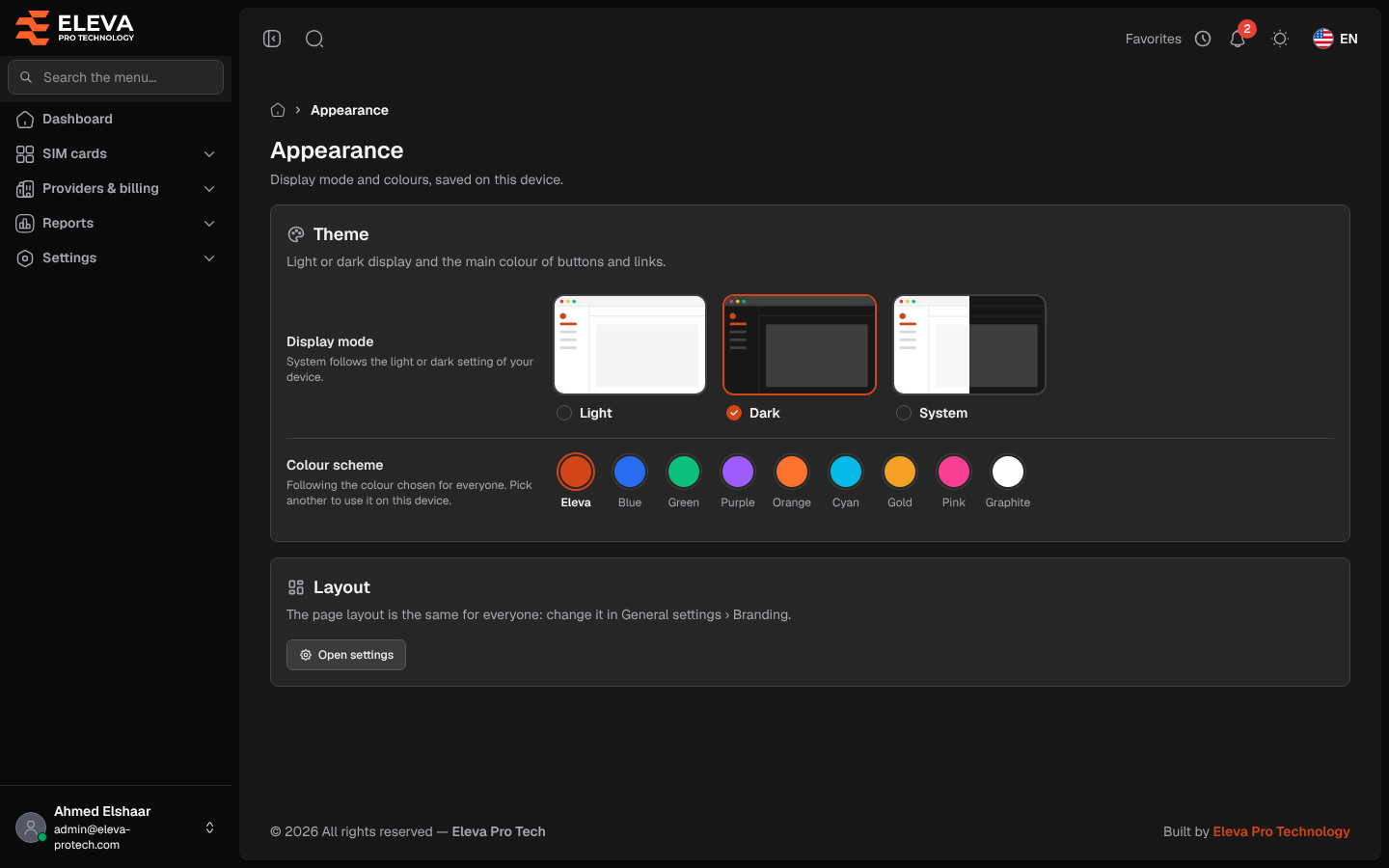
Appearance lets you choose how the system looks on your device: light or dark display and the main colour. Your choice is kept in this browser only and does not change what other users see.
To open it, click your name at the bottom of the side menu and choose Appearance.
What’s on this screen
Section titled “What’s on this screen”- Display mode: Light, Dark or System. System follows the light or dark setting of your device.
- Colour scheme: the main colour of buttons and links: Eleva (the default), Blue, Green, Purple, Orange, Cyan, Gold, Pink or Graphite. When the organisation uses its own colour, it is offered first as Custom. Under the row, a hint tells you whether you are following the colour chosen for everyone or your own choice.
- Use the organisation’s colour: appears after you pick your own colour, and goes back to the colour set by the administrator.
- Layout: the page layout is the same for everyone. Administrators see Open settings, which leads to General settings › Branding, where the layout is chosen.
How to change the display
Section titled “How to change the display”- Under Display mode, click Light, Dark or System.
- Under Colour scheme, click a colour.
The change applies at once. You can also switch between light and dark at any time with the moon or sun icon at the top of the screen.