

API tokens
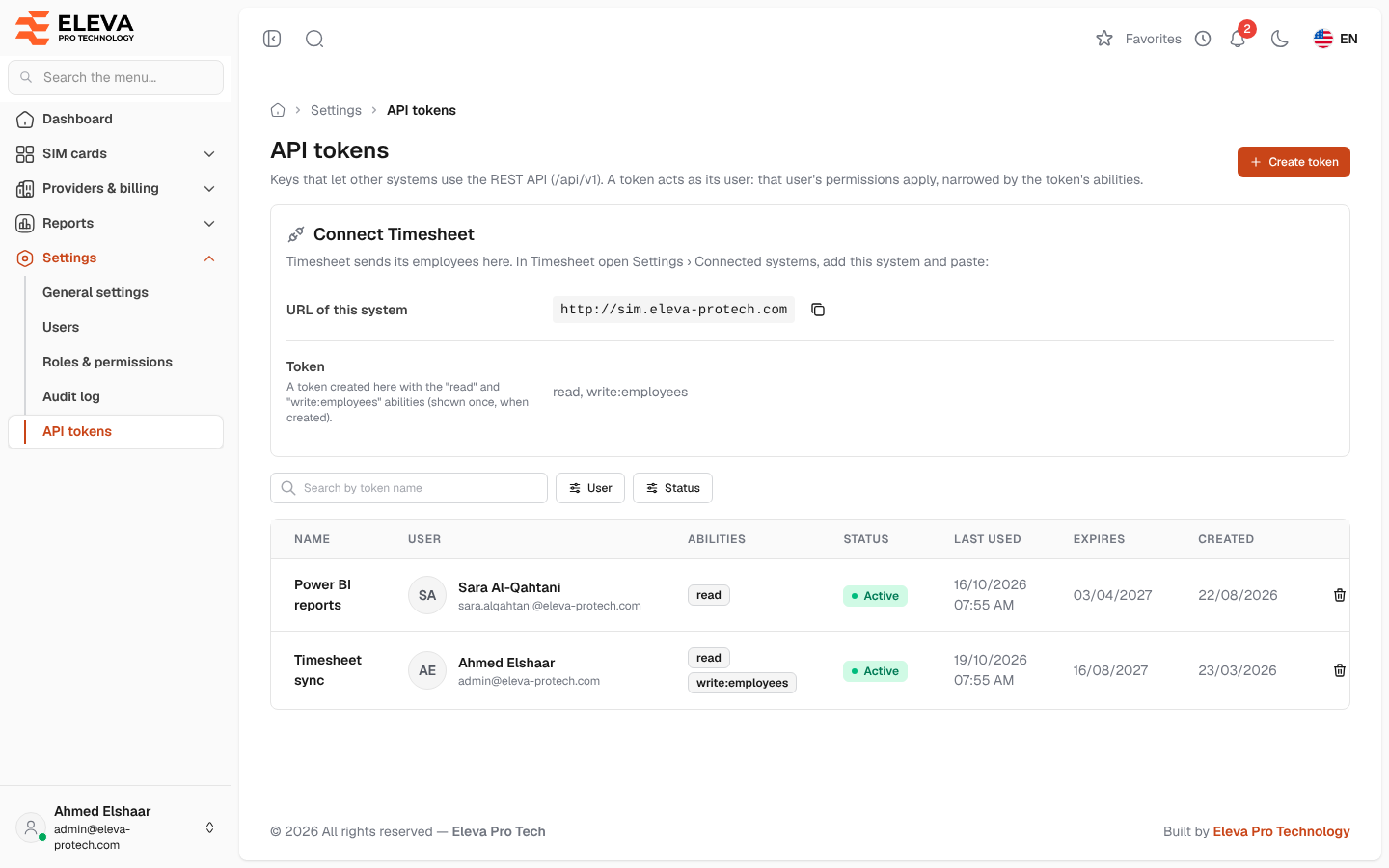
API tokens are keys that let other systems use the system’s REST API (/api/v1). Their main use is Timesheet: it sends its employees here, so the employee list stays up to date without typing anyone by hand. A token acts as its user: that user’s permissions apply, narrowed by the token’s abilities.
From the side menu, open Settings › API tokens.
What’s on this screen
Section titled “What’s on this screen”- Create token
- Connect Timesheet: what to paste in Timesheet (see below).
- Search by token name and the filters User and Status (Active or Expired).
- The list of tokens. Without tokens it shows No API tokens yet.
Columns
Section titled “Columns”- Name
- User: the user the token acts as.
- Abilities: what the token may do.
- Status: Active, Expired or User inactive (a token of an inactive user does not work).
- Last used: or Never.
- Expires: the date, or No expiry, flagged with Works until it is revoked. Replace it with a token that has an expiry date.
- Created
- Revoke: the bin icon.
Fields
Section titled “Fields”- User (required): an active user. Prefer a dedicated service user (for example “Timesheet”) whose roles are exactly what the other system may do: Employees › View to read, Employees › Sync from Timesheet to push employees.
- Name (required): up to 100 characters, for example Timesheet.
- Abilities (required, at least one):
- read: read employees (and their current SIM).
- write:employees: Timesheet pushes employees: add and update them, change their status.
- Expires: a year from today by default, at most two years ahead. The token stops working at the end of this day. Only a super admin can tick Never expires (super admins only).
How to create a token
Section titled “How to create a token”- Click Create token.
- Choose the User, type the Name, tick the Abilities and check Expires.
- Click Create. If you have not typed your password in the last 15 minutes, confirm it first.
- The token appears once: Token “…” created. Click Copy token, keep it somewhere safe and give it to the other system, then click I copied it.
The token’s user receives an e-mail saying that a new API token can act as them, with its abilities and expiry date.
How to connect Timesheet
Section titled “How to connect Timesheet”Timesheet sends its employees here: new employees, changes and deactivations arrive on their own.
- In Settings › Users, create a service user, for example “Timesheet”, with a role that has Employees › View and Employees › Sync from Timesheet.
- Here, create a token for that user with the abilities read and write:employees, and an expiry date. Copy it.
- In Timesheet, open Settings › Connected systems, add this system and paste:
- URL of this system: the address shown in the Connect Timesheet card (use the copy button), for example https://sims.example.com;
- Token: the token you copied.
Before the expiry date, create a new token and paste it in Timesheet, then revoke the old one.
How to revoke a token
Section titled “How to revoke a token”- Click the bin icon on the token’s row.
- Read Revoke token and confirm with Revoke. The token stops working at once and systems using it get 401 errors.
Required permission
Section titled “Required permission”API tokens › Manage. Creating and revoking a token needs a recent password confirmation.