

Employees
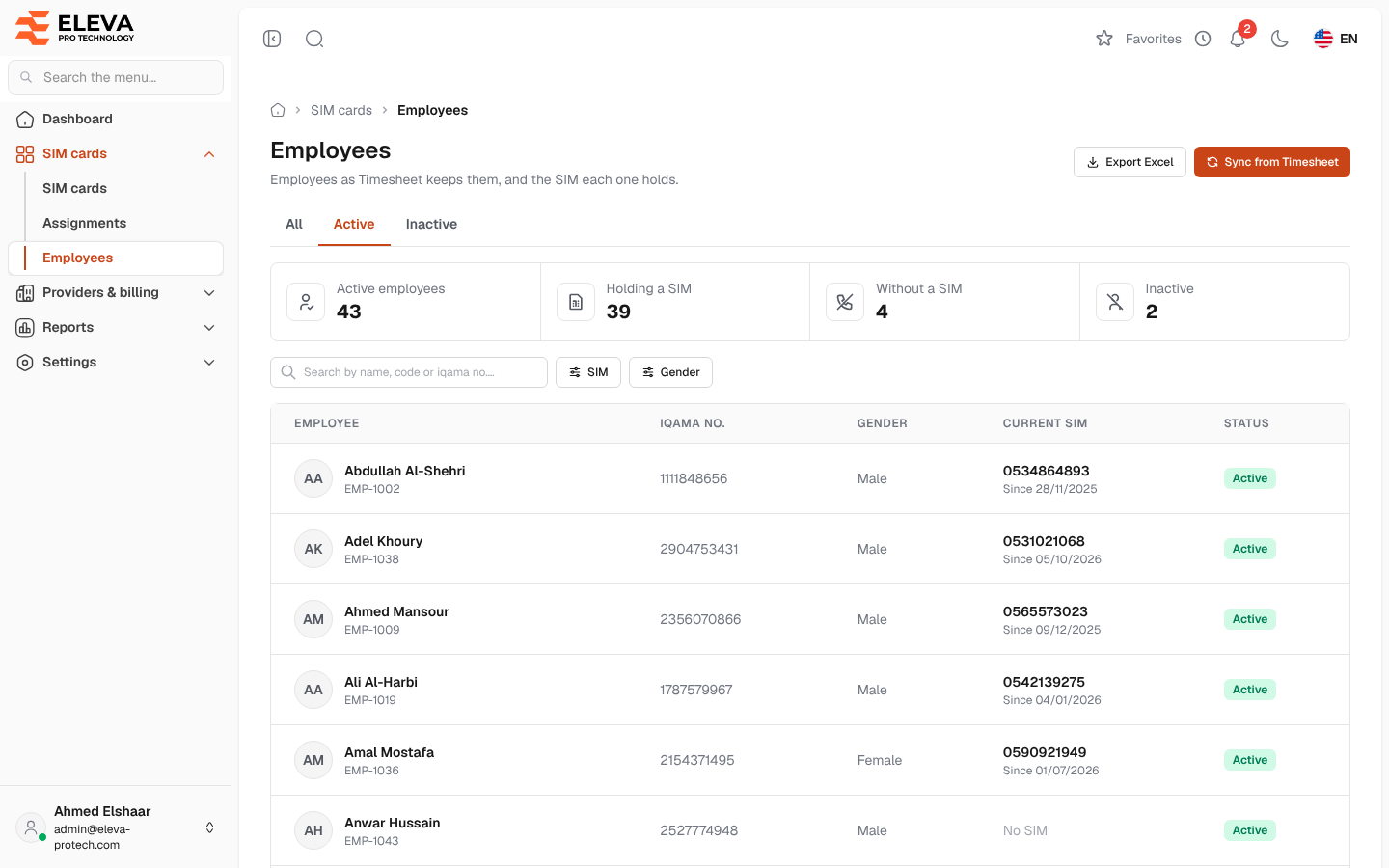
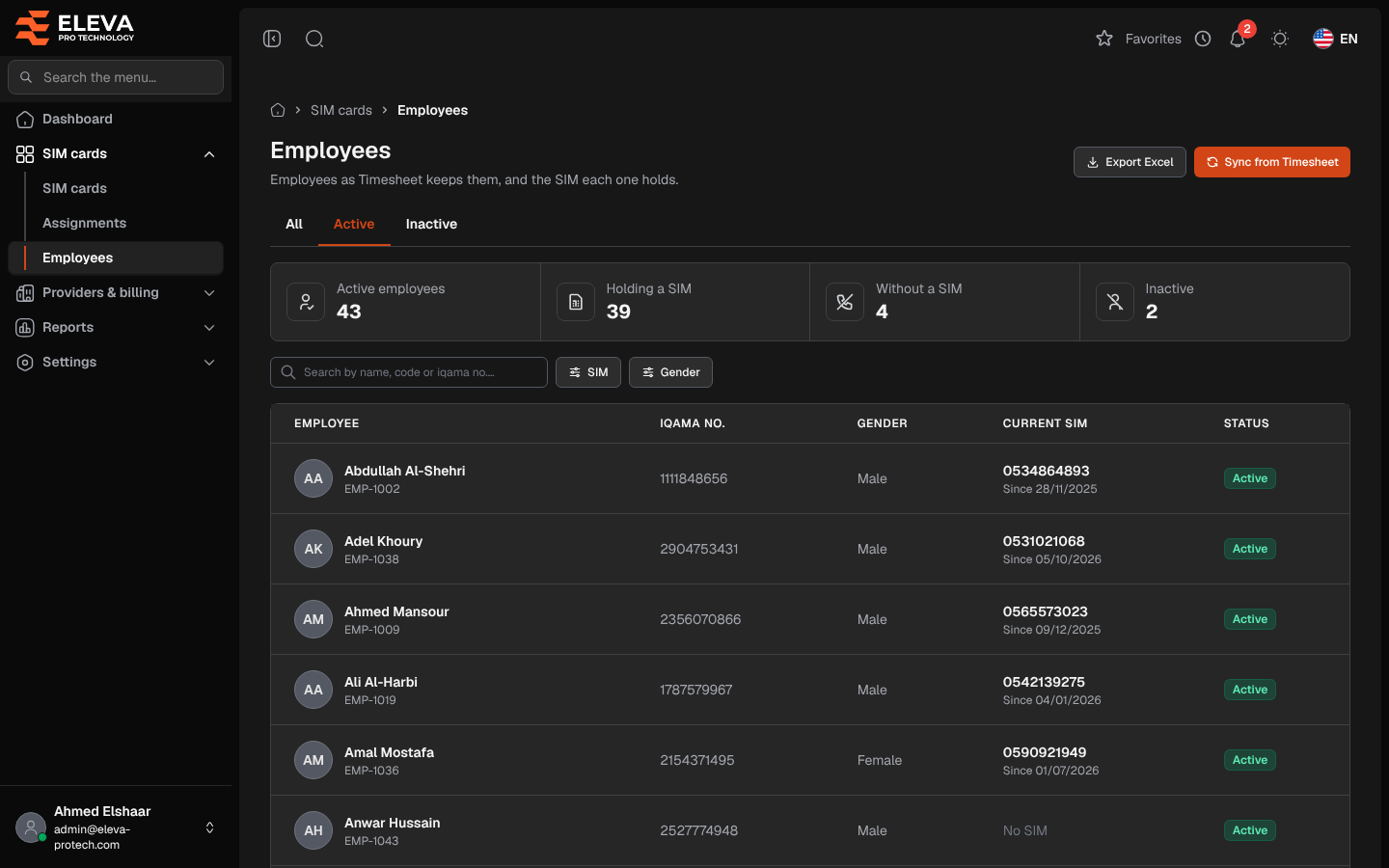
The Employees screen lists the employees as Timesheet keeps them, with the SIM each one holds today. Use it to find an employee, see who has no SIM yet, export the list or bring the latest employees from Timesheet.
From the side menu, open SIM cards › Employees.
Where employees come from
Section titled “Where employees come from”Employees are never added or edited by hand in this system. They come from Timesheet in two ways:
- Automatically: Timesheet sends new employees and changes (names, codes, iqama numbers, status) through its connection to this system, set up in Settings › API tokens (Connect Timesheet).
- On demand: Sync from Timesheet brings Timesheet’s active employees now.
An employee who is deactivated in Timesheet gives their SIM back on the deactivation date: their current period ends that day and any upcoming period is removed. Their past history is kept.
What’s on this screen
Section titled “What’s on this screen”- All, Active and Inactive: tabs that filter by status. The list opens on Active.
- Summary cards: Active employees, Holding a SIM, Without a SIM and Inactive.
- Search by name, code or iqama no.…
- Filters: SIM (Holding a SIM or Without a SIM) and Gender.
- Export Excel: downloads the list as shown.
- Sync from Timesheet: see below.
Columns
Section titled “Columns”- Employee: the name, with the employee code underneath.
- Iqama no.
- Gender
- Current SIM: the SIM number with Since …, the day the employee got it, or No SIM.
- Status: Active or Inactive.
Click a row to open the employee. See Employee details.
How to sync from Timesheet
Section titled “How to sync from Timesheet”- Click Sync from Timesheet.
- Read the window: Timesheet’s active employees will be added or updated here. Employees no longer active there will be deactivated and their SIMs returned today.
- Click Sync now.
- The message Sync done: N added, N updated, N deactivated, N skipped. gives the result.
Messages you may see
Section titled “Messages you may see”- Skipped …: the iqama number belongs to another employee.: those rows were not saved.
- Timesheet returned no active employees, so nobody was deactivated.
- Timesheet could not be reached. Nothing was changed., Timesheet did not answer correctly (HTTP …). Nothing was changed. or Timesheet answered with an unexpected format. Nothing was changed.
- The Timesheet connection is not configured (TIMESHEET_URL / API_SECRET_KEY).: ask your administrator.
How to find employees who need a SIM
Section titled “How to find employees who need a SIM”- Stay on the Active tab.
- Set SIM to Without a SIM.
- Open an employee and click Assign SIM. See Assign or hand over a SIM.
Required permissions
Section titled “Required permissions”- Employees › View to open the screen.
- Employees › Sync from Timesheet for Sync from Timesheet.
- Employees › Export for Export Excel.