

Invoice details
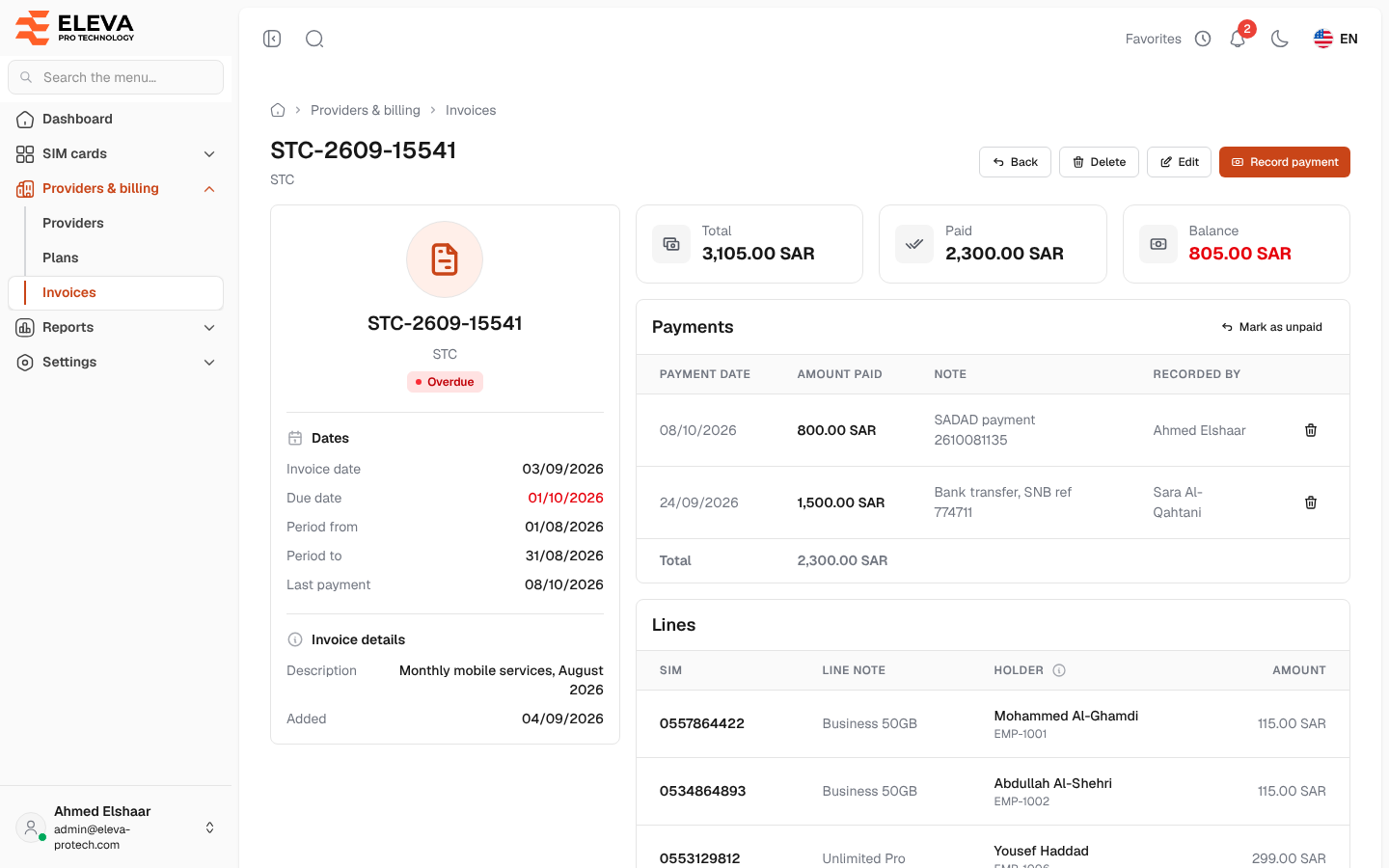
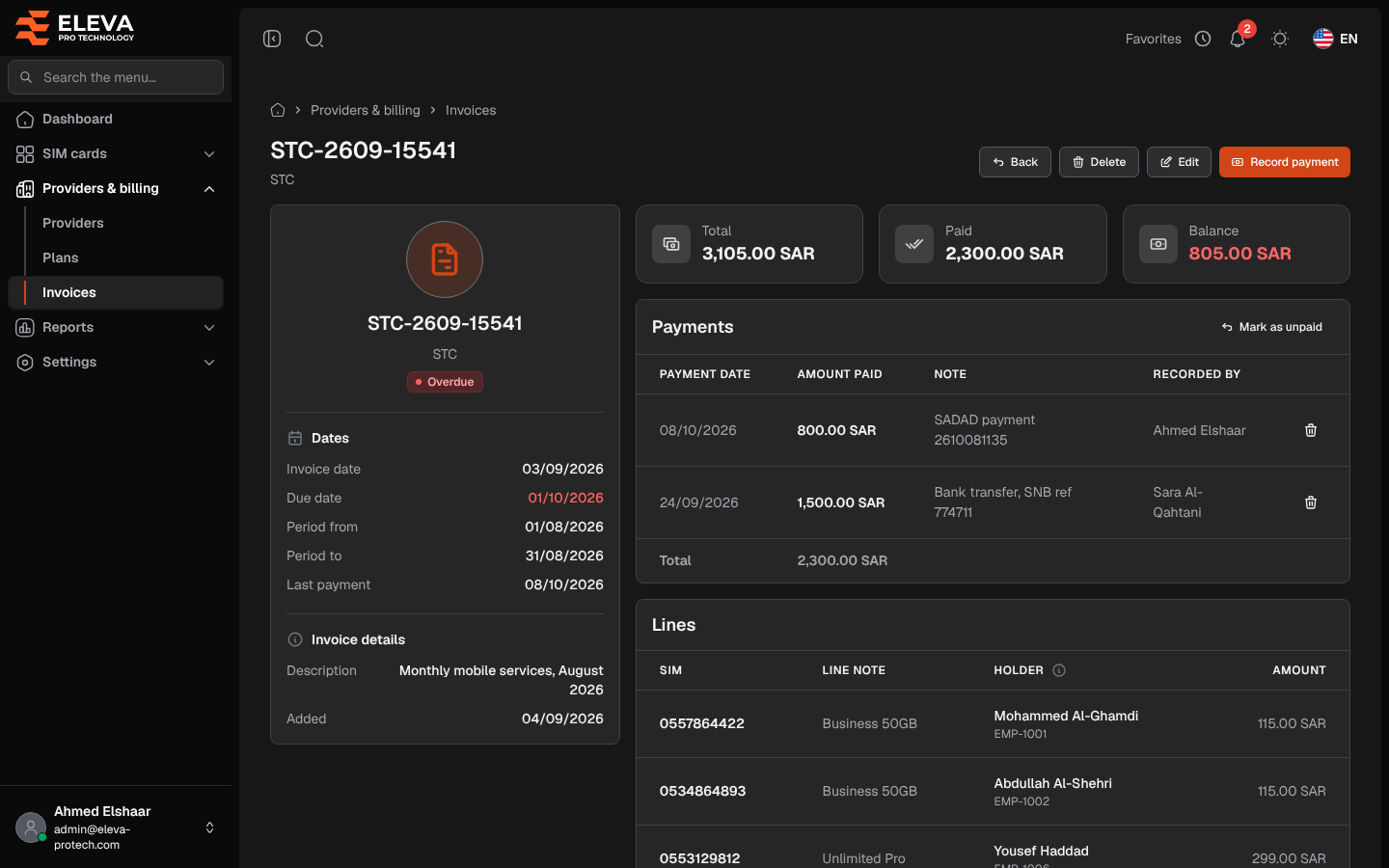
The invoice page shows one provider bill in full: its dates and status, the total, what has been paid and what is still owed, the payments recorded against it, the SIM cards it charges for and the attached files. Payments are recorded here.
From the side menu, open Providers & billing › Invoices and click an invoice. Invoices can also be opened from the Invoice aging report, the dashboard, a SIM card’s page and the Ctrl+K search.
What’s on this screen
Section titled “What’s on this screen”- The header: the invoice number and the provider, with Back, Delete, Edit and, while something is still owed, Record payment.
- The invoice card, with its status (Unpaid, Partially paid, Paid or Overdue) and:
- Dates: Invoice date, Due date (in red when the invoice is overdue), Period from, Period to and Last payment.
- Invoice details: Description and Added (the day the invoice was recorded).
- Three figures: Total, Paid and Balance (total − paid; in red when the invoice is overdue).
- Payments: the payments ledger.
- Lines: the SIM cards billed.
- Attachments: the scanned bill and other files.
Payments
Section titled “Payments”Each payment recorded on the invoice is one row:
- Payment date
- Amount paid
- Note: for example a bank transfer reference.
- Recorded by: the user who recorded it. Recorded before the payments history marks a payment carried over from before the ledger existed.
With more than one payment, a Total row adds them up. Paid is always the sum of the payments, and the status follows it (see Invoices).
To record a payment, click Record payment. See Record a payment.
How to delete one payment
Section titled “How to delete one payment”- Click the bin icon in the payment’s row.
- Read the Delete payment message: The payment of … dated … will be removed and the paid amount recalculated. Confirm with Delete.
How to mark an invoice as unpaid
Section titled “How to mark an invoice as unpaid”- Above the payments, click Mark as unpaid.
- Read the Mark invoice as unpaid message: Every recorded payment (…) on invoice … will be removed. Confirm with Mark as unpaid. The invoice is Unpaid again (or Overdue if its due date has passed).
One row for each SIM card on the bill:
- SIM: the SIM number, a link to the SIM card’s page. Deleted marks a SIM card deleted since; SIM removed a line whose SIM card no longer exists at all.
- Line note
- Holder: The employee holding the SIM at the end of the billing period. In stock when nobody held it then.
- Amount
With more than one line, Lines total adds up their amounts. Lines without an amount (from the earlier version of the system) show a dash and are not counted in it. The lines total may differ from the Total: see Add or edit an invoice.
Attachments
Section titled “Attachments”Click a file’s name to open it, or the download icon to save it. File missing marks a file listed on the invoice but no longer found on the server. To remove a file, click its bin icon and confirm with Delete.
How to delete the invoice
Section titled “How to delete the invoice”Click Delete in the header and confirm with Delete. The invoice is deleted with its lines, payments and attachments, and you return to the list.
Required permissions
Section titled “Required permissions”- Invoices › View to open the page.
- Invoices › Edit for Edit, Record payment, deleting a payment, Mark as unpaid and removing a file.
- Invoices › Delete for Delete.
- SIM cards › View for the links to the SIM cards.