

Assign or hand over a SIM
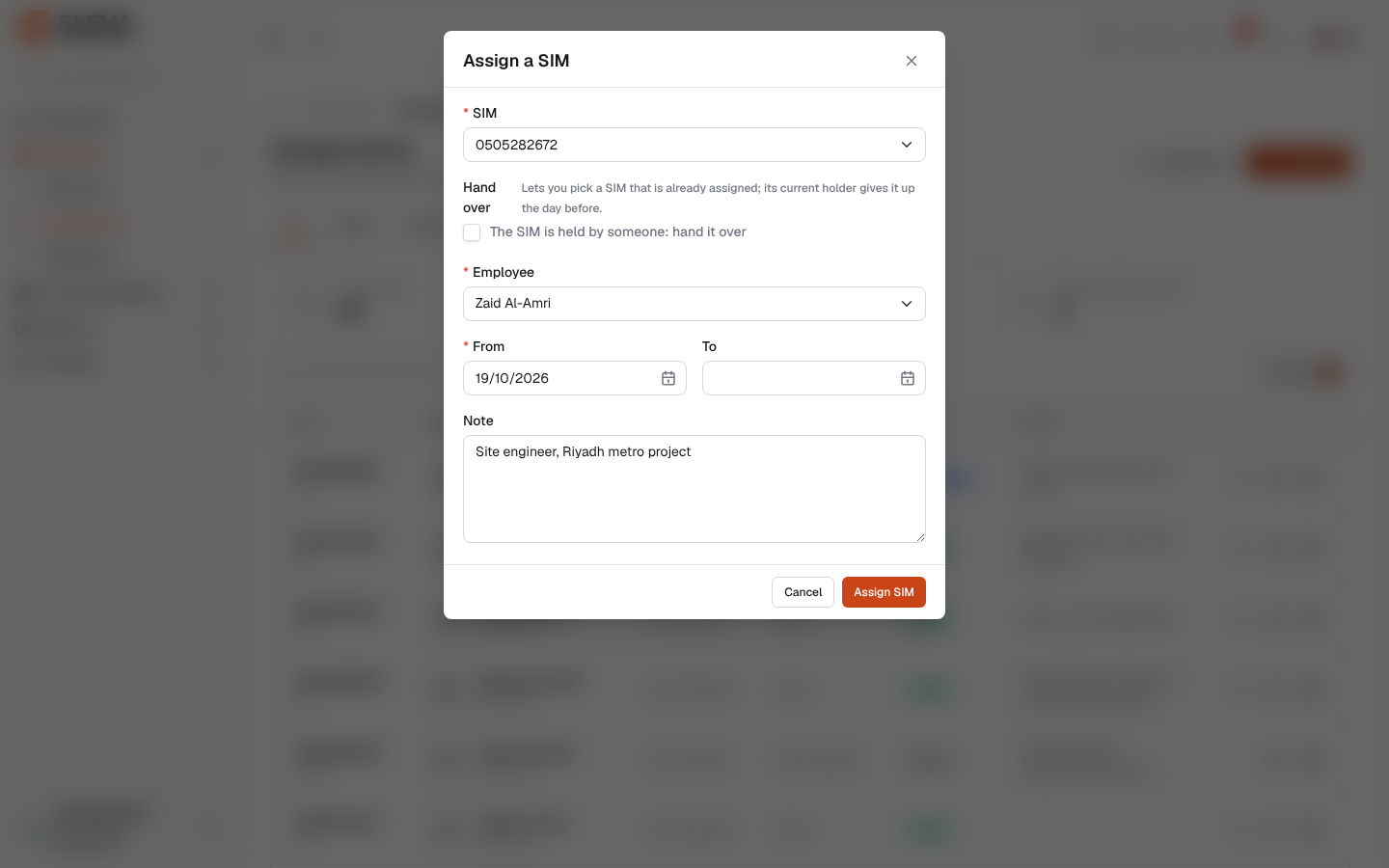
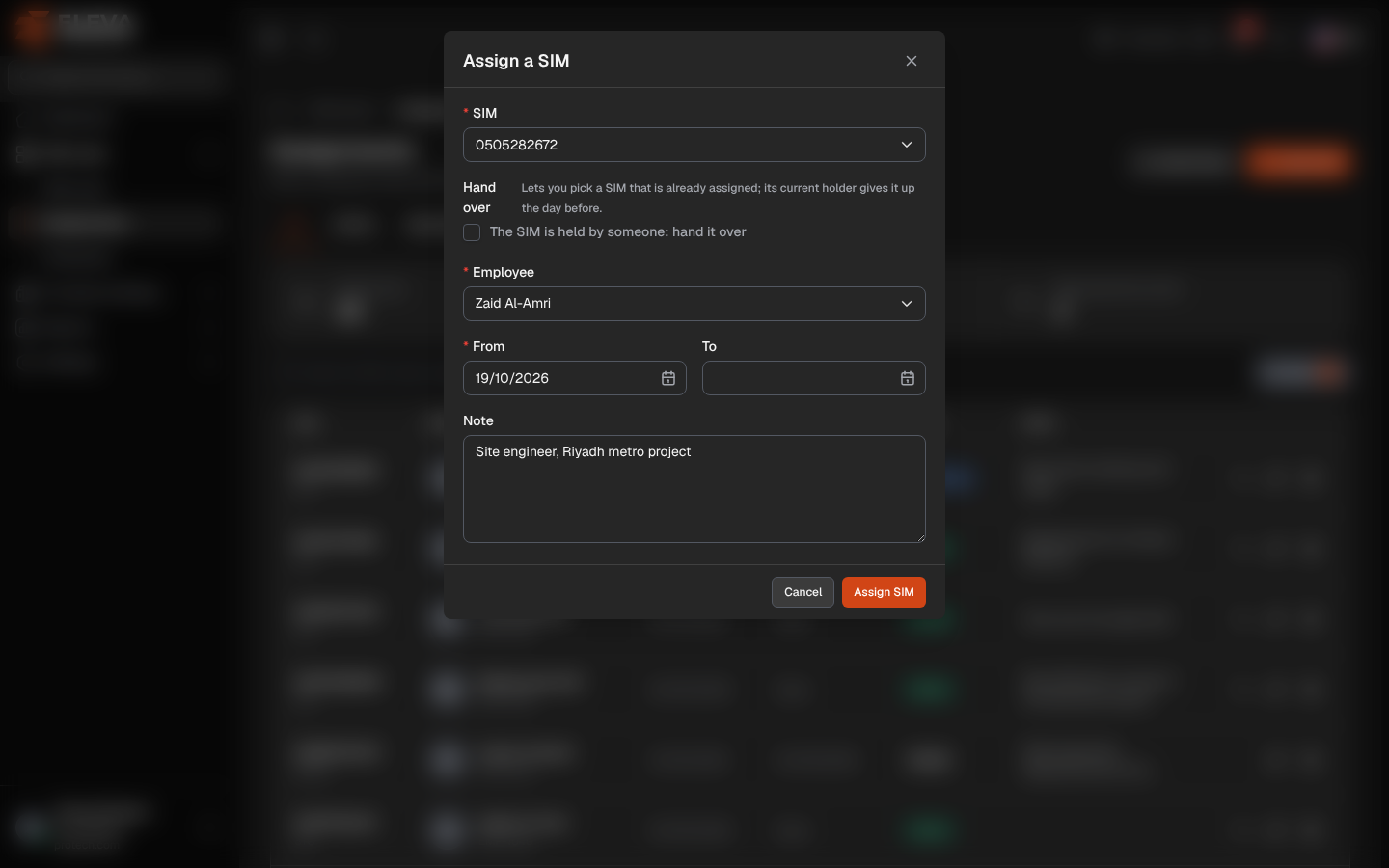
Assigning gives a SIM to an employee from a start date, open-ended or until an end date. Handing over gives a SIM that someone already holds to another employee: the current holder’s period ends the day before the new one starts, in the same step.
From the side menu, open SIM cards › Assignments and click Assign SIM. You can also start from a SIM (Assign or Hand over on the SIM page, or the Assign icon in the SIM cards list) or from an employee (Assign SIM or Hand over SIM on the employee page); the SIM or the employee is then filled in and locked.
Fields
Section titled “Fields”- SIM (required): search by number. Only SIMs that are Active and free for the chosen days are offered.
- Hand over: tick The SIM is held by someone: hand it over to pick a SIM that is already assigned (Lets you pick a SIM that is already assigned; its current holder gives it up the day before.). Any SIM is then offered.
- Employee (required): active employees who hold no SIM during the chosen days.
- From (required): the first day the employee holds the SIM. Today by default.
- To: the last day, included. Leave it empty for an open-ended period.
- Note
The window is titled Assign a SIM (or Assign a SIM to …), and Hand over a SIM (or Hand over SIM …) when handing over.
How to assign a SIM
Section titled “How to assign a SIM”- Click Assign SIM.
- Choose the SIM and the Employee.
- Check From, and set To if the period has a known end.
- Click Assign SIM. The message The SIM was assigned. confirms it.
How to hand a SIM over to another employee
Section titled “How to hand a SIM over to another employee”- Open the SIM, or the employee who holds it, and click Hand over (Hand over SIM on the employee page). From Assignments, click Assign SIM and tick Hand over.
- Choose the new Employee and the From date. The window shows The current holder’s period will end on ….: the day before From.
- Click Hand over SIM. The message The SIM was handed over. confirms it.
A hand-over works when the current holder’s period has no end date and started before From. If you delete the new period because it was recorded by mistake, the previous holder gets the SIM back. See Assignments.
Free days: after a return and before a booking
Section titled “Free days: after a return and before a booking”The pickers look at the days you chose, not only at today:
- A SIM returned today is still held today. Set From to tomorrow and it is offered. Assign on the SIM page does this for you: The SIM is free from …: the period can start on that day or later.
- A SIM in stock today but booked from a later day can be given for a period that ends before the booking: The SIM is booked from …: this period must end by …. To is then required.
- An employee whose period ends the day before From can receive a new SIM.
Common errors
Section titled “Common errors”- This SIM is already held from … to ….: another period of the SIM overlaps these days. Hand it over, or change the dates.
- This employee already holds SIM … from … to ….: return that SIM first, or hand it over.
- This SIM is suspended; only an active SIM can be handed to an employee. (or lost, cancelled).
- This employee is inactive; only an active employee can receive a SIM.
- The end date cannot be before the start date.
Required permission
Section titled “Required permission”Assignments › Add.