

Password and two-factor sign-in
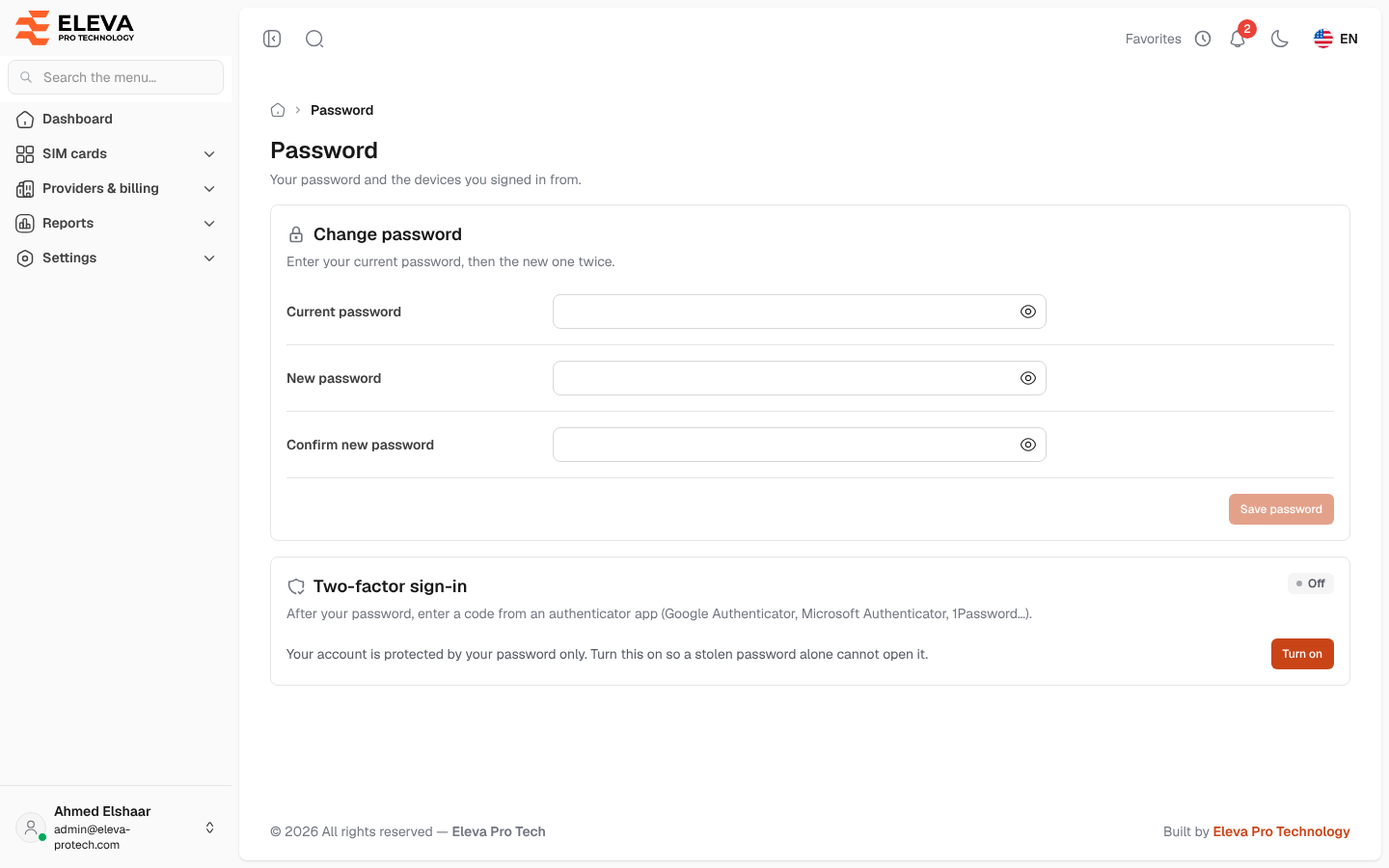
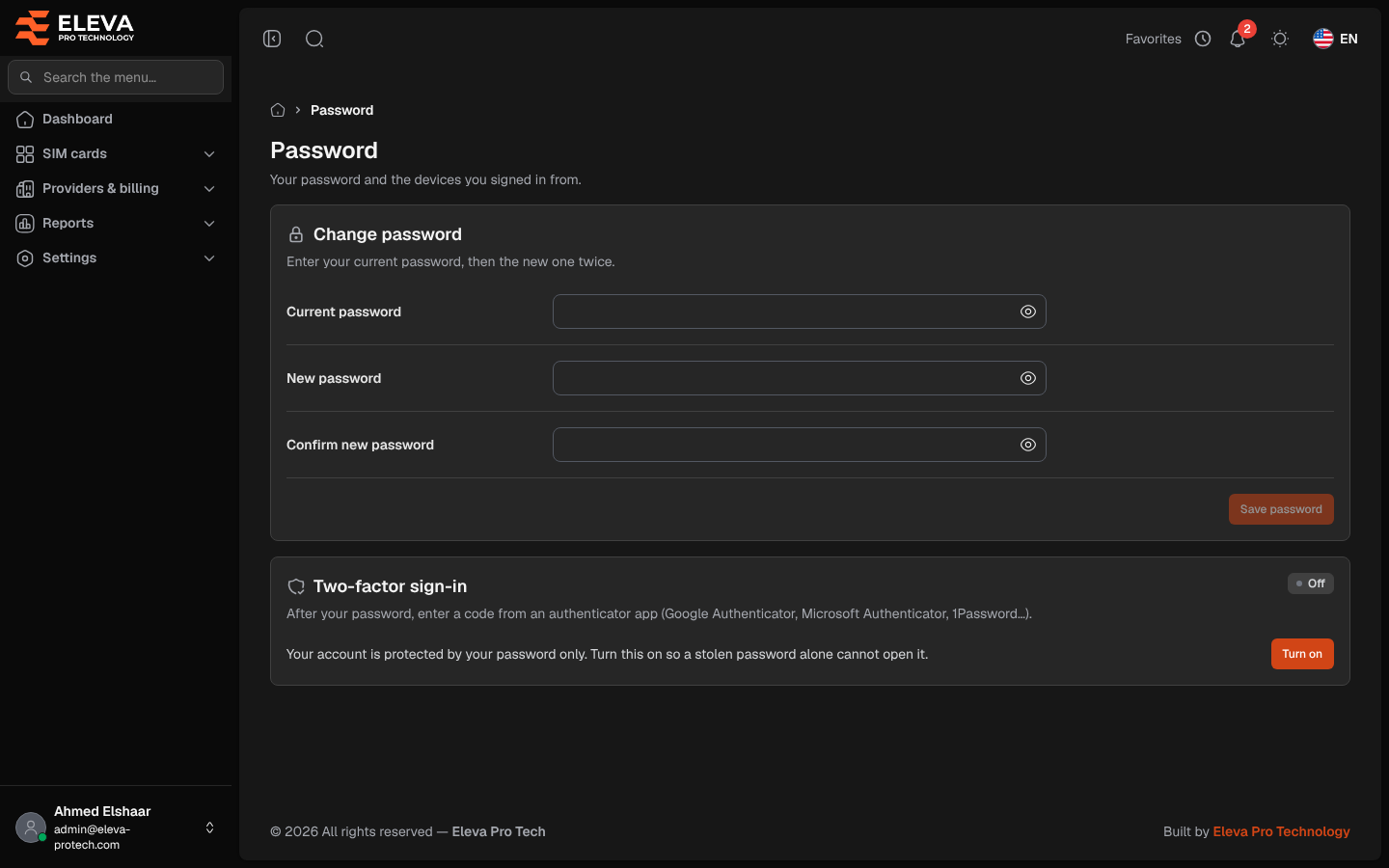
This page protects your account: change your password, and turn two-factor sign-in on or off. With two-factor sign-in on, a stolen password alone cannot open your account, because each sign-in also asks for a code from an app on your phone.
To open it, click your name at the bottom of the side menu and choose Password.
What’s on this screen
Section titled “What’s on this screen”- Change password: Current password, New password and Confirm new password, with Save password.
- Two-factor sign-in: its state, On or Off, and the buttons to turn it on, make new recovery codes or turn it off.
How to change your password
Section titled “How to change your password”- Type your Current password.
- Type the New password and repeat it in Confirm new password. If they differ, the page shows The passwords do not match.
- Click Save password. The message Your password was changed. confirms it.
The new password must:
- differ from the current one;
- be at least as long as the minimum set in Settings › General settings › Security (8 characters by default);
- contain at least one letter and one number.
After the change, your other open sessions on other devices are signed out (this one stays), and you receive an e-mail saying that your password was changed.
How to turn on two-factor sign-in
Section titled “How to turn on two-factor sign-in”You need an authenticator app on your phone, such as Google Authenticator, Microsoft Authenticator or 1Password.
- Under Two-factor sign-in, click Turn on.
- In Turn on two-factor sign-in, type your Current password and click Continue.
- Scan the QR code with the app. If you cannot scan it, type the key shown under Or type this key in the app: (use Copy).
- Type the 6-digit code the app shows and click Confirm and turn on. Cancel stops the set-up.
- Your recovery codes appear. Click Copy codes or Download, keep them somewhere safe, then click I saved them.
From now on, every sign-in asks for a code from the app after the password. The card shows On since with the date, and Unused recovery codes: N.
How to make new recovery codes or turn two-factor sign-in off
Section titled “How to make new recovery codes or turn two-factor sign-in off”- New recovery codes: read Make new recovery codes and click New recovery codes. The old codes stop working and the new ones are shown once.
- Turn off: read Turn off two-factor sign-in? (Signing in will need only your password.) and click Turn off. You receive an e-mail saying that two-factor sign-in was turned off.
Both ask for your password first if you have not typed it in the last 15 minutes (see Confirm your password).
Required for administrators
Section titled “Required for administrators”An administrator can require two-factor sign-in for administrators in Settings › General settings › Security. It then applies to super admins and to everyone who can manage users, roles, API tokens or the general settings. Such a user without two-factor sign-in is brought to this page with Your account must use two-factor sign-in. Turn it on to continue using the system. and cannot use other screens until it is on.