

Add or edit a SIM
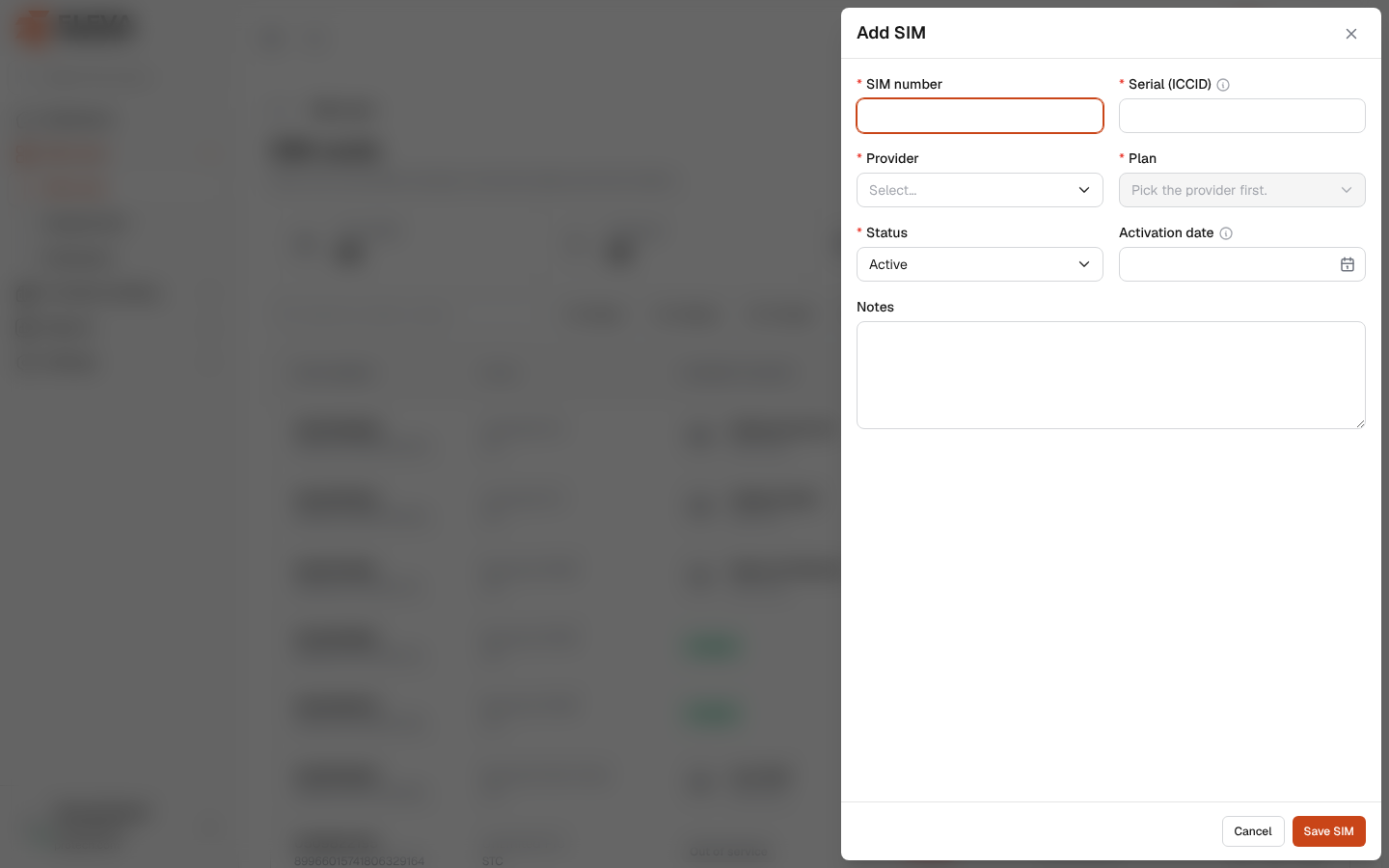
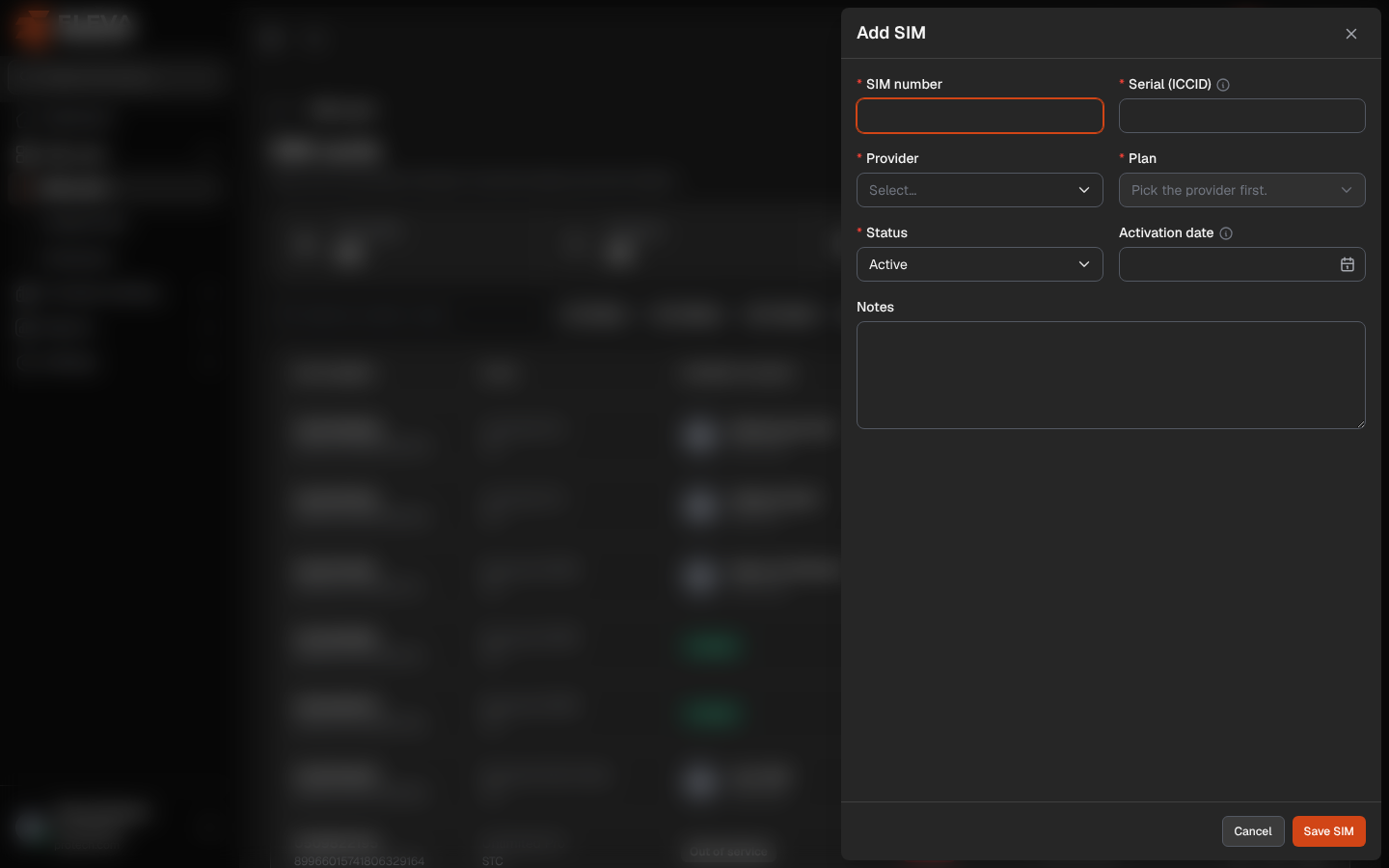
Add a SIM card when a new line arrives from a provider. The form records the line’s number and serial, its provider and plan, and its activation date, from which the plan’s renewals are counted. Many SIMs can also be added at once from an Excel file.
From the side menu, open SIM cards › SIM cards and click Add SIM. To edit a SIM, click Edit on the SIM page or the pencil icon in the list.
Fields
Section titled “Fields”- SIM number (required): digits only, optionally starting with +; up to 20 characters. It must not belong to any other SIM, including deleted ones.
- Serial (ICCID) (required): The ICCID printed on the SIM card (19–20 digits). Letters and digits only, up to 50 characters, and not used by any other SIM, including deleted ones.
- Provider (required).
- Plan (required): the active plans of the chosen provider. It stays disabled with Pick the provider first. until you choose a provider. When you edit a SIM whose plan is no longer offered, that plan still shows, marked (inactive).
- Status (required, only when adding): Active, Suspended, Lost or Cancelled. Active by default.
- Activation date: The day the provider activated the line. Renewal cycles are counted from it.
- Notes
How to add a SIM
Section titled “How to add a SIM”- Click Add SIM.
- Fill in the fields.
- Click Save SIM, or Cancel to close without saving.
The SIM page opens with the message Added.
Common errors
Section titled “Common errors”- Enter digits only, optionally starting with +. under SIM number.
- Use letters and digits only. under Serial (ICCID).
- The SIM number has already been taken. or The Serial (ICCID) has already been taken.
- This plan is no longer offered; pick an active plan.
Required permissions
Section titled “Required permissions”SIM cards › Add to add; SIM cards › Edit to edit.