

Edit a role
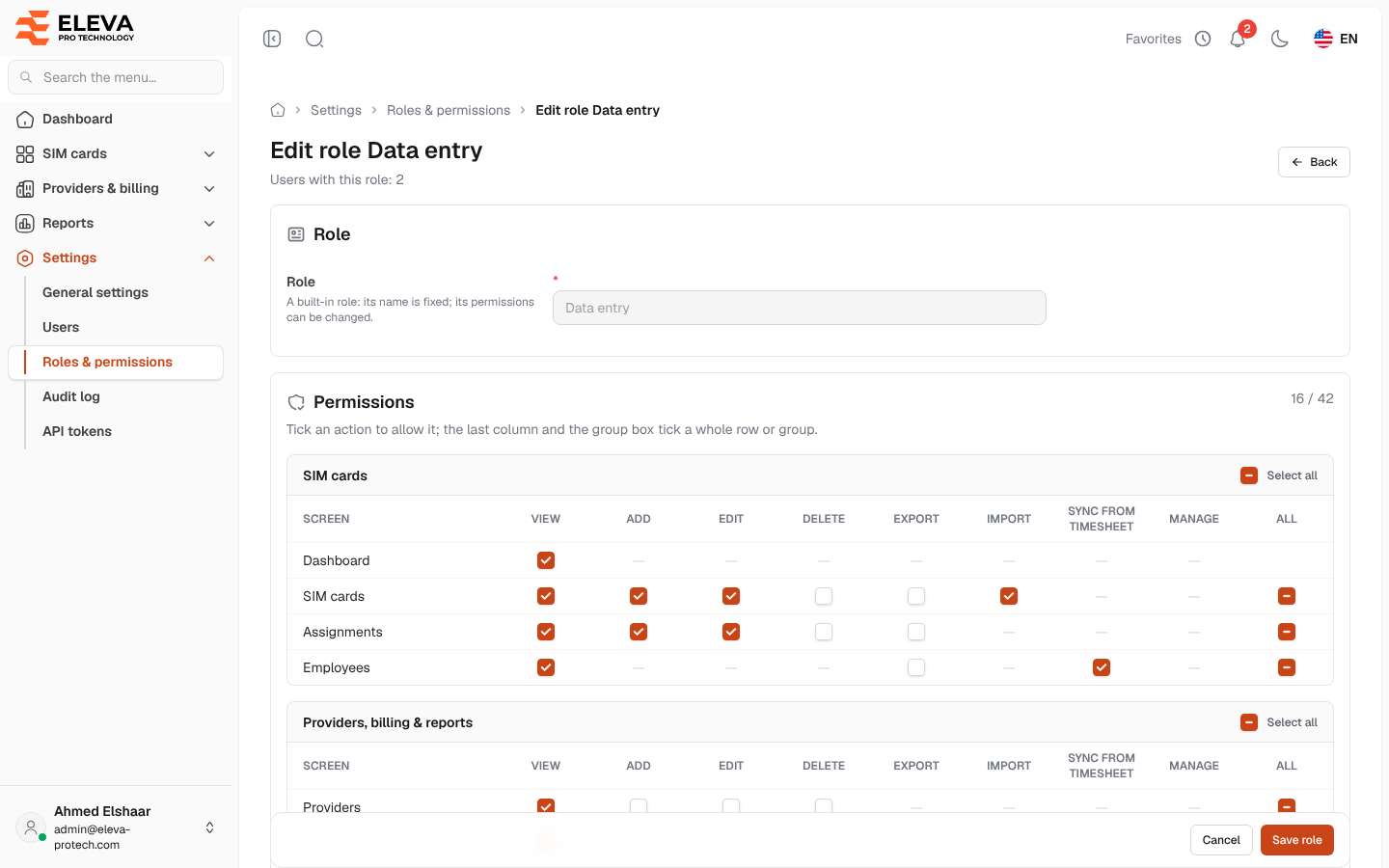
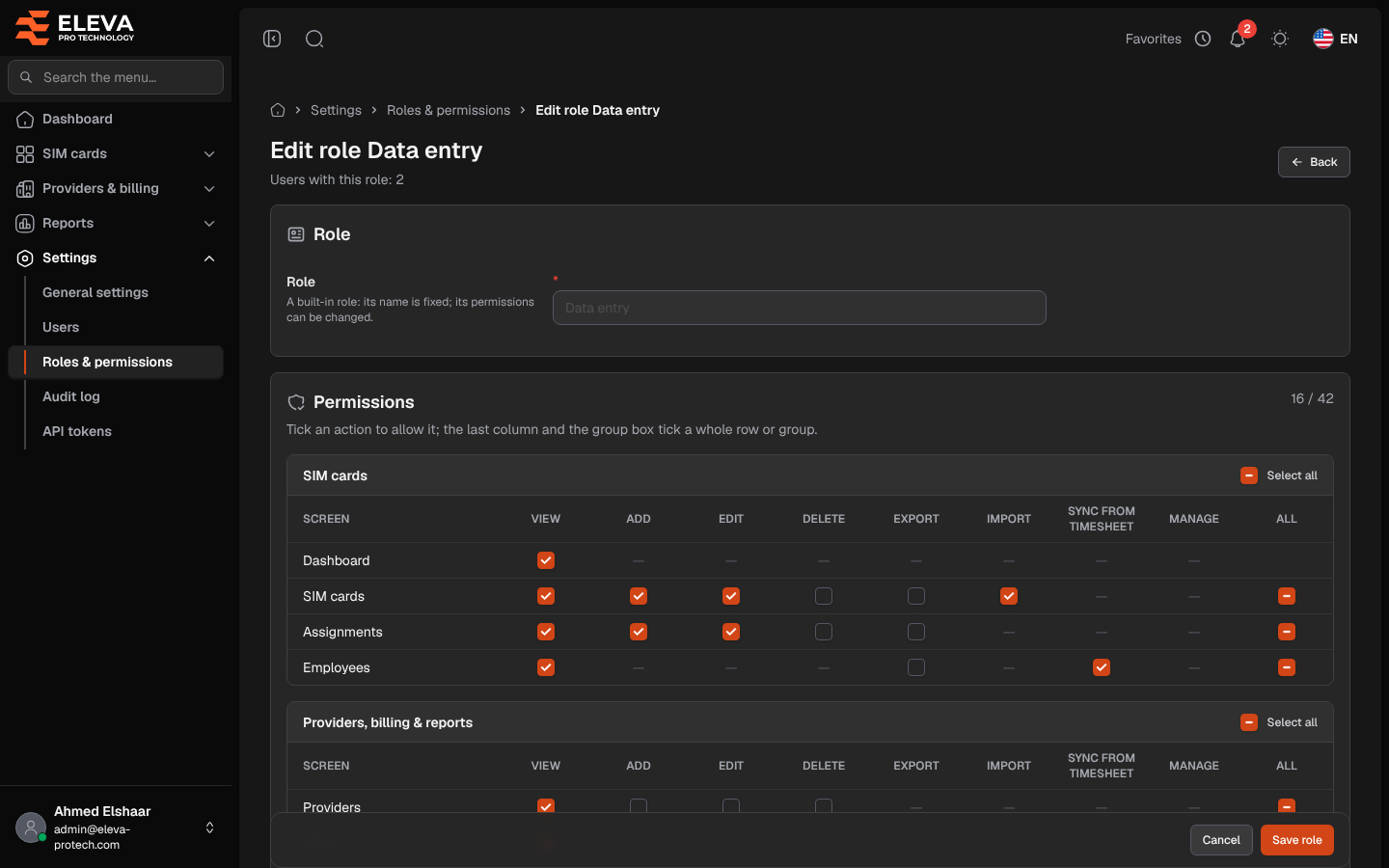
The role form sets the role’s name and its permissions. Permissions are shown as a table: one row for each screen, and a column for each action.
From the side menu, open Settings › Roles & permissions, then click a role. To create a role, click Add role; the form is the same. The form opens after a password confirmation if you have not typed your password in the last 15 minutes (see Confirm your password).
What’s on this screen
Section titled “What’s on this screen”- The title, Edit role …, with Users with this role: N underneath (for an existing role).
- Role: the Role name, a short name such as accountant. A built-in role (Administrator, Data entry, Viewer) shows its name greyed out with A built-in role: its name is fixed; its permissions can be changed.
- Permissions: the permission table, with the number of permissions ticked out of all of them (for example 16 / 42).
- Back, Cancel and Save role.
The permission table
Section titled “The permission table”The screens are grouped like the menu:
- SIM cards: Dashboard, SIM cards, Assignments, Employees.
- Providers, billing & reports: Providers, Plans, Invoices, Reports.
- Administration: Users, Roles, General settings, Audit log, API tokens.
The actions are View, Add, Edit, Delete, Export, Import, Sync from Timesheet and Manage. Each screen only has the actions that apply to it:
| Screen | Actions |
|---|---|
| Dashboard | View |
| SIM cards | View, Add, Edit, Delete, Export, Import |
| Assignments | View, Add (assign or hand over a SIM), Edit (return a SIM, correct dates or the note), Delete (a period recorded by mistake), Export |
| Employees | View, Sync from Timesheet, Export |
| Providers, Plans | View, Add, Edit, Delete |
| Invoices | View, Add, Edit, Delete, Export |
| Reports | View, Export |
| Users, Roles | View, Add, Edit, Delete |
| General settings | View, Edit |
| Audit log | View |
| API tokens | Manage |
Employees have no Add: they come from Timesheet only.
- Tick a box to allow that action on that screen.
- The All box at the end of a row ticks or clears the whole row.
- Select all at the top of a group ticks or clears the whole group.
How to edit a role
Section titled “How to edit a role”- Change the Role name if needed (not possible for a built-in role).
- Tick or clear the permissions.
- Click Save role.
Changes apply at once to every user who holds the role.
- The role name is required, unique and up to 60 characters.
- You can only give permissions you hold yourself (You cannot grant permissions you do not hold yourself.).
- You cannot change a role you hold yourself (You cannot change a role you hold yourself.).
- The super admin role cannot be changed.
Required permissions
Section titled “Required permissions”Roles › Edit to edit; Roles › Add to create a role.