

SIM cards
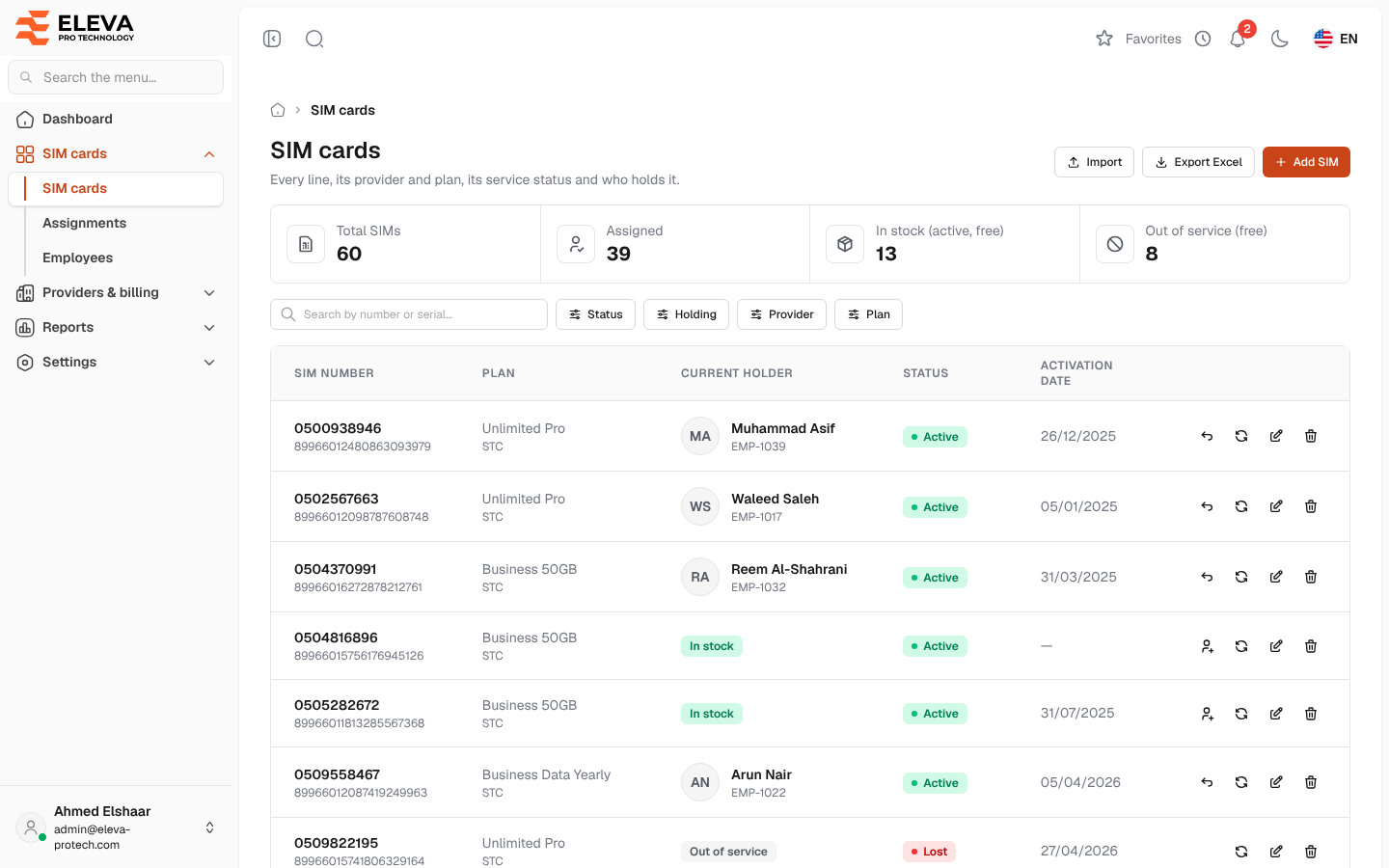
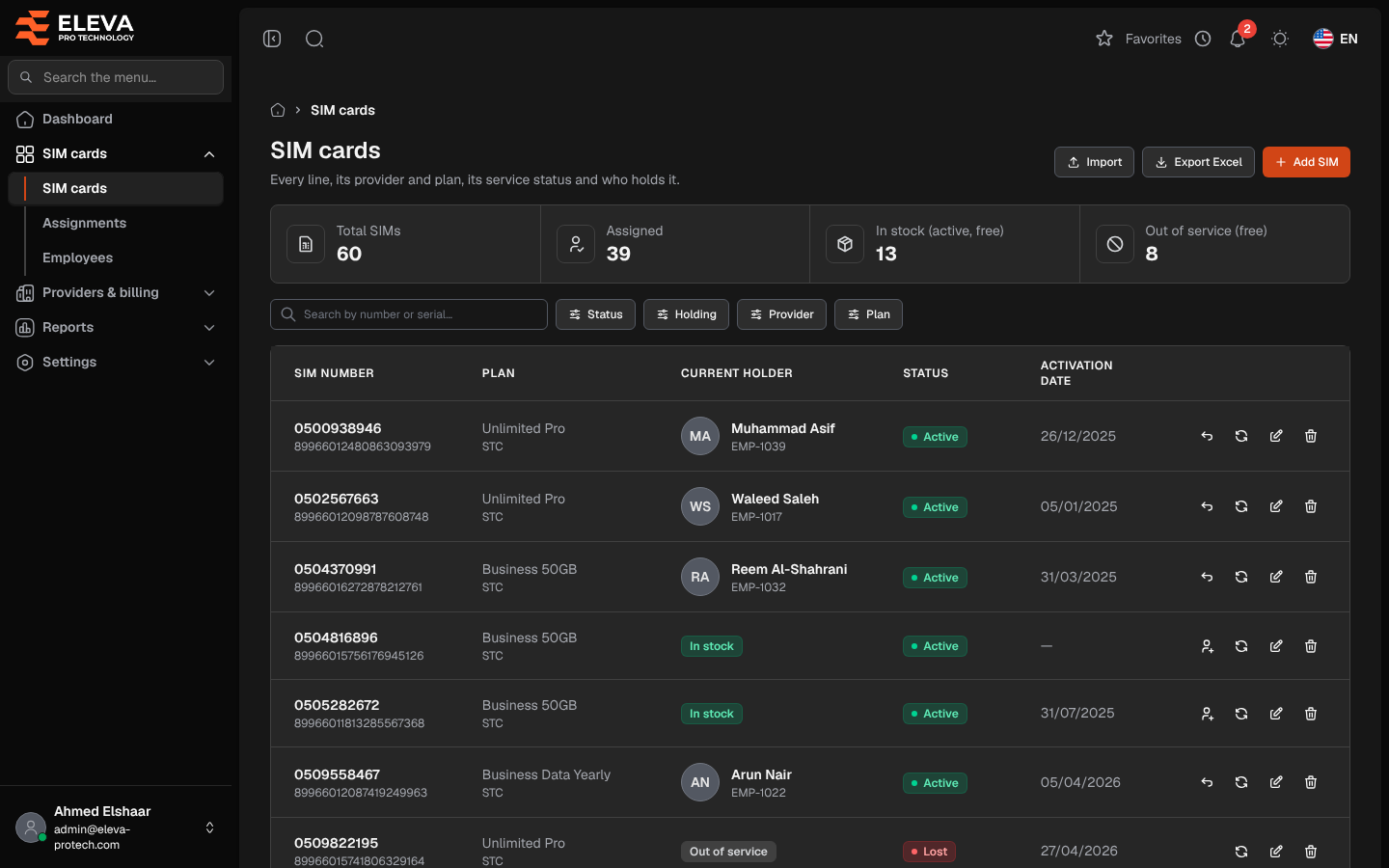
The SIM cards screen lists every line with its provider, plan, service status and who holds it today. Use it to find a SIM, see which SIMs are free, assign or return a SIM, change its status, add or import SIMs, or export the list.
From the side menu, open SIM cards › SIM cards.
What’s on this screen
Section titled “What’s on this screen”- Summary cards: Total SIMs, Assigned, In stock (active, free) and Out of service (free).
- Search by number or serial…
- Filters: Status (Active, Suspended, Lost, Cancelled), Holding (Assigned, In stock or Out of service), Provider and Plan. The plan list follows the providers you chose.
- Import: opens the Excel import. See Import SIM cards.
- Export Excel: downloads the list as shown.
- Add SIM: opens the SIM form. See Add or edit a SIM.
Columns
Section titled “Columns”- SIM number: with the serial (ICCID) underneath.
- Plan: with the provider underneath.
- Current holder: the employee who holds the SIM today, with their employee code, or a tag: In stock or Out of service.
- Status: the service status: Active, Suspended, Lost or Cancelled.
- Activation date
- Actions: Assign (only for a SIM in stock), Return (only for a SIM someone holds), Change status, Edit and Delete.
Click a row to open the SIM. See SIM details.
Holding: assigned, in stock or out of service
Section titled “Holding: assigned, in stock or out of service”Every SIM is, today, exactly one of:
- Assigned: an employee holds it today.
- In stock: its status is Active and nobody holds it. Only these SIMs can be handed to an employee straight away.
- Out of service: its status is Suspended, Lost or Cancelled and nobody holds it. It cannot be assigned until its status is Active again.
The status is the line’s service status at the provider; the holding is worked out from the assignments and is never set by hand.
How to find the SIMs you can hand out
Section titled “How to find the SIMs you can hand out”- Set Holding to In stock.
- Narrow the list with Provider or Plan if needed.
- Click the Assign icon in the SIM’s row. See Assign or hand over a SIM.
How to delete a SIM
Section titled “How to delete a SIM”- Click the bin icon in the SIM’s row.
- Read Delete SIM: This will delete the SIM … Its assignment and invoice history is kept. and confirm with Delete.
Required permissions
Section titled “Required permissions”- SIM cards › View to open the screen.
- SIM cards › Add, Edit and Delete for Add SIM, Edit, Change status and Delete.
- SIM cards › Import for Import, and SIM cards › Export for Export Excel.
- Assignments › Add for Assign, and Assignments › Edit for Return.