

Change a SIM's status
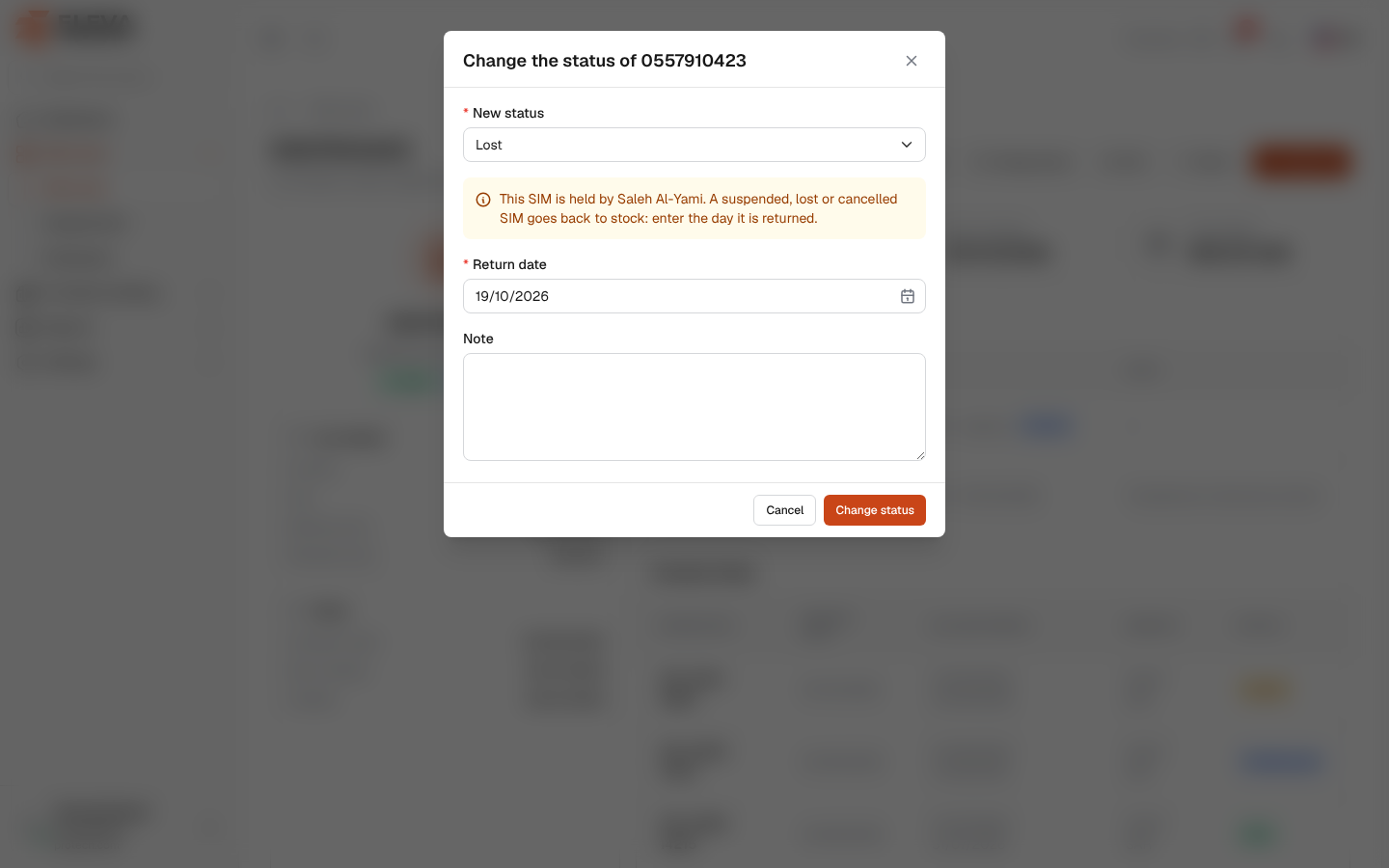
The status is the line’s service status at the provider: Active, Suspended, Lost or Cancelled. Only an active SIM can be held by an employee, so taking a SIM out of service also returns it from its holder, in the same step.
On the SIM page, click Change status. In the SIM cards list, click the Change status icon in the SIM’s row.
Fields
Section titled “Fields”The window is titled Change the status of ….
- New status (required): Active, Suspended, Lost or Cancelled.
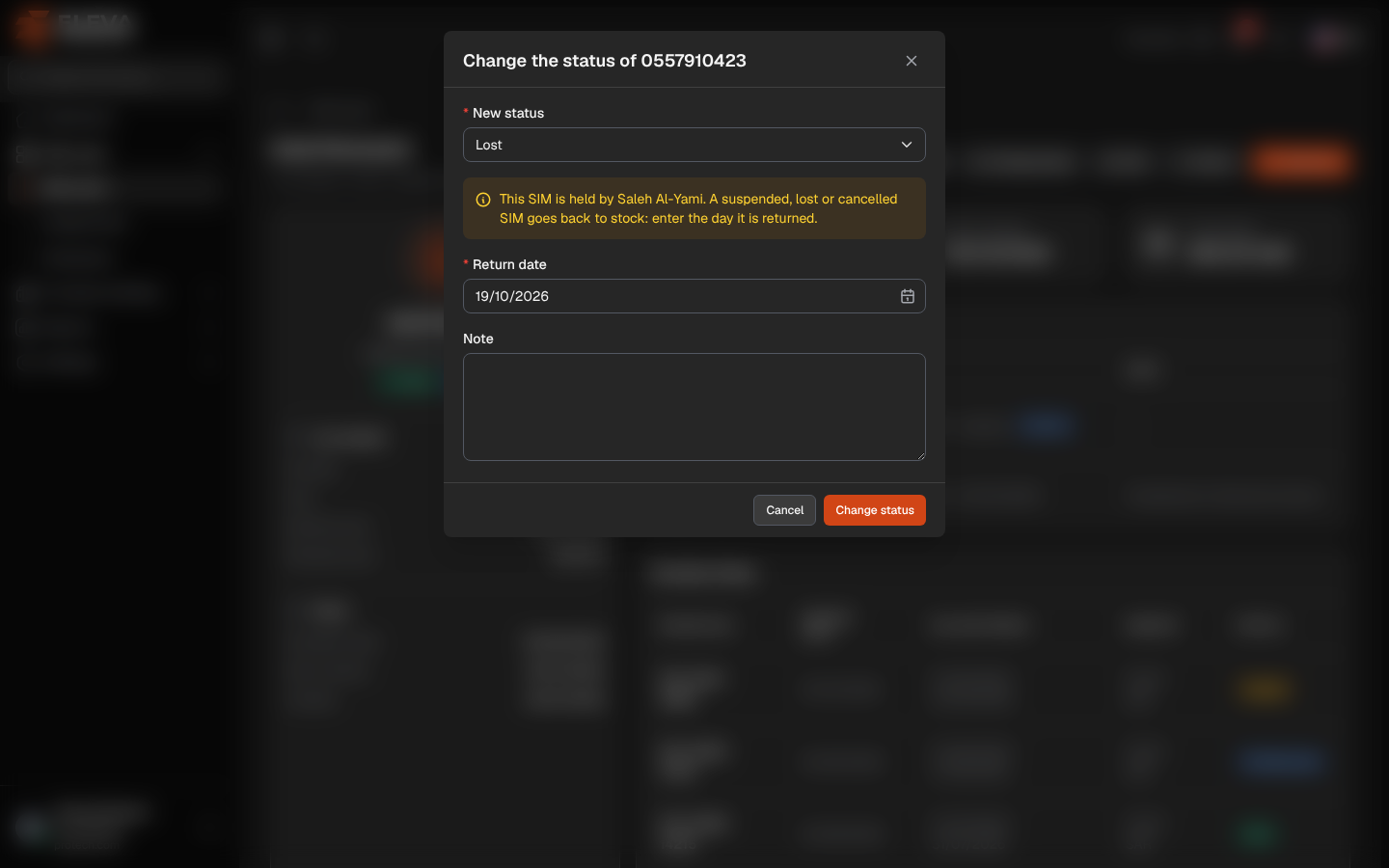
- Return date (required when shown): appears when someone holds the SIM and you choose Suspended, Lost or Cancelled, with the message This SIM is held by …. A suspended, lost or cancelled SIM goes back to stock: enter the day it is returned. Today by default; it cannot be later than today or before the holder got the SIM.
- Note: added to the SIM’s Notes with the date and the new status, and to the returned assignment’s note.
How to change a SIM’s status
Section titled “How to change a SIM’s status”- Click Change status.
- Choose the New status.
- If the SIM is held, check the Return date.
- Add a Note, for example why the line was suspended.
- Click Change status. The message Saved. confirms it.
What happens when a SIM leaves active service
Section titled “What happens when a SIM leaves active service”When you choose Suspended, Lost or Cancelled:
- The holder’s period ends on the Return date. The SIM appears in the employee’s history as returned.
- Upcoming periods booked for the SIM (that have not started yet) are removed.
- From the day after the return, the SIM shows as Out of service, not In stock: it cannot be assigned until its status is Active again.
Setting the status back to Active makes the SIM In stock again. It does not give it back to its former holder; assign it again if needed.
Required permission
Section titled “Required permission”SIM cards › Edit.